
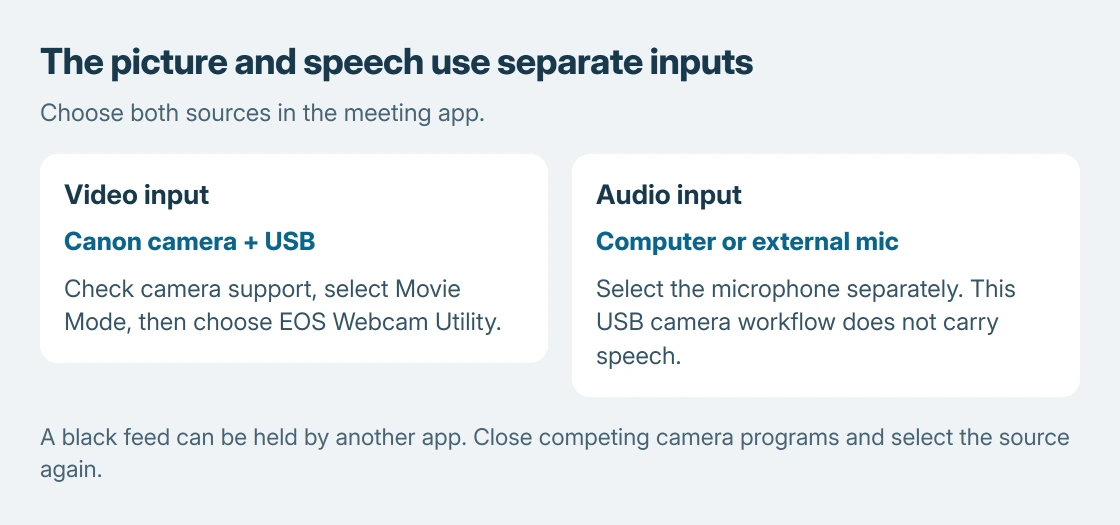
EOS Webcam Utility needs both a supported Canon camera and the correct camera selection in the calling app. Connect the camera by USB, put it in Movie Mode, then choose EOS Webcam Utility as the app's video source.
Select a separate microphone for speech. The USB video workflow in Canon's Windows instructions does not carry camera audio, so a working picture can still leave a meeting silent.
Check the camera and software version together
Start with Canon's current EOS Webcam Utility Pro page. It lists supported cameras, operating systems and regional availability. Download the version for the computer actually being used.
The current page lists Windows 10 and 11 64-bit, Windows 11 Arm64, and macOS Sonoma, Sequoia and Tahoe. An older Windows installer guide is useful for the USB workflow, but its old compatibility list is not the current one.
Status: Canon's current compatibility page and Windows USB instructions reviewed October 25, 2026. Regional and Pro features vary. No camera was attached or meeting recorded.
Canon says a Canon ID is needed for paid features. Follow the current regional download page for feature entitlements rather than assuming that a Pro label makes every listed feature free.
Install the utility, then connect the camera
Extract the downloaded package and run its installer. Complete its instructions and any requested restart before opening the meeting app. Save existing work before restarting.
The following USB sequence is documented by Canon for its Windows utility. Keep the camera powered with a charged battery or the correct model-specific power accessory.
- Connect the camera and computer with the appropriate USB data cable. Check both ends if the utility cannot see the camera.
- Switch the camera on and select Movie Mode using its dial, switch or mode control. Frame the picture before entering the call.
- Open the calling or streaming app's audio/video settings. Select EOS Webcam Utility, or the installed EOS Webcam Utility Pro source, for the camera.
- Choose the computer's microphone or a separately connected microphone as the audio input. Check the app's preview and microphone response before joining.
The meeting-completion check is ours: ask the app to use the intended video source and intended audio input separately. A camera preview establishes only the picture reaching that preview.
A black picture can mean another app owns the source
Canon's status table distinguishes a cable/power problem from an occupied camera. Close EOS Utility, other camera programs and another meeting app if they are using the camera's Live View signal.
For a black utility feed already used in another program, close that program or change its camera selection. Reopen the intended app and select the Canon source again.
If the error instead points to USB, check camera power, its battery or power accessory, and the cable connections. Buying a subscription does not correct a disconnected camera.
Verify speech and a saved clip separately
A silent call needs an input check. Microsoft's microphone setup instructions cover the Windows test; our microphone test walkthrough explains selecting the intended input.
For a recording rather than a live call, record and replay a webcam clip afterward. EOS Webcam Utility supplying a camera does not establish that a recording app saved a finished video.
If the utility still shows its status screen, contact Canon with the camera model, software version, OS and exact symbol or message.
If its preview works but one app rejects it, include that app's name and selected source in the support request.
The Short Version
Check current compatibility, install the appropriate utility, connect USB and select Movie Mode. Pick the Canon video source and a separate microphone in the destination app. Close competing camera programs for an occupied or black feed.

Isaac Smith is the founder and editor of PC Glance, a website that covers computers, laptops, and technology. He is a tech enthusiast and a computer geek who loves to share his insights and help his readers make smart choices when buying tech gadgets or laptops. He is always curious and updated about the latest tech trends.