
A laptop green screen can come from a stalled graphics driver, a changed color setting or a fault in the display hardware. For a Windows desktop that suddenly turns green, try Windows + Ctrl + Shift + B first.
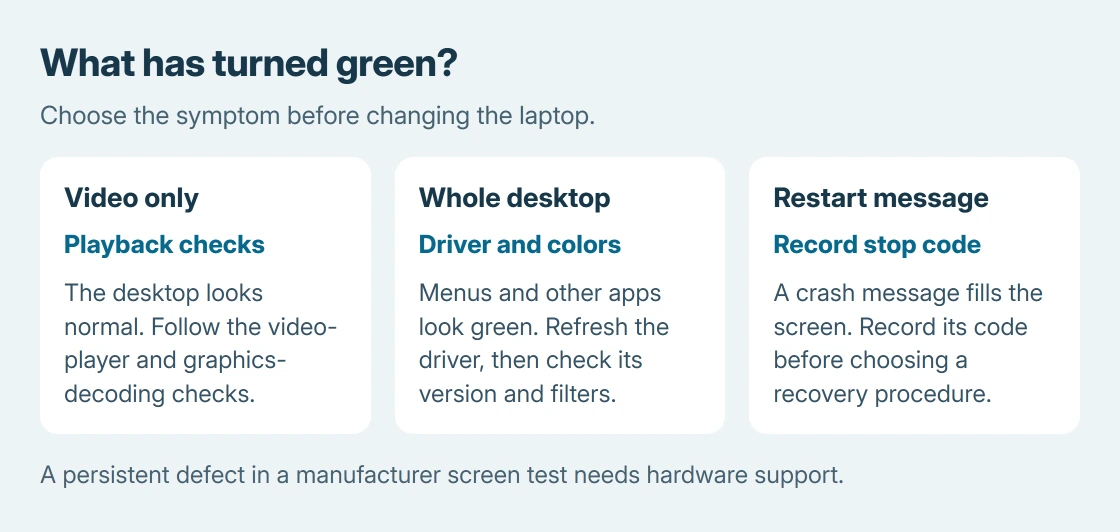
That shortcut refreshes the graphics driver. A green video player or a green crash screen needs a different route, so check what is actually green before changing drivers or arranging a repair.
Check whether the desktop or just the video is green
Minimize the video or game if the laptop still responds. Compare the desktop, Start menu and another application. A normal desktop with green video sends the checks toward video playback rather than the whole panel.
For that result, the YouTube playback guide covers the video-decoding branch. A green stop screen with a restart message needs its stop code recorded instead of color adjustments.
Status: Microsoft, Acer and Dell display guidance checked October 26, 2026. Acer power-reset instructions are model-specific. No laptop fault was reproduced.
Microsoft says the graphics-reset shortcut can produce a beep or brief flicker in its blank-screen instructions. Compare the colors after that response.
If the picture recovers but turns green again, continue with the driver. A temporary recovery does not establish that the screen has been repaired.
Update the laptop's matching graphics driver
Press Windows + X, select Device Manager and expand Display adapters. Record the graphics names, then open the laptop manufacturer's support page for the exact model and Windows version.
Acer's green-screen procedure specifies matching its VGA/Graphics download to the adapter brand. Install that matching package and restart before comparing the desktop again.
Avoid a driver selected only because another laptop has the same brand name. Models can ship with different graphics hardware. When two adapters are listed, use the model's driver instructions to identify the required packages.
If the problem began immediately after a driver update, Microsoft documents returning to the previous version. Open the adapter's Properties > Driver > Roll Back Driver.
An unavailable button means that route cannot be used from this dialog.
Undo an unintended color filter
For a readable desktop whose colors changed together, open Settings > Accessibility > Color filters on Windows 11. On Windows 10, use Settings > Ease of Access > Color filters.
Turn off an unintentionally enabled filter and compare the same window. Microsoft's filter guide explains that this feature changes the screen's color palette.
This check addresses a setting. It cannot repair green lines that remain visible before Windows starts. If no filter was enabled, leave the accessibility settings alone and continue with the hardware checks.
On an Acer, use its documented power reset
Acer also gives a power-reset procedure for this symptom. Save work and shut down. For a frozen, unreadable screen, its guide specifies holding Power for 10-15 seconds, which can discard unsaved work.
Unplug the charger and USB devices after shutdown. If the model has a battery-reset pinhole, identify it from the model guide before using Acer's 4-second press. Without that pinhole, Acer specifies holding Power for 15 seconds unplugged.
Reconnect the charger and start the laptop. Compare the picture before reopening the affected program. These are Acer's instructions; use another manufacturer's procedure for a different laptop.
Compare another screen and the laptop's own test
Connect a compatible monitor or TV, press Windows + P and choose Duplicate. A clean external picture while the internal display stays green directs attention toward the built-in display path, including its cable and panel.
Dell says its laptop LCD test checks screen hardware independently of Windows. From off, connect the charger, hold D, then press Power. Release D when the test colors appear.
Green is one expected color in that sequence. Look for the unwanted tint, lines or patches during the other colors. Report a defect that remains in the test to Dell; a clean test sends further checks toward software and graphics handling.
Other brands have different diagnostics. Follow the model guide rather than assuming D and Power is universal. A normal test also cannot dismiss a fault that appears only occasionally.
When the green picture needs service
Contact the laptop maker if the defect survives its screen test or appears before Windows loads. Supply the model, driver version and external-screen result. Avoid pressing the panel or twisting the lid to make the color change.
If an external screen works, use the broken-screen access instructions to keep the computer usable and copy important files before service.
The Short Version
Identify the green-screen symptom, then check the driver and color filters. Acer's power reset is model-specific. A defect that persists in the manufacturer's screen test needs service assessment.

Isaac Smith is the founder and editor of PC Glance, a website that covers computers, laptops, and technology. He is a tech enthusiast and a computer geek who loves to share his insights and help his readers make smart choices when buying tech gadgets or laptops. He is always curious and updated about the latest tech trends.