
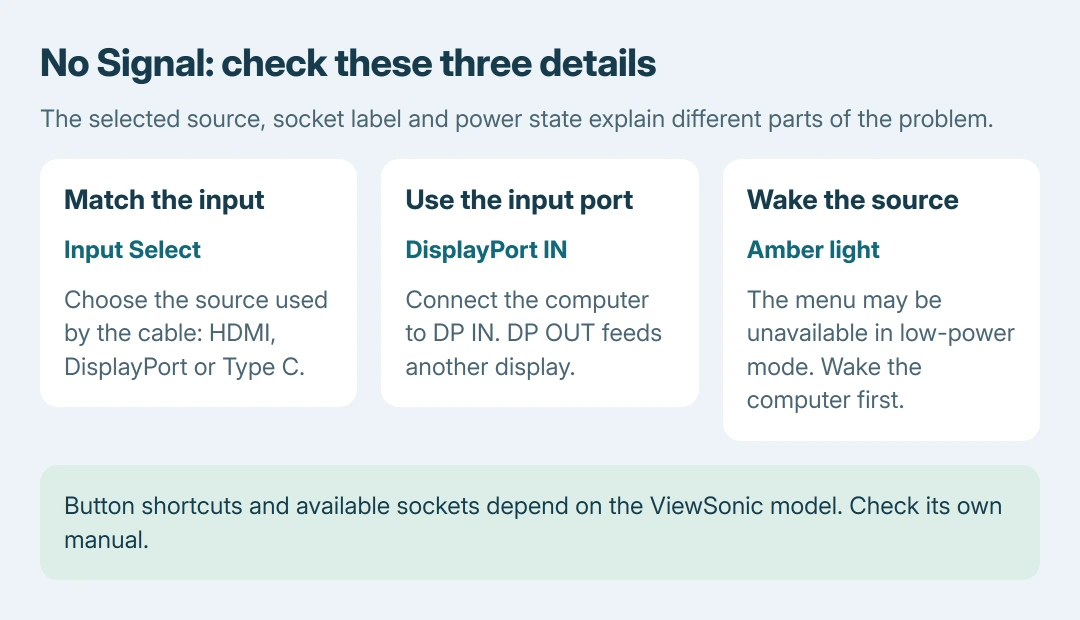
A ViewSonic monitor showing No Signal is powered but has no usable picture from the selected input. Wake the computer, then match Input Select to the connected cable. With DisplayPort, check that the cable enters DP IN, not DP OUT.
Some ViewSonic displays disable their menu in low-power mode. An amber light and an unresponsive menu can therefore belong to the same missing-signal problem.
Wake the source and select its actual input
Press a keyboard key or move the mouse to wake the computer. Check the monitor's power connection if its own message never appears. LED behavior varies by model; a dark indicator alone does not prove a dead panel.
For numbered controls, ViewSonic's no-display instructions identify button 2 as an input shortcut on applicable models.
Status: ViewSonic input controls, low-power behavior and VG2456a_H port labels checked October 26, 2026. No display connection was tested.
With a joystick or unmarked buttons, open the quick menu and choose Input Select. Select HDMI, DisplayPort or Type C to match the physical connection. Follow the model's manual when its controls differ.
ViewSonic says its on-screen menu is unavailable in the low-power state described in that support article. Wake or reconnect an active source before treating the missing menu as a second fault.
Check DisplayPort IN before replacing the cable
A monitor with two DisplayPort sockets can have different jobs for them. The VG2456a_H manual identifies DisplayPort In and DisplayPort Out separately.
The computer connects to the monitor's input. The output passes the picture onward to another display in a supported daisy chain. Connecting the computer to that output does not supply the intended input path.
The VG2456a_H's separate port roles are documented by the vendor in its shared manual. Read the socket label rather than assuming matching connectors have the same job.
For a USB-C connection, confirm that the computer's chosen port and cable carry video. A connector that supplies charging does not establish display support. Use a compatible HDMI or DisplayPort connection if USB-C lacks that capability.
Compare a direct cable with the dock removed
Disconnect and firmly reconnect the video cable at each device. Try a compatible replacement that works elsewhere, then compare a direct computer-to-monitor connection with the dock or adapter removed.
Microsoft documents these cable and accessory checks in its external-display troubleshooting. Try the monitor with another computer if the direct connection still fails.
The comparison order is ours: change the cable, then the source, recording which restores video. A successful cable swap implicates the original connection. Success with another computer directs attention to the first computer's output.
Use Windows controls when another screen works
With the laptop screen or another monitor available, press Windows + P and choose Extend. If Windows still cannot identify the ViewSonic, follow the second-monitor detection checks.
When the display works from startup but loses its signal only after sleep, use the monitor wake-up checks. That timing deserves a different repair than a screen that never receives video.
If the correct input still rejects video from a proven source and cable, give ViewSonic the model and comparison results. If the panel works with another source, contact the computer or dock manufacturer about its output.
The Short Version
Wake the computer, match Input Select to the cable and use DP IN when the monitor also has DP OUT. Compare a direct connection and another source. Use Windows display controls only with a working screen available.

Isaac Smith is the founder and editor of PC Glance, a website that covers computers, laptops, and technology. He is a tech enthusiast and a computer geek who loves to share his insights and help his readers make smart choices when buying tech gadgets or laptops. He is always curious and updated about the latest tech trends.