
Your PC wakes up and the keyboard lights come on, but the monitor stays black or shows No Signal. Unplugging the cable brings it back. Every time.
I would press four keys before touching a cable. If the screen hangs off USB-C, I would then stop Windows cutting power to that port.
A 2017 Super User question about this has 154,350 views. An older Microsoft Q&A thread shows 100+ under Same question.
Why the screen stays dark
When your PC wakes, Windows has to find each monitor again, and sometimes the graphics driver misses one on the way back up. The monitor then sits waiting for a signal that never comes.
USB-C and docks add a second cause. Windows can switch off power to a USB port while the PC sleeps, and the monitor on that port is never picked up again.
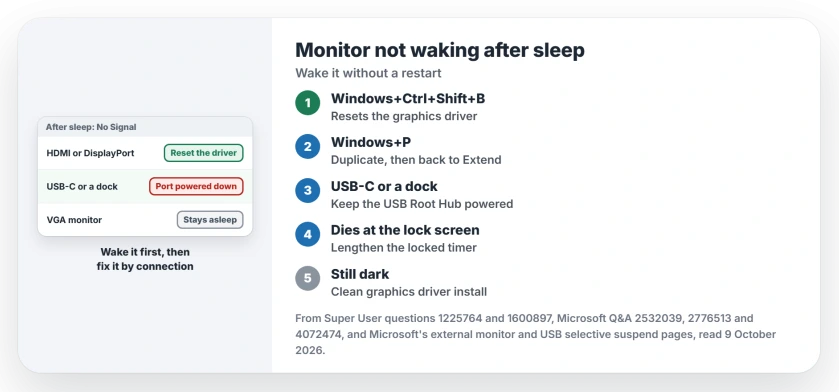
Status: read against owner threads and Microsoft's pages, 9 October 2026, Windows 11 25H2. Owners woke stuck screens with the driver reset keys, a Duplicate flip, or a USB-C port kept powered.
Ours: this laptop's Performance plan has USB selective suspend set to Enabled, on mains and on battery alike. That is the default.
1. Press Windows, Ctrl, Shift and B
This restarts the graphics driver. Microsoft documents it on its external monitor page as a reset that may fix a display problem. If that fails, a full restart is Microsoft's next step.
Your screens blink once. On that 154,350 view question, one owner wrote that "my main screen flickered off and then both screens turned on".
It does not work every time. One reader replied "Great! It works for me" and later added "In fact, it worked only once". Another had to reboot. Try it twice.
2. Flip to Duplicate and back
Press the Windows key and P, pick Duplicate, then go back to Extend, the way two owners on the Super User question woke a dead second screen.
One of them did it from display settings, and called it a faster way through than a reboot: "switch your display to mirror mode". The keep or revert prompt then puts your layout back.
Another owner, with an old Radeon HD 3850, woke the dead screen by switching between copy and extend.
Can you not see anything at all? A long-time Q&A adviser suggests Windows, Ctrl and Enter, which starts Narrator so it can read the Windows and P menu out to you.
The same keys stop it again. If Narrator later starts while you type, its keyboard shortcut can be turned off.
3. USB-C or a dock? Keep the port powered
This is the fix the Super User asker found for a monitor on a USB-C to DisplayPort cable. Their words: "Just don't allow windows to shut down power to the USB ports".
In Device Manager, open the Universal Serial Bus controllers list, then right-click each USB Root Hub in it and choose Properties. On the Power Management tab, clear the tick that allows Windows to power the hub down.
On a Lenovo P52, an owner used the plan setting instead. In Control Panel, open Power Options, Change plan settings, then Change advanced power settings. Set USB selective suspend setting to Disabled.
They wrote: "This worked for me on my Lenovo P52". Your laptop may show the same setting under USB settings in that list.
Microsoft says on its USB selective suspend page that "Selective suspend is enabled by default". It adds a warning: "Microsoft strongly recommends not disabling selective suspend".
On a laptop it saves battery. Switch it off only if it actually fixes your screen, and turn it on again if not.
It is not a cure for every hub. A Huawei laptop owner with an Orico USB-C hub cleared that box on every root hub, and the screens still stayed dead.
4. Dies at the lock screen?
That same Huawei owner found the real cause in the locked screen timer. Windows turns the display off one minute after you lock it. Settings never shows that timer.
They raised it and wrote that it "extends the screen timeout when you lock Windows 10, so the monitor never sleeps". Another reader replied: "This worked perfectly for my asus external monitor".
Our page on the screen turning off after you lock shows how to change that hidden timer with one powercfg command.
5. Still on VGA?
VGA is the odd one out. One owner who looks after many office PCs found that Windows wakes digital monitors but not VGA ones. They removed the VGA link on "countless users computers" to get around it.
Adapters to VGA did not help them either. Another reader saw it with "a VGA cable plugged into a DisplayPort with an adapter". So test your monitor with HDMI, DVI or DisplayPort running straight from the PC.
6. Then the graphics driver
I would leave the driver for last, since the steps before it are quicker.
An owner with an Nvidia 1080 chose a clean install when updating the driver, "and it fixed the issue". Another disabled and enabled the display adapter in Device Manager. The screen flickered once and came back.
Our second monitor guide has the roll back and reinstall steps for your display driver, in order.
The cable and the monitor's own menu
One owner searched high and low, then found the cause in the cable: "once i replaced the cable connecting my second monitor to my laptop, I have not had any issues". Cables wear out.
On ViewSonic displays, the selected input and standby menu behavior also matter when the source never becomes visible.
For LG's standby warning, compare the source response and selected input before replacing hardware.
If your Acer never gets a picture during startup either, check its selected input and source socket before following sleep-specific fixes.
A Samsung Odyssey owner on Microsoft Q&A was told to look for a deep sleep option in the monitor's own menu. Does yours have one? Switching it off is a fair test, though that thread never reported a result.
If your second screen does wake but every window has moved over to the main one, the fixes are different, beginning with a box in Multiple displays.
What did not help
The 2017 asker set the hard disk timer to Never, turned off hybrid sleep and fast startup. The screen still stayed dark after sleep.
A Windows 11 24H2 owner moved their DisplayPort cable to an older monitor and still got no signal. That points at the PC side, not the screen.
Does the shortcut close my apps?
No. It restarts the graphics driver only, so your open windows stay open. One owner did find their laptop screen switched back on and their display orientations reset.
The Short Version
- Press Windows, Ctrl, Shift and B first.
- Then Windows and P: Duplicate, then back to Extend.
- On USB-C or a dock, stop Windows powering down the USB Root Hub.
- If it dies at the lock screen, lengthen the locked timer.
- Drop VGA if you can, then reinstall the graphics driver.
Where to Next
Which one woke your screen, and how is it connected? A note on the cable and the dock in a comment helps the next reader with the same setup.

Isaac Smith is the founder and editor of PC Glance, a website that covers computers, laptops, and technology. He is a tech enthusiast and a computer geek who loves to share his insights and help his readers make smart choices when buying tech gadgets or laptops. He is always curious and updated about the latest tech trends.