A keyboard or mouse can only wake a sleeping Windows 11 PC if it's allowed to wake it and still gets power while the PC sleeps. If only the power button brings the PC back, one of those two has been switched off.
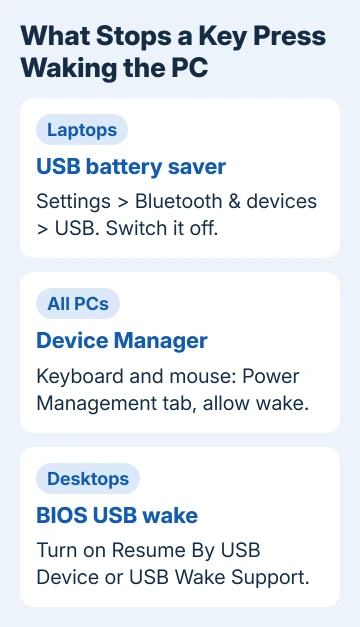
On a laptop, start with USB battery saver, which cuts power to USB devices once the screen goes off. On a desktop, check the wake setting in Device Manager and the USB wake option in the BIOS.
In this guide
Press a key, don't just nudge the mouse
Before you change anything, try waking the PC by pressing a key or clicking a mouse button. Sliding the mouse around may do nothing, and that's by design on many PCs.
Most recent laptops use modern standby, a phone-like sleep where the PC stays lightly connected. Microsoft's design notes for modern standby say a USB keyboard may need several presses, and moving the mouse may not wake the PC at all.
PC makers can also switch keyboard and mouse wake off to save battery, so test once with the charger plugged in before you decide nothing works.
To see which kind of sleep your PC uses, open Terminal and run powercfg /a. If the list starts with Standby (S0 Low Power Idle), it's modern standby; Standby (S3) is the older kind of sleep most desktops use.
1. Switch off USB battery saver (laptops)
Open Settings > Bluetooth & devices > USB and switch off USB battery saver (the line under it reads Stop USB devices when my screen is off to help save battery).
The same switch also sits under System > Power & battery > Energy recommendations, so it may have come on there with other power-saving changes. It only exists on PCs with a battery, which is why desktop owners won't find it.
When the PC goes into standby, this setting turns off any USB device that doesn't power itself down. Some older USB devices don't cope well with that, and a wireless receiver that loses power can't pass on your key press.
It's the top answer in Microsoft's long forum thread on this problem, and one owner who switched it off replied "so far so good." To test it, put the PC to sleep, wait a minute and press a key.
2. Let the keyboard and mouse wake the PC
Press Windows+X and choose Device Manager. Expand Keyboards, right-click your keyboard, choose Properties and open the Power Management tab.
Tick the box that starts Allow this device to wake, click OK, and then do the same for your mouse under Mice and other pointing devices.
With a wireless keyboard and mouse, the receiver can also show up under Human Interface Devices, so check those entries for the same tab.
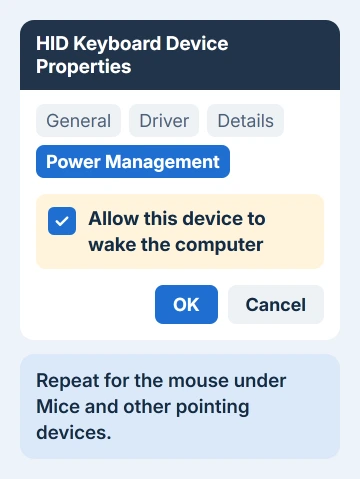
Restart the PC after the change and test sleep again. If wake breaks after a big Windows update or a driver reinstall, check these ticks first.
No Power Management tab at all means that device or its driver can't wake the PC. One owner with a Bluetooth mouse had no tab, tried a registry change to bring it back, and got nowhere.
I'd leave the registry alone and wake the PC with a wired keyboard, or one with a USB receiver, instead.
3. Check what Windows allows to wake the PC
Right-click Start, choose Terminal (Admin), and run powercfg /devicequery wake_armed. The list shows every device that's currently allowed to wake the PC from sleep.
If your keyboard or mouse isn't in it, run powercfg /devicequery wake_programmable to list the devices that can be allowed to wake the PC, then turn yours on by name:
powercfg /deviceenableawake "HID Keyboard Device"Swap in the exact name from the list, keep the quotation marks, and run the wake_armed command again to check it's now listed. Once a wake works, powercfg /lastwake tells you which device did it.
4. Turn on USB wake in the BIOS on a desktop
On a desktop, the motherboard can cut USB power during sleep whatever Windows is set to. Two owners with MSI boards, a PRO Z790-P and a Z490, fixed it with the same BIOS settings under Settings > Advanced > Wake Up Event Setup.
Set Wake Up Event By to BIOS and Resume By USB Device to Enabled, which also turns on USB Standby Power At S4/S5. The Z790-P owner tried the OS choice for Wake Up Event By first, and it didn't work.
Other boards call it something different, usually with USB and wake or resume in the name, under a Power or Advanced menu. Your PC's or motherboard's manual gives the exact name, and on most PCs F2 or Delete opens the BIOS as it starts up.
While you're behind the PC, move the keyboard or its receiver to a port on the back panel. Front ports can run off a second USB controller that may not support everything the rear ports do.
If it still only wakes with the power button
Until it's sorted, wake it with a short press on the power button. Holding the button down forces a shutdown and loses anything you haven't saved.
If the fans start and the lights come back but the display stays dark, the PC is awake and the screen isn't. That's a separate problem, and the monitor wake fixes cover it.
Once wake works, a bump to the desk can start waking the PC on its own. Leave the wake option on for the keyboard but switch it off for the mouse; these steps for a PC that wakes itself up go further.
Still stuck after all four steps? Contact your PC or motherboard maker with the model and BIOS version and ask about waking from USB, because that depends on their firmware and chipset drivers.
The Short Version
Press a key rather than moving the mouse, and test once with the charger plugged in. On a laptop, switch off USB battery saver in Settings > Bluetooth & devices > USB.
In Device Manager, tick the wake option for the keyboard and mouse, then check them with powercfg. On a desktop, turn on USB wake in the BIOS and use a rear USB port.
Checked November 19, 2026.