STOP c0000218 means Windows couldn't load one of its registry hive files at startup. A hive is a file holding part of the registry, Windows' settings database, and the blue screen names the one that failed.
Microsoft's fix for a corrupt hive is a system restore point, run from the recovery screens since Windows can't start on its own. If the chkdsk disk check freezes partway, the drive itself may be failing, so deal with that first.
In this guide
What the blue screen is telling you
The message gives the path of the hive Windows tried to load, such as \SystemRoot\System32\config\SECURITY. It ends with "It is corrupt, absent, or not writeable", and those words cover the three things that can go wrong.
The file is damaged, missing, or sitting on a failing disk Windows can't read or write. For one owner, the trouble began right after a one-click cleanup tool ran, and the PC froze every few minutes from then on.
That owner was on Windows 7, where the recovery menu looks older. Windows 10 and 11 do the same jobs in the Windows Recovery Environment (the blue Choose an option screens), and the steps that follow work on either.
1. Get to the recovery screens
Windows opens its recovery environment by itself after a couple of failed starts. You can force it, too.
Start the PC and, while Windows is still loading, hold the power button until everything goes dark. Do that twice; the third start should show Automatic Repair.
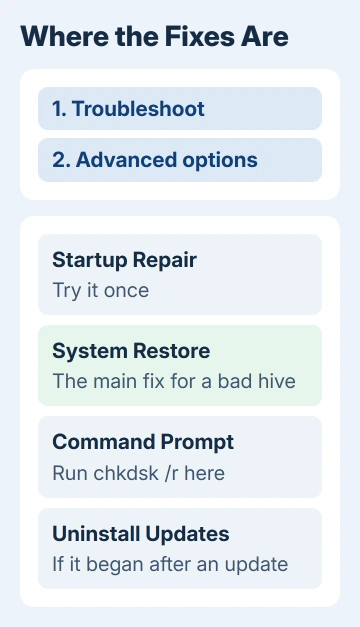
Select Advanced options there to reach the tools. If the drive uses BitLocker encryption, have your recovery key ready, and our page on the BitLocker recovery key screen shows where it's usually stored.
Recovery screens never appear? Make a Windows USB installer on another PC with Microsoft's Media Creation Tool, start the broken PC from it, and choose Repair my PC instead of installing.
2. Run Startup Repair once
In Advanced options, select Startup Repair. It looks for problems that stop Windows from starting and fixes the ones it can, which takes a few minutes.
If it ends by saying it couldn't fix anything, don't keep rerunning it. Move on to System Restore; our page on Automatic Repair failing explains the log it leaves if you want to read why.
Did the blue screens begin the day a Windows update installed? Then Uninstall Updates, in the same Advanced options menu, is a quick extra try before System Restore.
3. Roll the registry back with System Restore
This is the main fix, and the one Microsoft recommends for a corrupt hive: a restore point returns your registry settings to how they stood on the day the point was made.
Go to Troubleshoot > Advanced options > System Restore and pick a point dated before the blue screens began. Check Show more restore points if the one you want isn't listed, then select Next and Finish.
Your personal files stay as they are. Programs and drivers you installed after that date get rolled back with it, so expect to reinstall a few.
On Windows 11, the recovery screens may also offer Point-in-time restore. It rolls back the whole PC, personal files included, to a recent automatic restore point, so anything you saved since then goes too.
No restore points at all? Then System Protection was off, which is common. Our page on whether System Restore is even switched on covers turning it on once Windows works again.
4. Check the disk with chkdsk
If you have no restore point, or restoring fails, check the drive. In Advanced options, open Command Prompt, type dir C:\ and press Enter, and look for the Windows folder in the list.
The recovery screens sometimes give the Windows drive a different letter. If C: shows no Windows folder, try dir D:\ and use whichever letter has it.
Then type chkdsk C: /r, swapping in that letter, and press Enter. The /r switch looks for damaged areas of the disk and recovers what it can read, so it takes a long time on a big drive.
Watch where it stops. One owner's chkdsk froze at 58% with no error. I'd treat a scan that stalls at one spot on every run as a failing drive, not a registry problem.
In that case, stop repairing and get your files off first, either by connecting the drive to another PC or through a repair shop. Every extra repair attempt works a dying drive harder.
5. Skip the old RegBack copy on Windows 10 and 11
An old trick is to copy the backup hives from the RegBack folder over the damaged ones. That worked on Windows 7, but since Windows 10 version 1803, Windows no longer fills that folder.
The files are still there, each 0 KB in size. Copying them over your hives would swap a damaged file for an empty one and make things worse.
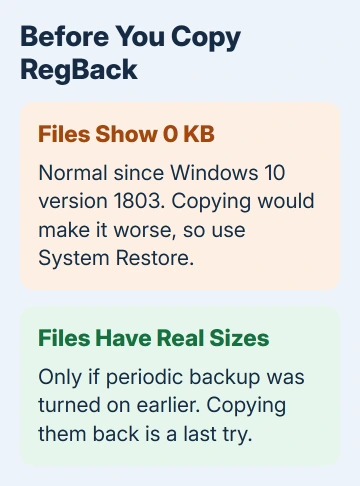
RegBack only helps if EnablePeriodicBackup, a registry setting that brings those backups back, was turned on before the problem began. Then the files in it have real sizes, and copying them back is a reasonable last try before a reset.
6. Reset Windows when nothing else works
With no restore point and a drive that checks out, Reset this PC is the next step. In Troubleshoot, choose Reset this PC and pick Keep my files, which reinstalls Windows but leaves your personal files in place.
Apps you installed yourself are removed, so keep their installers or sign-in details ready. If the reset fails too, a clean install from the USB installer is the last software fix.
When the drive is the problem
A drive that hangs chkdsk, clicks, or no longer shows up in the BIOS setup screen needs replacing. The PC maker's support line or warranty is the first call, and a repair shop can rescue your files while the drive still reads.
The Short Version
STOP c0000218 means a registry hive file couldn't load. From the recovery screens, run Startup Repair, then System Restore. Use chkdsk /r if you have no restore point, skip the empty RegBack copies, and reset Windows only as the last step.
Checked November 19, 2026.