Windows blocks phymem64.sys because the driver is on Microsoft's list of known vulnerable drivers, and Windows Security's memory integrity setting won't let it start. The block is Windows doing its job.
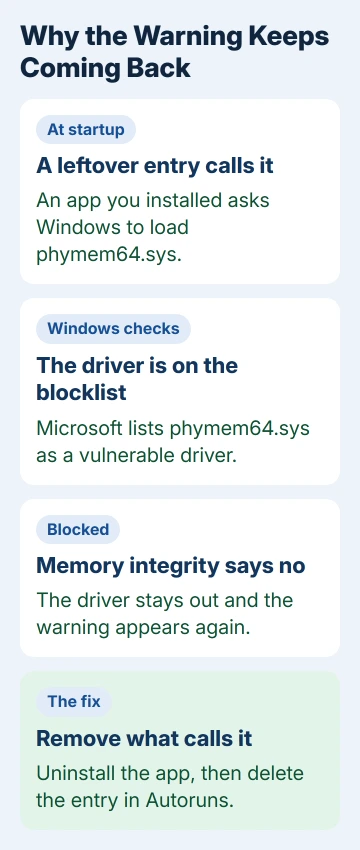
The warning keeps coming back for one reason: something on the PC asks for that driver every time Windows starts. So the fix is to remove whatever calls it.
Uninstall the app that brought phymem64.sys, then delete its leftover startup entry with Microsoft's free Autoruns tool. That ended the warning for the owner who raised it on Microsoft's forum and for another owner after them.
In this guide
Why Windows blocks phymem64.sys
The warning reads A driver can't load on this device, and it names phymem64.sys and the company behind it. Those two details are the only reliable facts Windows can give you about the driver, so note them before you close the message.
Memory integrity, a setting under Core isolation in Windows Security, keeps risky drivers out of the most protected part of Windows. Since the Windows 11 2022 update, Microsoft's vulnerable driver blocklist has been on by default as well.
The blocklist gets updated every quarter and with the monthly Windows updates. That's why the warning can pop up right after an update even though you installed nothing new. The list simply caught a driver that was already there.
1. Find the app that installed phymem64.sys
Note the company name in the warning, then open Settings > Apps > Installed apps on Windows 11, or Settings > Apps > Apps & features on Windows 10. Look for software from that company, or anything installed around when the warning started.
One adviser linked phymem64.sys to Shenzhen Moyea Software, a maker of video download apps, and asked about Moyea All-In-One Downloader. Microsoft's published blocklist agrees: its rules name the driver Shenzhen Moyea Phymem.sys.
If you have a Moyea program you no longer use, start there. Uninstall it, restart and watch for the warning. If it comes back, the app left its driver entry behind. The next two steps clean that up.
Not sure which program it came with? Open C:\Windows\System32\drivers, right-click phymem64.sys, choose Properties and open the Details tab. The company and product names there point to the program.
2. Check whether it's set to start as a service
Right-click Start and choose Terminal (Admin), then run this:
sc query phymem64If Windows replies that the service doesn't exist, nothing is registered under that name, so go straight to Autoruns in step 3. If it prints the service's details, the driver is set up to start, and you can switch that off:
sc config phymem64 start= disabledKeep the space after start=, or the command fails. This stops the startup attempt but leaves the entry in place, so I'd still remove it properly with Autoruns once the warning goes quiet.
3. Delete the leftover entry with Autoruns
Autoruns is a free Microsoft Sysinternals tool that lists everything set to start with Windows, drivers included. Download it from its Microsoft Learn page and unzip the folder somewhere easy to find, like your Desktop.
Right-click Autoruns64.exe, choose Run as administrator and accept the license, then give the scan a minute. Type phymem64 in the Quick Filter box at the top, and the list shrinks to the entries that mention it.
Right-click each entry that names phymem64.sys, choose Delete and confirm, then restart. Leave every other entry alone. Autoruns shows Windows' own startup items too, and deleting the wrong one can stop a program from working.
The owner who raised the warning on the forum called this route "the best and easy way to fix this problem", and an owner with the same warning a few weeks later said it fixed theirs too.
4. Keep memory integrity switched on
Microsoft's page on blocked drivers does offer turning memory integrity off, but only as a way to use a driver you need. It also warns that doing so takes a Secured-core PC out of that protected state.
For a driver you don't use, that's a bad trade: the warning goes, and so does the protection that caught it. I'd leave memory integrity on and remove the driver instead.
If memory integrity is already off and refuses to come back on, that's a separate job; when memory integrity can't turn on starts from the driver list.
5. If the warning still comes back
Some programs register a driver in more than one place. Run Autoruns again with the same filter, and look in C:\Windows\System32\drivers to see whether the file itself is still there after the uninstall.
The answer that recommended Autoruns also named Driver Store Explorer, a free third-party app that removes packages from Windows' own store of drivers. Use it only on the phymem64 package, and only if Autoruns didn't fix it.
If the driver belongs to software you still need, ask its maker for an updated version without the blocked driver. Other blocked drivers work the same way; the ene.sys warning is a common one with its own fix from the PC maker.
When nothing gets rid of it
Contact the software maker first, with the company name from the warning and what Autoruns showed. If the warning names a company you've never heard of, Microsoft Support can help you trace it.
The Short Version
Windows blocks phymem64.sys because it's a known vulnerable driver. Uninstall the Moyea software or other app that installed it, then delete its startup entry in Autoruns and restart. Leave memory integrity on.
Checked November 19, 2026.