Error 0x800F020B means Windows Update tried to install a driver for a device it can't see right now. A printer that's switched off, a phone left unplugged or a scanner you gave away years ago will all do it.
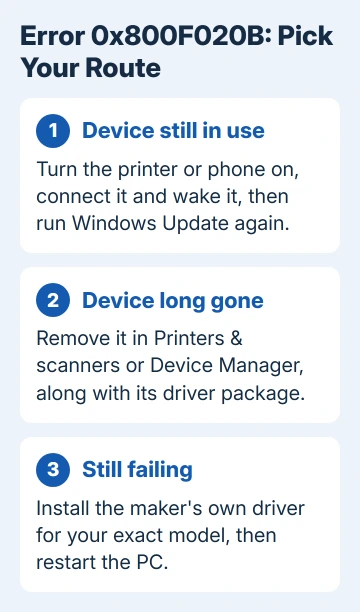
Turn that device on or plug it in, keep it awake, then run the update again. Owners who posted back fixed it exactly that way, and it only takes a minute. If the hardware is gone for good, remove it so Windows stops offering its driver.
In this guide
1. Find out which device the update wants
Open Settings > Windows Update > Update history and expand Driver Updates. The failed entry has the 0x800F020B code beside it and names the maker and the kind of device, such as a Canon or HP printer.
On Windows 10, the same list is under Settings > Update & Security > Windows Update > View update history. Older versions of Windows logged it as "WindowsUpdate_800F020B", which is the same code with the same cause.
That name tells you what Windows is looking for. If it's a printer or phone you still use, go to step 2. If it's hardware you got rid of, skip to step 3.
2. Connect the device and run the update again
Switch the device on and connect it the way it normally talks to this PC. That means the USB cable for a phone or a wired printer, and the same Wi-Fi network for a wireless printer.
Wake it up before you retry. Print a test page or open the device's own app, then go to Settings > Windows Update and select Check for updates. Leave the device connected until the driver finishes installing.
One owner plugged a Samsung phone in over USB and the waiting driver went through straight away. Another switched an HP printer on, ran the update again and the printer driver installed.
For a Wi-Fi printer, connected means switched on and actually on your network, not just listed in Settings. Many printers drop into deep sleep after a few minutes, so print something first and run the update while it's still awake.
If that did it, Update history lists the driver as installed with today's date, and the failed entry stops coming back. If it fails again with the device clearly on, go to step 4.
3. Remove a device you no longer own
Windows keeps a record of hardware you've connected in the past, and Windows Update can keep offering drivers for it long after the device has gone. Remove the leftover entry and Windows has nothing to update.
In Windows 11, open Settings > Bluetooth & devices > Printers & scanners, select the old printer and choose Remove. In Windows 10, go to Settings > Devices > Printers & scanners, select it and choose Remove device.
For a phone or other gadget, right-click Start and choose Device Manager. Pick View > Show hidden devices, right-click the grayed-out entry for that device and select Uninstall device, then confirm with Uninstall.
Printers also leave their driver files behind. Press Windows + R, type printui /s /t2 and press Enter. Print Server Properties opens on its Drivers tab. Select the old printer's driver and choose Remove.
Pick Remove driver and driver package when Windows asks, then restart. Check for updates again: if the failed driver no longer appears, you're done. If it's still offered, go to step 4.
4. Install the maker's driver yourself
If the device is connected and Windows Update's copy of the driver keeps failing, go to the company that made the device. Download the full driver or software package for your exact model from their support site, install it and restart.
Device Manager can also install that download for you: right-click the device, choose Update driver, then browse to the folder you extracted.
Windows Update normally handles drivers well, and you rarely need to update drivers by hand outside cases like this one.
In Windows 11, some driver updates are optional and never install on their own. They sit under Settings > Windows Update > Advanced options > Optional updates, and Microsoft's page on recommended drivers explains the difference.
If the failing driver is listed there, you can simply leave it unticked. A single failed driver doesn't hold back your monthly security updates, which install as separate items.
5. Skip the repairs aimed at other errors
Forum advice for this code often includes sfc /scannow, DISM and a full reset of Windows Update. Those fix damaged system files or a jammed folder of update downloads, and 0x800F020B is neither: Windows simply can't find the device.
I'd keep those commands for the day every update fails, not just one driver. If other updates are failing too, start from the error code list for Windows Update, because that's a different problem.
When the driver still won't install
Get in touch with the device maker's support and give them the exact driver name and version from Update history. The driver comes from them, so they can tell you which one suits your model and the Windows release you run.
If the printer still prints and the phone still syncs, the failed entry is cosmetic. It's fine to leave it while you wait for a newer driver, and Microsoft's Get Help app can open a support case if Windows Update itself misbehaves.
The Short Version
Error 0x800F020B means the device for a driver update isn't connected. Turn it on or plug it in and run Windows Update again.
If you no longer own the device, remove it and its driver package. If the update still fails, install the maker's driver.
Checked November 19, 2026.