KB5132061, the November 10, 2026 security update for Windows 11, fails on some PCs with error 0x800f0993. It's a known issue, and a repair has been going out through Windows Update since November 11.
That makes the first fix simple: stay online, restart and let Windows Update try again. Still failing a day or two later? A DISM repair got it installed for owners on Microsoft's forum.
Error 0x800f0922 is a different case, and one owner cleared it by turning off Windows Sandbox.
In this guide
Which PCs get KB5132061
KB5132061 is the monthly security update for Windows 11 version 26H2, build 26300.9974, and version 25H2, build 26200.9974. Version 24H2 gets it only on Enterprise and Education editions, as build 26100.9974.
To see which one you're running, press Windows key + R, type winver and press Enter. A small window opens showing your Windows version and OS build number. Keep that number handy in case you end up talking to support.
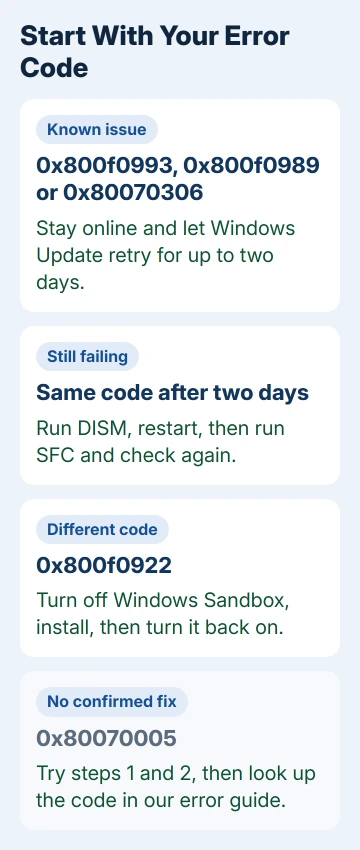
Your error code tells you where to begin. If the install keeps retrying, or you see one of the three codes in the known issue, start with step 1. 0x800f0922 isn't one of them; if you use Windows Sandbox, go to step 3.
1. Let the automatic repair reach your PC
Microsoft lists this failure as a known issue on the KB5132061 page: affected PCs "might repeatedly attempt to install the update or display error code 0x80070306, 0x800f0989, or 0x800f0993."
The repair runs by itself on PCs that are online and get their updates through Windows Update in Settings. It started on November 11, 2026, and an affected PC should get it within 24 to 48 hours of hitting the error.
Once it lands, the update downloads and installs on its own. To help it along, keep the PC on and connected, open Settings > Windows Update, select Check for updates and restart when it asks.
If you paused updates, resume them so Windows Update can run. On a work PC where an IT team handles updates, the automatic repair may not reach it, so pass the error code to them.
2. Repair Windows with DISM, then SFC
Still stuck after two days? Run DISM. It checks the component store, the collection of Windows files every update builds on, and swaps damaged files for good copies from Windows Update.
One owner's update had failed through both Windows Update and the standalone installer, and after DISM it installed. At least one more owner in the same thread said that advice worked for them too.
Right-click Start, pick Terminal (Admin) and run this. It can take a while, so wait for the result before you close the window:
DISM.exe /Online /Cleanup-Image /RestoreHealthRestart, run sfc /scannow in the same kind of window, and check for updates again. The owner it worked for restarted between DISM and SFC, so the restart may have helped too.
The System File Checker guide explains both commands. If SFC reports damage it couldn't repair, our page on corrupt files that SFC can't fix picks up from there.
3. Seeing 0x800f0922? Turn off Windows Sandbox for the install
Windows Sandbox is an optional feature that runs a throwaway copy of Windows in a window. One owner who hit 0x800f0922 on KB5132061 found DISM and SFC did nothing, but turning off Sandbox let the update install.
Type Windows features in the Start menu search and pick the match that turns features on or off. A list called Windows Features opens; clear the box next to Windows Sandbox, select OK and restart when Windows asks.
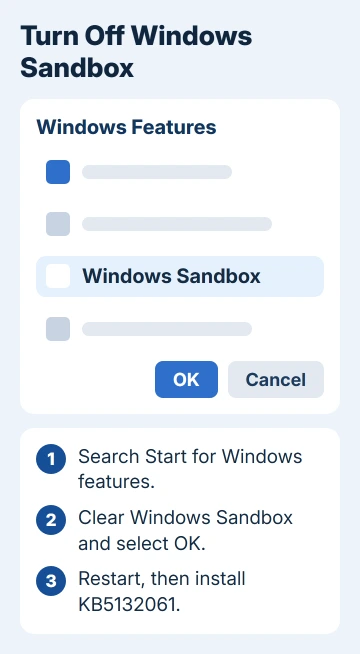
Install the update, then turn Sandbox back on the same way if you use it. If Sandbox was never turned on, skip this step; the owner DISM worked for had it off from the start.
4. Free space on drive C: if it's nearly full
Space only matters when C: is close to full. One owner freed up to 80 GB on their SSD and the update installed on the next attempt, while another cleared about 3 GB and it still failed.
Open Settings > System > Storage to see how much room is left. If the bar is nearly full, use Cleanup recommendations to clear old downloads and temporary files, then try the update again.
5. Install KB5132061 by hand from the Update Catalog
The standalone packages are in the Microsoft Update Catalog. Search for KB5132061, download every file listed for your PC (x64 for most PCs, Arm64 for Snapdragon laptops) and put them in one empty folder, such as C:\Packages.
Double-click the files in the order the KB page gives, starting with the checkpoint update, an earlier update this one builds on. Or let DISM sort out the order: in Terminal (Admin), point it at the KB5132061 file in that folder.
DISM /Online /Add-Package /PackagePath:C:\Packages\windows11.0-KB5132061-x64_aedc878e9e078df2ec7e2cfb98dd5b21831cdbcc.msuOn version 26H2, an update from September 22, 2026 or later has to be installed before the package will take. Don't expect it to beat a damaged component store, though: the owner DISM worked for had seen the standalone installer fail too.
6. Reinstall Windows 11 in place, keeping your files
When every route fails, Windows 11 22H2 or newer can reinstall the current version through Windows Update without touching your files, apps or settings. It's the gentlest reinstall Windows offers.
Go to Settings > System > Recovery and pick the option that reinstalls Windows using Windows Update. Back up first anyway, and give it time: it's a full reinstall of Windows, even though your files stay put.
When it still won't install
Open the Get Help app or contact Microsoft Support, and give them the error code, the OS build from winver and the steps you've already tried. That saves you from repeating the basics on the call.
One owner saw 0x80070005 rather than the known codes, and the thread never turned up a fix for it. For that code and others, our Windows Update error guide has a section per code.
The Short Version
Leave the PC online and let Windows Update retry; the automatic repair covers 0x800f0993, 0x800f0989 and 0x80070306. Still failing after two days? Run DISM, then SFC. For 0x800f0922, turn off Windows Sandbox and install again.
Checked November 19, 2026.