Memory integrity can't turn on when a driver is incompatible or hardware virtualization is disabled. Read the Core isolation message. Update any named driver. For a missing or unavailable switch, check hardware and admin settings.
This feature checks code that works closely with Windows before letting it run. Turning off the warning isn't the same as getting the protection working. Start with the driver list rather than forcing the switch through the registry.
In this guide
1. Open Core isolation and read the blocking message
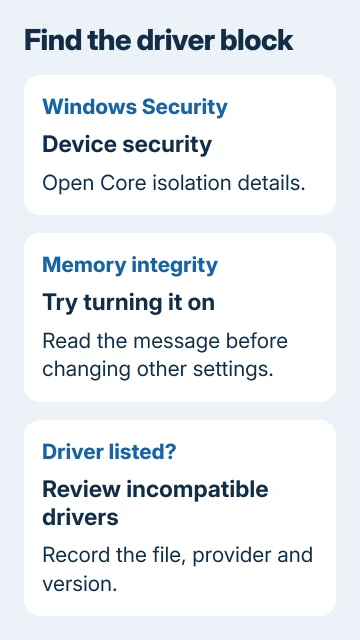
Search Start for Windows Security, then select Device security > Core isolation details. Find Memory integrity and try turning it on. Note the exact message if Windows won't turn it on.
If Review incompatible drivers appears, open it. Note the driver filename, provider and any version or published name shown. A filename ending in .sys is driver software, not a file you should delete by hand.
Microsoft's Device security guidance explains that installed drivers can block this feature. Drivers connect Windows to hardware, and older software utilities can install them too.
If the switch turns on and asks for a restart, save your work and restart. Reopen the same page afterward to check that it remains on. The switch needs to stay on after restarting, even if Windows accepted the change earlier.
2. Update the named driver through trusted channels
Open Settings > Windows Update > Check for updates. Install available updates, then check Advanced options > Optional updates > Driver updates for a matching driver. Restart if requested before checking Core isolation again.
If Windows Update offers nothing suitable, use the device maker's supported update app or download the driver package for your exact model. For a laptop, the PC maker's model-specific drivers are a sensible starting point.
Match the driver to its hardware or software. An old webcam needs a webcam update; a tuning utility's driver may need the utility updated. Repeated graphics-driver updates won't repair an unrelated printer driver.
The driver-blocking explanation recommends checking Windows Update or the manufacturer for a compatible version. Its option to turn protection off helps load a blocked driver, but it doesn't meet the goal of enabling memory integrity.
After installing the update, restart and return to the incompatible-driver list. If the same item remains, note the version now listed. That tells the manufacturer which package Windows is still rejecting.
3. Remove obsolete software or a device you don't use
Uninstall an unneeded old app if it's responsible for the listed driver. Use Settings > Apps > Installed apps, called Apps & features on some older Windows 11 builds. Restart afterward.
Unplugging hardware can leave its driver package installed. For an unwanted device, open Device Manager from Start's right-click menu. Select View > Show hidden devices to look for its old entry.
Confirm the unwanted device's entry before selecting Uninstall device. Remove its driver only if the option appears and you're sure no other hardware needs it. Restart, then recheck Core isolation.
Don't delete a .sys file from the Windows folder or remove driver packages by guessing from their names. A storage, network or input driver can be essential. Ask the provider to identify it if the filename doesn't make its purpose clear.
I'd keep a needed device working while asking for a compatible driver. If its maker has no replacement, the real choice is to replace or stop using that device, or accept that this protection can't run with its current driver.
4. Check virtualization when no driver explains it
Press Ctrl+Shift+Esc to open Task Manager, then select Performance > CPU. Look for Virtualization in the details. Disabled points toward a firmware setting, provided the processor supports it.
Hardware virtualization is a processor feature that lets Windows set up a protected area for these checks. Installing a virtual-machine app is a separate task. Windows 11 Home can use this protection without Hyper-V's full management tools.
Use Settings > System > Recovery > Advanced startup > Restart now to reach startup options. Select Troubleshoot > Advanced options > UEFI Firmware Settings > Restart when that option is available.
Follow your PC or motherboard maker's instructions in firmware. The setting may be named Intel Virtualization Technology, VT-x, AMD-V or SVM Mode. Save the change, start Windows and check Task Manager again.
Locate the BitLocker recovery key before changing firmware. Leave firmware changes on organization-managed computers to IT. Firmware menus differ, so the exact model's instructions matter more than a universal sequence of clicks.
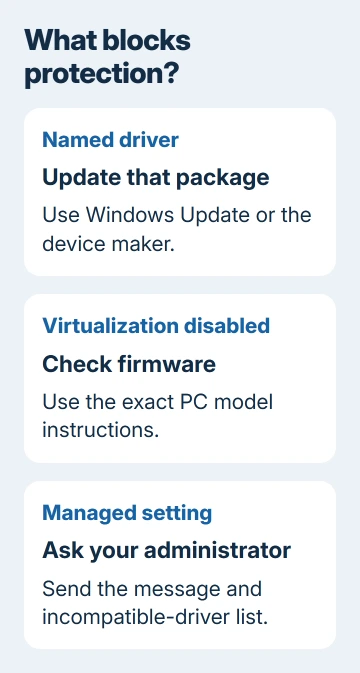
The Secure Boot guide explains that separate firmware control. Enabling Secure Boot or changing TPM settings doesn't, by itself, remove an incompatible driver from the memory-integrity list.
5. Check policy, restart and confirm the result
If Windows says an administrator manages the setting, ask that administrator to review its policy. When your work PC shows a gray switch, let IT check its security settings. Send IT the message and the driver list.
On your own PC, finish pending Windows updates and restart after repairing the driver or virtualization setting. Return to Windows Security > Device security > Core isolation details. Enable Memory integrity and restart if asked.
Confirm that the switch stays on after Windows starts. Also check that the device associated with the updated driver still works. If enabling protection causes instability, use Microsoft's memory-integrity troubleshooting instructions.
Avoid following a virtual-machine workaround that disables this feature. The VT-x availability guide addresses a different goal, where virtualization software competes with Windows' hypervisor.
If memory integrity still won't turn on, ask the PC maker about hardware virtualization and ask the driver provider about HVCI support. HVCI is another name for memory integrity. Send the winver build, driver version and error message.
The Short Version
A named driver needs a compatible update; disabled virtualization needs a firmware check. Respect managed policies and confirm the switch stays on after restarting. A registry change doesn't repair driver compatibility.
Checked November 13, 2026.