
Your virtual machine stops with "VT-x is not available (VERR_VMX_NO_VMX)" in VirtualBox, or VMware warns that "Virtualized Intel VT-x/EPT is not supported on this platform". Yet your BIOS and Task Manager both say virtualization is enabled.
I would look for what inside Windows already holds VT-x. Only one program can use it at a time, and on Windows 11 that program is often Windows itself.
The Super User question started after a Docker install in December 2016 and has 461,750 views. Its Windows 11 twin on Microsoft Q&A, asked in 2022, lists 100+ under Same question.
Only one hypervisor gets the hardware
Microsoft documents the cause on its page about virtualization apps and Hyper-V: "only one software component at a time can use this hardware". It calls this "by design".
Hyper-V has company here. Microsoft's core isolation page says "Memory integrity works by creating an isolated environment using hardware virtualization". Windows Sandbox, WSL 2 and Docker Desktop lean on that layer too.
Ours: this laptop shows the whole picture. Its Ryzen 7 reports VirtualizationFirmwareEnabled as True.
Yet the VM Monitor Mode and Second Level Address Translation flags read False. Windows' hypervisor is running and hides them from everything else.
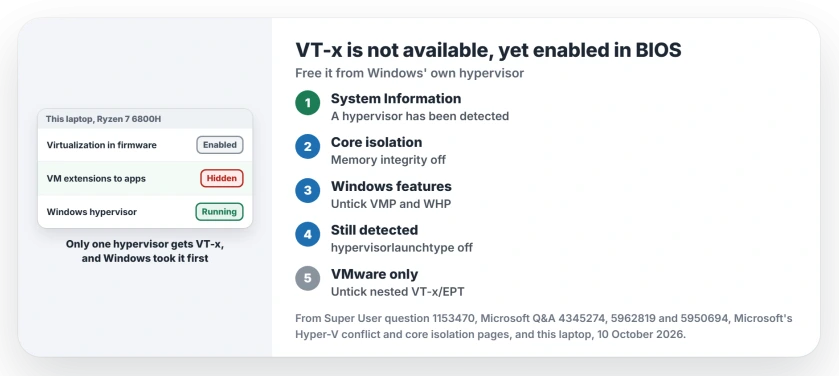
Status: Microsoft's Hyper-V conflict and core isolation pages, this laptop's hypervisor readings and owner fixes, reviewed 10 October 2026. Memory integrity off freed VT-x for owners.
Check whether Windows' hypervisor is running
Type msinfo32 into Start and open System Information. Microsoft says to look for this line: "A hypervisor has been detected. Features required for Hyper-V will not be displayed".
If you see it, something started Windows' hypervisor, and VirtualBox or VMware cannot get VT-x. Ours: systeminfo on this laptop prints the same line, with Virtualization-based security marked Running.
That second line matters because it holds the hypervisor on its own. Microsoft external staff told a 2026 Q&A asker that a Running status "means the Microsoft hypervisor is still active even though Hyper-V may already be disabled".
1. Turn off memory integrity
Open Windows Security, then Device security, then Core isolation details. Switch Memory integrity off and restart your PC.
An owner on Q&A had disabled Hyper-V and Windows Hypervisor Platform too, then turned off Memory Integrity and rebooted. In their words: "After that Intel VT-x and other feature were detected". 10+ people marked that helpful.
I would weigh this one before doing it. Microsoft says memory integrity makes it hard for malicious programs to use low-level drivers to hijack your PC, so switch it back on when you stop using the VM.
2. Untick the features that start it
Press Windows and R, type optionalfeatures and press Enter. Untick Virtual Machine Platform and Windows Hypervisor Platform, plus Windows Sandbox and Hyper-V on Pro. Restart when Windows asks.
Windows 11 Home has no Hyper-V entry at all, so Microsoft's command for it has nothing to switch off. A 2026 Q&A owner running it got "Feature name Microsoft-Hyper-V-Hypervisor is unknown". The other two still apply.
Sandbox can leave the switch stuck. A Super User owner removed it, then turned virtualization off and back on in the BIOS. A commenter who doubted it wrote "that literally fixed it".
Losing Virtual Machine Platform also stops WSL 2, which is the opposite fault in our WSL error 0x80370114 guide, so decide which one you need more on this PC.
3. Switch the hypervisor off at boot
Still seeing that line in System Information? Right-click Start, open Terminal (Admin), run this line and restart:
bcdedit /set hypervisorlaunchtype offThree owners in the Super User thread said this line was what finally brought their VMs back. A Q&A owner used the same line for VMware Workstation on Windows 11.
To undo it later, run the same command with auto in place of off, and our vEthernet Default Switch page lists what else that hypervisor builds when it returns.
VMware: you may not need nested VT-x at all
VMware's warning names a box in your virtual machine's settings, and an independent advisor on Q&A pointed to Processors and the option "Virtualize Intel VT-x/EPT or AMD-V/RVI".
They added that "This option is only required when running another virtual machine or hypervisor inside the VM". For an ordinary guest system, untick it and power the machine on again.
Keeping memory integrity on
You can leave Windows' protection running. Microsoft says the third-party apps "might fall back to a slower, emulated mode", so your VMs start but run slower.
A Q&A owner on Windows 11 Pro 25H2 called that state "really sucks a lot very much laggy". I would keep memory integrity on only if your VMs are light, and update VirtualBox or VMware first.
The Short Version
- VT-x serves one hypervisor at a time, and Windows may already own it.
- System Information showing a detected hypervisor confirms it.
- Turn off memory integrity, then untick Virtual Machine Platform, Windows Hypervisor Platform and Sandbox.
- Still detected? bcdedit /set hypervisorlaunchtype off and restart.
- In VMware, untick Virtualize Intel VT-x/EPT unless you nest hypervisors.
Where to Next
Got your VM running again? Leave a comment with what was holding VT-x on your PC, memory integrity, Sandbox or WSL. My bet is memory integrity, so tell me if yours was something else.

Isaac Smith is the founder and editor of PC Glance, a website that covers computers, laptops, and technology. He is a tech enthusiast and a computer geek who loves to share his insights and help his readers make smart choices when buying tech gadgets or laptops. He is always curious and updated about the latest tech trends.