
You delete or disable vEthernet (Default Switch) in Network Connections, restart, and it is back. Sometimes there are two of them now.
Your network card is fine. A Windows feature that runs virtual machines builds that adapter at startup, and it rebuilds it for as long as the feature is on.
I would find which feature owns it before touching the adapter. Then untick it, or leave the adapter alone if you still use what made it.
Asked in January 2018, the Super User question sits at 173,566 views, and a Microsoft Q&A thread with the same complaint counts 80+.
Who builds the Default Switch
Hyper-V makes it. Microsoft's virtual switch page explains the idea.
NAT through such a switch gives a virtual machine "access to your computer's network by combining the host computer's IP address with a port". In short, it shares your connection with your VMs.
Other features wake it as well. Owners found Windows Sandbox and, on Windows 10, Microsoft Defender Application Guard doing the same. Others name WSL and Docker.
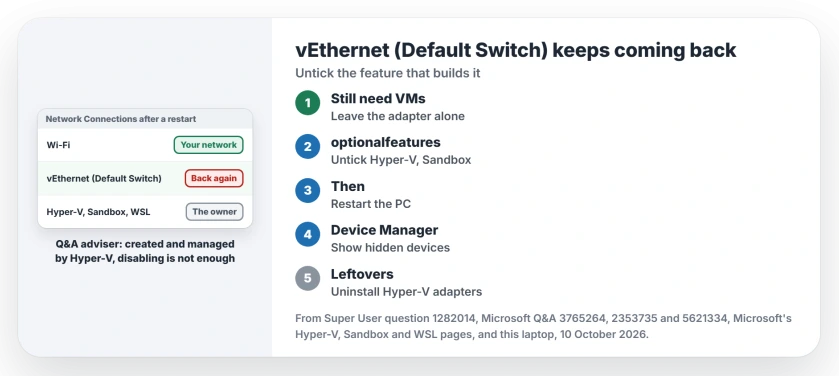
Status: Windows 11 25H2 and the Hyper-V, Sandbox and WSL docs checked 10 October 2026. Owners confirm that unticking the feature, then removing leftover adapters, stops it.
On Microsoft Q&A, an adviser put the rule simply: "The vEthernet (Default Switch) is created and managed by Hyper-V, so disabling it alone does not remove the adapter".
That is why Device Manager seems to win for a day. The copies can pile up too: Dennis on Super User had "160 of these devices" before giving up on removing them one by one.
Do you still use any of it?
I would check one thing before you untick anything: do you run virtual machines, Docker Desktop, Windows Sandbox or a Linux distro in WSL? Then the adapter is doing a job.
One Super User reader who manages VMs in Hyper-V wrote, of the accepted answer, "This answer is not helpful". Keep the feature, and the adapter, if you need them.
On Windows 11 Home, Hyper-V and Sandbox are not even options. Microsoft says "The Hyper-V role can't be installed on Windows 10 Home or Windows 11 Home", and "Windows Sandbox is currently not supported on Windows Home edition".
1. Untick every feature that builds it
Press Windows key and R, type optionalfeatures and press Enter. That opens the Windows Features window.
Untick Hyper-V, Windows Sandbox and Containers if you see them, then restart your PC rather than shutting it down.
The asker solved it this way and accepted their own answer: "I just found out that I could easily remove all the vEthernet switches by simply going to" that same list.
Your culprit may be a different box. One owner wrote "For me unchecking Containers had no effect", and only Hyper-V cleared theirs.
Another had Hyper-V off and still got the adapter, until they spotted Windows Sandbox: "After unchecking that and rebooting, my VEthernet adapter was gone".
On the 80+ Q&A thread it was Application Guard, and its asker wrote: "I unchecked the Microsoft Defender Application Guard and everything is now OK".
Microsoft's own page on Hyper-V and the features that depend on it gives you the Control Panel route for the Hyper-V hypervisor, plus a PowerShell and a DISM command.
2. Remove the copies left behind
The feature is off, yet your old adapters can stay, as one reader found: "For me this didn't delete the existing vEthernet's".
Open Device Manager, choose View, then Show hidden devices. Under Network adapters, right-click each Hyper-V Virtual Ethernet Adapter and choose Uninstall device. Restart.
The Q&A asker did exactly this. They uninstalled two Hyper-V adapters and the hidden Hyper-V entries, and after the restart "the vEthernet Adapter was gone".
It did not last on its own. A later restart brought it back for them. Only unticking the feature ended it, so do step 1 first.
Got over a hundred of them? One owner removed "150+ vEthernet devices" with a third-party tool, because Device Manager was too slow one at a time.
3. Keeping Hyper-V? Leave the adapter enabled
Still using your VMs? Then leave the Default Switch where it is, since its job is to share your connection with them.
VirtualBox or VMware on the same PC is where it clashes. A VT-x not available error means one of these same features still holds the processor's virtualization.
Deleted yours by accident? One Q&A owner added a new external network connection in Hyper-V Manager's settings for the VM. Their words: "This restored the vEthernet (Default Switch)".
Removing Hyper-V went badly for one Super User reader, who wrote, "After removed Hyper-V, my laptop crashed and cannot load Windows successfully". I would make a restore point first.
What about WSL?
Microsoft's WSL page says "By default WSL uses a NAT based architecture", which is the same NAT idea on your PC. One Super User answer unticked Windows Subsystem for Linux along with Hyper-V and Sandbox.
Ours: this laptop runs WSL with Virtual Machine Platform on and Hyper-V absent, as Windows 11 Home has it. With no distro running, Get-NetAdapter showed no vEthernet adapter, hidden ones included.
Getting WSL errors after unticking things? The WSL 0x80370114 page shows which feature WSL needs back.
Is the adapter slowing my network?
Not by sitting there idle on your PC. One Q&A asker, though, could only reach their local network with it disabled. They had to do it after every restart.
If your real network still misbehaves once it is gone, Ethernet not working starts from the cable and the link light.
The Short Version
- Hyper-V and features built on it create vEthernet (Default Switch) at startup.
- Disabling or deleting the adapter alone does not stop it coming back.
- Untick Hyper-V, Windows Sandbox and Containers you do not use, then restart.
- Remove leftover Hyper-V adapters in Device Manager with hidden devices shown.
- Using VMs, Docker or WSL? Leave the adapter as it is.
Where to Next
Which feature turned out to own yours, Hyper-V, Sandbox or something else? Leave it in the comments so the next reader can check that box first.

Isaac Smith is the founder and editor of PC Glance, a website that covers computers, laptops, and technology. He is a tech enthusiast and a computer geek who loves to share his insights and help his readers make smart choices when buying tech gadgets or laptops. He is always curious and updated about the latest tech trends.