
You press Windows key and L, walk off for a minute, and come back to a dark screen. Your display is set to stay on for half an hour, maybe never. On the lock screen, that setting does nothing.
I would stop raising the normal screen timeout, because it was never the one in charge. Microsoft says a separate, hidden timer runs while the PC is locked. It is set to 60 seconds out of the box, and Microsoft documents how to change it.
The Super User question about it has 21,275 views. A related one, about a PC that keeps sleeping after a few minutes, has 84,685.
Two timers, and Settings shows one
Microsoft's troubleshooting page for this is blunt about it. "This behavior is by design in Windows".
It goes on: "By default, when the console is locked, Windows waits for 60 seconds of inactivity before powering off the display".
The setting you know, in Power Options or in Settings, "does not affect the timeout used when the PC is locked".
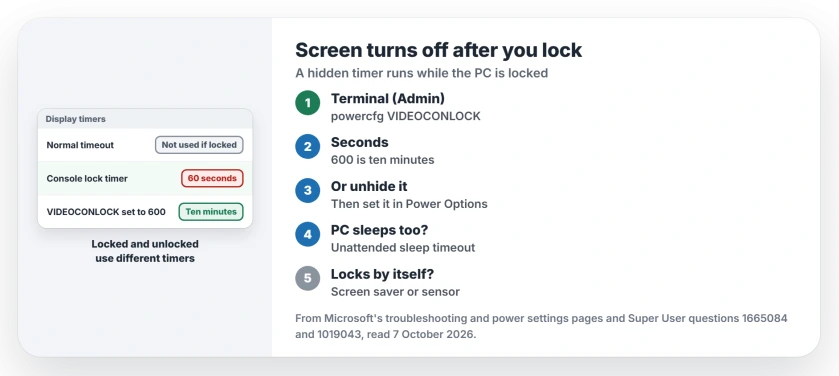
Status: checked 7 October 2026. Windows turns the display off on the lock screen by a hidden timer, 60 seconds by default. Change it with powercfg or unhide it in Power Options.
Ours: we read both timers on our Windows 11 Home test laptop with powercfg /qh, which lists hidden settings too. Plugged in, the normal screen timeout was one hour. The locked timer was 30 seconds, half of Microsoft's default.
1. Set the locked timer with powercfg
Right-click Start and open Terminal (Admin). Run Microsoft's commands, with the number of seconds at the end of each line. 600 is ten minutes.
powercfg.exe /setacvalueindex SCHEME_CURRENT SUB_VIDEO VIDEOCONLOCK 600
powercfg.exe /setdcvalueindex SCHEME_CURRENT SUB_VIDEO VIDEOCONLOCK 600
powercfg.exe /setactive SCHEME_CURRENT
The first line covers the plugged-in state. For battery, Microsoft says to "use the /setdcvalueindex switch instead of the /setacvalueindex switch", which is the second line. The third applies both.
In Microsoft's words, "the VIDEOCONLOCK timeout is used when the PC is at a locked screen". It belongs to your current power plan, so run it again if you switch plans later.
2. Or bring the setting into Power Options
Prefer a box you can see? Microsoft gives one command that shows the hidden setting, for Windows 10 and Windows 11 alike.
powercfg.exe -attributes SUB_VIDEO 8EC4B3A5-6868-48c2-BE75-4F3044BE88A7 -ATTRIB_HIDEThen open Control Panel, Power Options, Change plan settings, and Change advanced power settings. Under Display you now find Console lock display off timeout, measured in minutes there.
The Super User asker found this setting themselves, after changing every other timeout they could find, as you may have.
Another owner tracked it down with their system administrator, and wrote that it "controls when my laptop goes to sleep in lock mode".
A Windows 11 owner added under that answer, "This solution still helped".
Older answers reach the same setting through a registry value called Attributes, changed from 1 to 2. On our laptop it read 1, which keeps it hidden. You can skip the registry.
3. When the whole PC sleeps, not just the screen
There is a second hidden timer. It can put your PC to sleep after about two idle minutes, while your Sleep setting says Never.
Microsoft calls it the unattended sleep timeout. It "Specifies the duration of inactivity before the system automatically enters sleep after waking from sleep in an unattended state".
It is meant for a PC that woke itself up while you were away, for example from "a timed event or a wake on LAN (WoL) event", in Microsoft's words. Owners found it firing anyway.
The top answer to the 84,685 view question pointed at it. One reader replied "This solved my problem".
A Microsoft Q&A owner on a Modern Standby PC set it to 0, "which resolved the issue". Another owner saw the same problem start after an April 2026 security update.
Microsoft lists 0 as "Never idle to sleep", which is the value you want here. Ours read 120 seconds. This line sets it to 0 when plugged in, in the same shape as Microsoft's own commands.
powercfg.exe /setacvalueindex SCHEME_CURRENT SUB_SLEEP 7bc4a2f9-d8fc-4469-b07b-33eb785aaca0 0
powercfg.exe /setactive SCHEME_CURRENT
I would leave your battery value alone. A laptop that wakes itself in a bag should still go back to sleep.
If the PC switches off completely rather than sleeping, check the Hibernate after timer as well.
When it locks itself after a minute
That is a different complaint. Here the PC locks without you pressing anything. A Microsoft Q&A question about it shows Same question at 70+.
One reply there pointed at the screen saver. Set to one minute with On resume, display logon screen ticked, it locks the PC for you. Our screen saver page shows where that tick lives.
On a laptop with a presence sensor, looking away can lock it too. The sensor page covers those switches.
The opposite fault, a screen that stays lit long past its timeout, has other causes. Owners traced it to game controllers, overlays and Steam.
A monitor that never comes back when the PC wakes, even after you press a key, is a third fault. Four keys and a USB power setting woke it for owners.
Does a longer lock timer cost anything?
Only power, because the display stays lit while the PC is locked. That is why the commands come in pairs: give battery a shorter number than the plugged-in one.
The Short Version
- The normal screen timeout does not apply on the lock screen. A hidden timer does, 60 seconds by default.
- Set it with powercfg: VIDEOCONLOCK in seconds, for AC and DC, then setactive.
- Or unhide Console lock display off timeout and set it in Power Options.
- Whole PC sleeping too? The unattended sleep timer; 0 when plugged in stops it.
- Locks by itself after a minute? Check the screen saver and any presence sensor.
Where to Next
Lock the PC now with Windows key and L, and time how long the screen stays on, so you know which number you are changing.
Did the screen still go dark after the change? Tell me your PC's make, and I will dig into what its own power software does.

Isaac Smith is the founder and editor of PC Glance, a website that covers computers, laptops, and technology. He is a tech enthusiast and a computer geek who loves to share his insights and help his readers make smart choices when buying tech gadgets or laptops. He is always curious and updated about the latest tech trends.