

Hiding columns in Excel removes them from view while keeping their contents in the worksheet. Select the column letters, right-click the selection and choose Hide. The neighboring letters then skip the hidden columns.
Use this for a cleaner working view or printout. Hidden information remains in the file, so hiding a salary or account-number column does not make a workbook safe to share.
Select the column letters and choose Hide
Click the letter heading of the column to conceal. For consecutive columns, drag across their letter headings. Select the whole columns rather than a few cells containing the values.
Microsoft documents the right-click Hide command in its row and column visibility guide. For separate columns on Windows, hold Ctrl while selecting each additional letter.
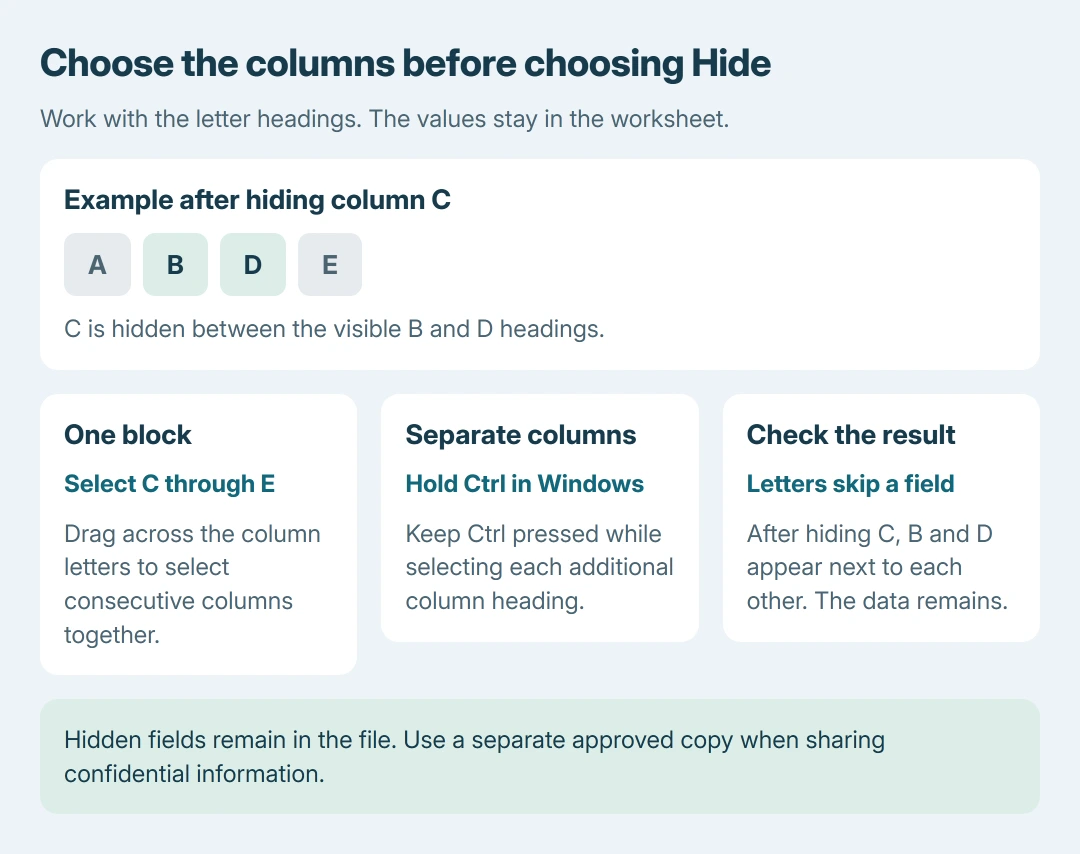
Status: Excel's Hide command and Windows keyboard shortcuts checked October 26, 2026. The example illustrates selection; no spreadsheet was changed.
Right-click one of the selected headings and choose Hide. For example, hiding C leaves B and D next to each other. That skipped letter is the useful result to check before continuing.
The command changes visibility rather than deleting the field. If the letters have shifted because a column was removed, undo that deletion promptly; Hide was not the operation applied.
Use the keyboard in desktop Excel for Windows
Select a cell in the intended column and press Ctrl + Spacebar to select the column. Press Ctrl + 0, using the zero key, to hide the selection.
Microsoft states these shortcuts in its Excel keyboard reference. They apply here to desktop Excel on Windows. Use the context menu if another platform handles the keys differently.
If the shortcut does not produce the expected gap in the letters, use the heading's context menu instead. Check the selected range before trying again so an unintended neighboring column is not hidden too.
Keep hidden fields out of structural edits
Before removing or rearranging a broad range, reveal its hidden fields. Microsoft's worksheet-organization guidance warns that unseen rows and columns can be deleted accidentally during changes to the surrounding data.
Our practical check is to read the field names across the full range before a structural edit. Use the column-moving procedure when the task is rearrangement rather than changing what is visible.
To bring a hidden field back, follow the Excel Unhide instructions, including the special selection for column A. Hiding and restoring a field should leave its original values available.
When Hide is unavailable or the workbook is being shared
A protected worksheet can restrict column formatting. Microsoft says Format columns is one of the permissions controlled by sheet protection. Ask the workbook owner to permit the change or provide an editable copy.
For confidential information, prepare a separate shareable file containing only the approved fields. Keep the original intact and inspect the outgoing copy rather than treating a hidden column as access control.
If Hide remains unavailable in an editable workbook, contact Microsoft Support with the Excel platform and protection state. Include whether the menu command is missing, disabled or producing an unexpected result.
The Short Version
Select column letters and choose Hide, or use Ctrl + 0 in Windows desktop Excel. Confirm the expected letters disappear. Reveal hidden fields before structural edits and remove confidential content from a separate sharing copy.

Isaac Smith is the founder and editor of PC Glance, a website that covers computers, laptops, and technology. He is a tech enthusiast and a computer geek who loves to share his insights and help his readers make smart choices when buying tech gadgets or laptops. He is always curious and updated about the latest tech trends.