
Deleted text messages on an Android phone may still be in the messaging app's Trash. Check there before restoring a backup. Google Messages now documents a 30-day Trash folder; Samsung Messages has its own recovery folder and controls.
An archived conversation is another possibility when texts disappear from the main list. Permanently deleted messages need an existing copy; installing a different messaging app does not create one.
Check Google Messages Trash first
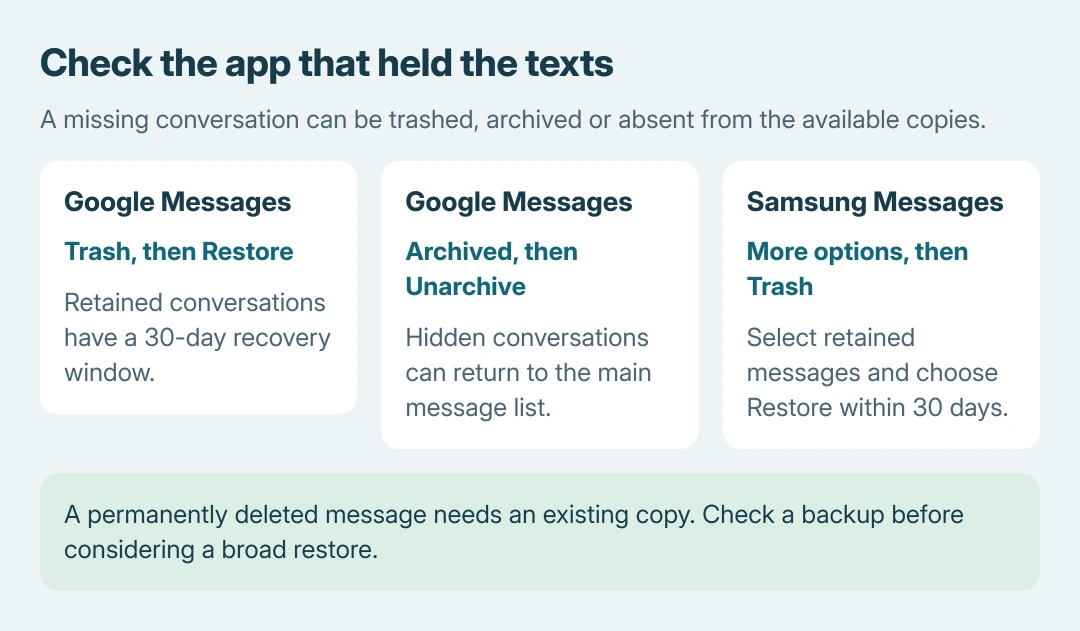
Open Google Messages, tap the profile picture or More, then choose Trash if available. Touch and hold the conversation needed, then tap Restore at the top.
Google says the folder keeps conversations for 30 days before permanent deletion. A counter shows the remaining time. Restore the conversation before trying to read its individual messages.
Status: Google's current Trash documentation and Samsung's message recovery procedures checked October 26, 2026. Availability varies; no personal text messages were accessed or restored.
The current Google Messages Trash guide provides this recovery procedure. Deleting a conversation permanently from Trash removes that opportunity, even before the 30 days finish.
Google's older archive/delete page still calls deletion permanent. It does not describe the newer Trash procedure. Follow the controls present in the app; an older deletion was not necessarily retained retroactively.
If Trash is absent, check the app's available update and continue with Archived or existing backups. Updating cannot bring back a conversation that was already permanently deleted.
Return a conversation that was archived
Open the profile or More menu in Google Messages and select Archived. Locate the conversation, touch and hold it, then tap Unarchive to put it back in the main conversation list.
Google states that archived conversations remain readable. Its archive instructions distinguish hiding from deletion. A swipe can remove a thread from view without destroying it.
Check the sender and message dates after restoring it. If the thread is absent from both Archived and Trash, a backup or another retained copy is the next useful place to look.
Use Samsung Messages' separate Trash
A Galaxy phone can use Google Messages or Samsung Messages. Confirm which app contains the missing conversation; being on Samsung hardware does not make the two recovery menus interchangeable.
In Samsung Messages, open More options (the three dots), then Trash. Touch and hold the item and choose Restore or Restore all. Samsung says retained messages can be recovered within 30 days.
The Samsung Messages guide also describes disabling Trash. Recovery requires a retained message; every deletion on a Galaxy need not have gone into that folder.
Unblocking a contact is a different operation. The Android unblock controls affect the block list; they do not restore a deleted conversation.
Restore a backup that still contains the texts
For a Galaxy with an existing Samsung Cloud copy, open Settings > Accounts and backup > Restore data under Samsung Cloud. Select the saved device, select Messages, then Restore.
Samsung documents that route in its message backup and restore guide. Check which device and backup are being offered, especially when several older phones use the same account.
The Android backup coverage guide explains Google's separate backup system. Google's copy can contain SMS and MMS, plus RCS when using Google Messages, but it is not a browsable message inbox.
Google's Android backup instructions describe setup/reset restoration. Preserve current data and confirm a suitable copy exists before considering an erase to recover texts.
Our stopping rule is to require a known retained copy before a disruptive restore. That judgment is ours. Ask Google or Samsung support about the exact app and backup if the offered choices are unclear.
If every retained copy is gone, ask the other participant to send the needed text again. Another reset or a new backup cannot reconstruct messages that were already missing.
The Short Version
Check the actual messaging app: Google Messages Trash, its Archived folder, or Samsung Messages Trash. Restore retained items first. For an older backup, verify the device and contents before taking a disruptive recovery step.

Isaac Smith is the founder and editor of PC Glance, a website that covers computers, laptops, and technology. He is a tech enthusiast and a computer geek who loves to share his insights and help his readers make smart choices when buying tech gadgets or laptops. He is always curious and updated about the latest tech trends.