
A Dell laptop screen display problem needs a screen check before a Windows reset. Raise brightness first, then run Dell's built-in LCD test if the laptop powers on.
Lines or dark patches in its test colors need different attention from a desktop-only fault.
The useful distinction is whether the panel can draw a clean picture without Windows. Dell provides a D-key startup test for that purpose, including when the desktop cannot be reached.
Check brightness and whether the laptop starts
Press the key marked with the brighter-screen symbol. If it does nothing, hold Fn while pressing that key. Dell documents this brightness check because a very dim panel can appear blank in a bright room.
Listen for startup activity and watch the power indicators. Record any response while the panel stays dark. The computer may have started despite the missing image.
Status: Dell's laptop LCD test and display instructions checked October 27, 2026, alongside Microsoft's flicker guidance. Enhanced tests vary by model and BIOS. No Dell hardware was tested.
This guide concerns the screen attached to the laptop's lid. A separate screen on the desk needs the Dell monitor diagnostic procedure, which uses the monitor's own controls.
Start the color test with D held down
Dell says its LCD built-in self-test examines the panel without relying on Windows or its display driver. Save work before starting.
- Shut down the laptop and let its activity lights go out.
- Remove the dock, external screens and other accessories. Connect the laptop's power adapter.
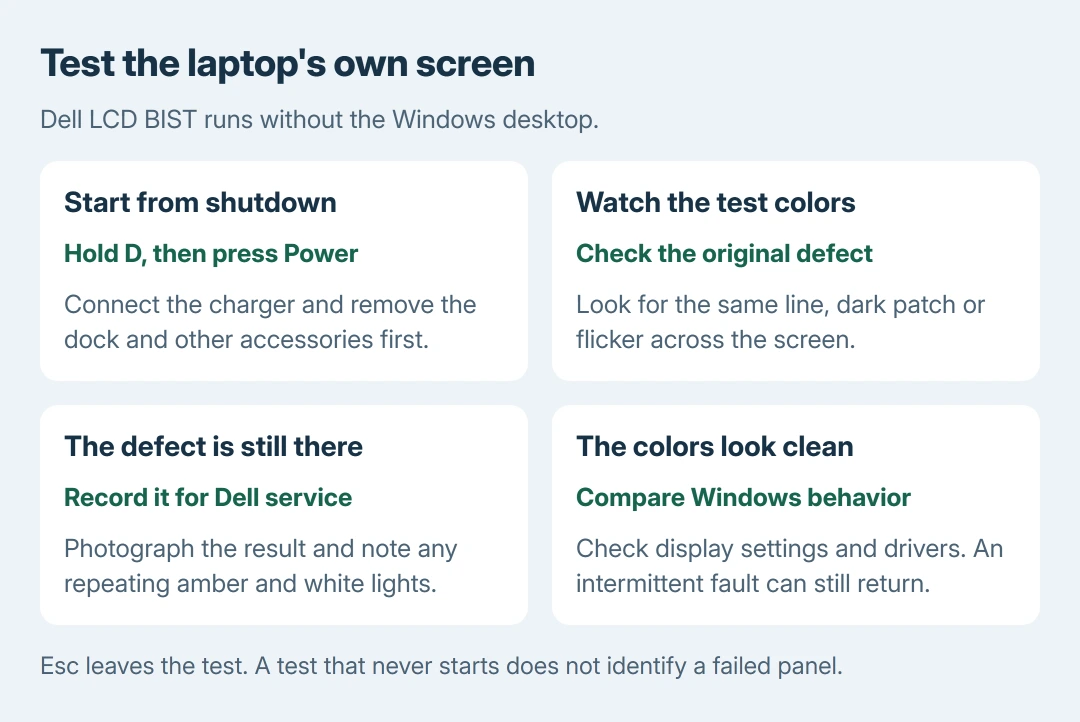
- Hold D on the built-in keyboard, then press Power. Release D when full-screen colors appear.
- Watch the entire panel during the color sequence. Look for the same stripe, flicker, patch or missing area that prompted the test.
If the test does not start, retry with D already held before pressing Power. No test picture is an inconclusive result; it does not identify a defective panel by itself.
Dell states that enhanced testing depends on system support and suitable firmware. Record both counts in any repeating amber/white light pattern.
The meaning depends on the model and diagnostic version. Report the pattern rather than guessing a component.
Press Esc to leave the test. Dell also gives holding Power for 10 seconds as its stop method.
Follow the defect when it appears in test colors
A stripe or dark region drawn during this test gives Dell a hardware symptom outside Windows. Photograph it, record the Service Tag and request a screen assessment. Reinstalling a graphics driver cannot explain away that observation.
Our recommendation is to note both the location and whether it appeared on every test color. That record is more useful to service than describing the screen as occasionally bad.
If a working external display is available, use it to preserve important files. The damaged-screen access guide covers that setup. An external picture helps maintain access; it cannot name the failed internal part conclusively.
A clean test is useful, but it does not rule out an intermittent connection or a fault that appears only under particular conditions. Note changes during ordinary lid movement without twisting the lid or pressing the panel.
Fix a picture that goes wrong only inside Windows
For a desktop that looks too large or blurry, open Settings > System > Display. Use the Recommended scale and resolution for the laptop panel where offered. Dell includes these checks in its laptop display guidance.
For flicker, press Ctrl + Shift + Esc and compare Task Manager with the rest of the desktop. Microsoft says matching flicker generally points toward the display driver.
A stable Task Manager with other content flickering points toward an incompatible app.
The Windows flicker checks explain the next steps. Use that comparison after the panel test rather than applying the same driver changes to a physical stripe.
If an update immediately preceded the problem, open Device Manager > Display adapters. Open the adapter's Properties > Driver and use Roll Back Driver if available. Restart, then compare the original symptom.
Otherwise, identify the laptop by Service Tag at Dell Support > Drivers & Downloads and check its Video drivers for the installed operating system. Dell documents that route; select the actual laptop model, not a similarly named monitor.
Give Dell the test result when the problem persists
Report the Service Tag, whether the color test ran, the defect seen there and any light code. Include whether Windows and an external display behave differently, plus any recent impact, liquid exposure or repair.
Ask Dell to check warranty coverage and the display assembly. Persistent distortion outside Windows needs that assessment before a factory reset.
If the test stays clean but Windows still fails, provide the driver version and the app or action that triggers it.
The Short Version
Raise brightness, then use D plus Power to start Dell's LCD test. Defects in its colors need screen service.
With clean colors, check Windows settings, apps and Dell's video drivers. Keep watching for an intermittent fault.

Isaac Smith is the founder and editor of PC Glance, a website that covers computers, laptops, and technology. He is a tech enthusiast and a computer geek who loves to share his insights and help his readers make smart choices when buying tech gadgets or laptops. He is always curious and updated about the latest tech trends.