
Do Not Disturb on iPhone turns on through Control Center > Focus > Do Not Disturb. Open the Focus menu and select that specific mode; tapping the crescent icon alone can toggle the mode already assigned to the button.
Choose an ending time if quiet is needed only temporarily. Allowed notifications and alarms can still sound, so an active moon icon does not promise complete silence.
Open Control Center with the right gesture
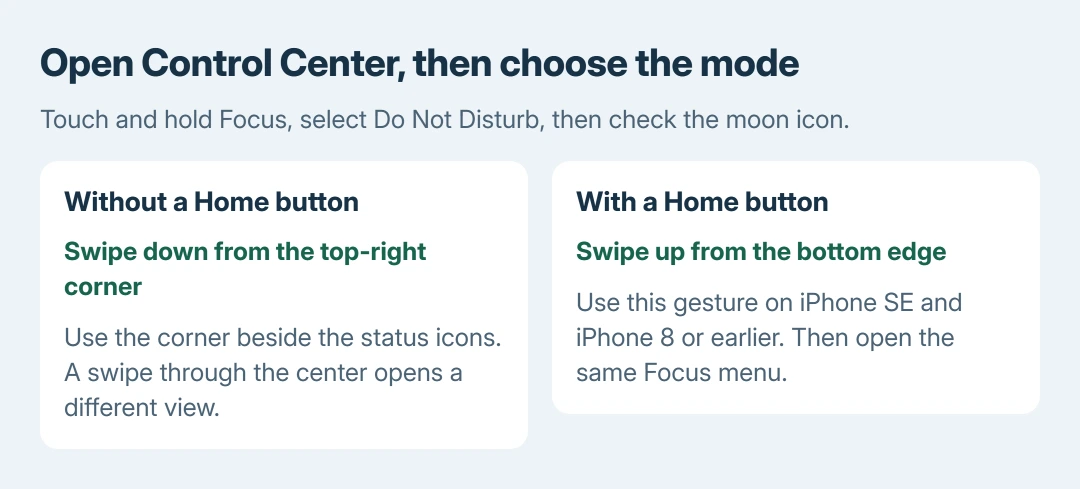
On an iPhone without a Home button, swipe down from the screen's top-right corner. On an iPhone SE or an iPhone 8 or earlier, begin at the bottom edge and swipe upward.
Apple says these are the two gestures in its Do Not Disturb instructions. Swiping down through the center of a newer iPhone's screen opens a different view.
Status: Apple's Do Not Disturb menu, temporary Focus duration and alarm behavior checked October 28, 2026. Applies to iOS 15 and later. No iPhone operated.
Find the Focus control. If another mode is running, its name can appear there instead. Touch and hold the control to open the menu, then tap Do Not Disturb.
The Lock Screen and status bar show the crescent while Do Not Disturb is active. Selecting it also replaces a different active Focus; the phone does not run both modes together.
Choose when Do Not Disturb turns off
In the Focus menu, use the More button beside Do Not Disturb to choose an offered duration. Apple's Focus guide lists options such as For 1 hour and Until I leave this location.
Confirm the choice as prompted. For a meeting, an ending time helps prevent notifications from staying silenced after the meeting ends.
For a voice shortcut, ask Siri to turn Do Not Disturb on. Check the displayed Focus name afterward, especially if Siri heard another mode's name.
If switching modes changes the wallpaper too, check the Lock Screen's Focus connection. That link can associate a whole Lock Screen with the selected mode.
Check what quiet means for this phone
Open Settings > Focus > Do Not Disturb to review its allowed people and apps. Apple documents these exceptions under Allow Notifications. These exceptions still apply the next time Do Not Disturb is turned on.
For unwanted callers getting through, use the Focus call-permission checks. Turning the mode on and configuring which calls it allows are separate tasks.
Apple states that Do Not Disturb does not silence Clock alarms in its alarm guidance. Check an alarm separately if the room must remain quiet; the Focus button does not disable it.
Also review Settings > Focus > Share Across Devices if other Apple devices change mode at the same time. Decide whether the quiet session should apply to those devices too.
End the session and check an unexpected return
Return to Control Center. Tap the active crescent to end Do Not Disturb. The control dims and returns to Focus. The saved mode remains available for another session.
If it activates again unexpectedly, inspect Settings > Focus > Do Not Disturb > Set a Schedule. Keep intended schedules and remove only the trigger that does not belong to the desired routine.
If the control stays unavailable or Do Not Disturb does not turn off at the chosen time, contact Apple Support.
Give Apple the Focus name, what turns it on and the installed iOS version. These details help separate problems turning it on or off from notification exceptions.
The Short Version
Use the correct Control Center swipe, open Focus and select Do Not Disturb. Set a temporary duration when useful. Review exceptions and alarms, then turn the active mode off from Control Center when finished.

Isaac Smith is the founder and editor of PC Glance, a website that covers computers, laptops, and technology. He is a tech enthusiast and a computer geek who loves to share his insights and help his readers make smart choices when buying tech gadgets or laptops. He is always curious and updated about the latest tech trends.