
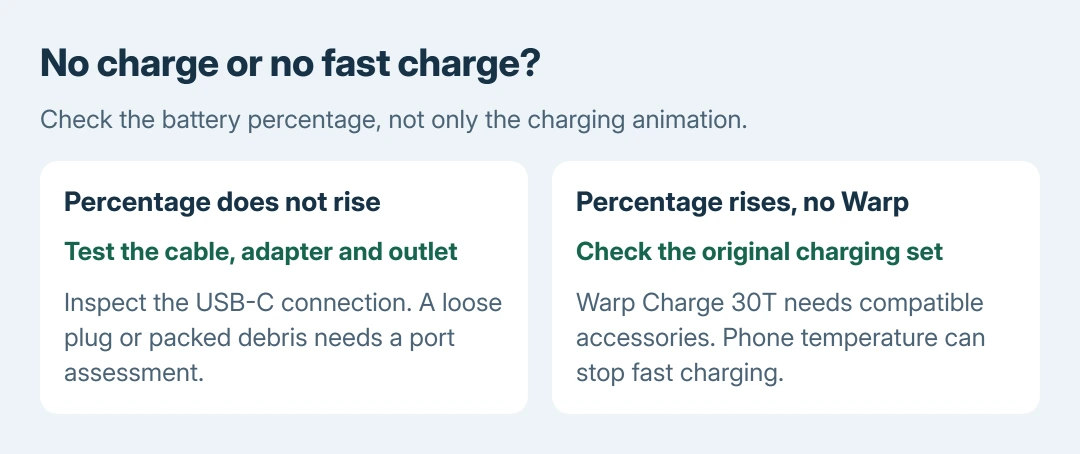
A OnePlus 7T that won't charge needs outlet, adapter and USB-C cable checks before a reset. Try working accessories and check that the plug seats fully. Missing Warp Charge is different from a battery gaining no charge.
If the phone is swollen, leaking or unusually hot, disconnect it and arrange service. Do not keep testing a damaged battery.
Test a working charger and inspect the connection
Use a working wall socket for the charger. Firmly connect the USB cable at the adapter and phone. Google's Android charging checks recommend testing the adapter and cable with another device.
Then try another compatible adapter or cable on the 7T. Swap the cable first; compare the adapter afterward. Remove a case if it prevents the plug from seating properly.
Status: OnePlus 7T charging and button instructions checked against its own manual October 28, 2026, alongside Google's Android checks. No handset tested.
Look into the USB-C port with a light for lint, corrosion or bent contacts. Google says to check for material obstructing the port. If the plug stays loose or debris is packed against the contacts, ask a repair shop to inspect it.
Our recommendation is ours: avoid needles, metal tools and force inside that socket. A plug that charges only when held at an angle needs attention to the connection, not a factory reset.
Give a depleted phone time, then use the 7T buttons
For a phone that shut down with an empty battery, leave the verified charging setup connected before trying to start it. Google's discharged-battery procedure allows at least 30 minutes before another startup attempt.
Indicator behavior varies by phone. Do not wait for a red notification light merely because a general Android instruction mentions one. Look for the 7T's actual battery display or other response.
If it appears stuck, hold Power + Volume Up for 10 seconds to force it off, then press Power to start it again. The combination is documented by the vendor in the 7T manual's shortcut section.
Use Volume Up. Power + Volume Down can enter recovery when the phone is off. If that menu appears, stop without selecting an erase option.
After startup, note the percentage, leave the screen off while charging, then compare it later. A rising percentage establishes ordinary charging even if no fast-charge animation appears.
Check Warp Charge separately from ordinary charging
Test Warp Charge 30T with the original OnePlus charger and compatible cable, as its manual specifies. A different cable may provide only ordinary charging.
The manual disables fast charging at phone temperatures under 12 C or over 45 C. Those are not recommended charging temperatures.
Its separate safety limit is 35 C maximum ambient temperature. Let a hot or cold phone return to ordinary indoor conditions naturally. Avoid heaters and refrigerators.
If the percentage rises normally with the correct accessories but Warp Charge stays absent, record that narrower symptom for OnePlus. Repeated resets cannot establish that a cable supports the required charging mode.
Separate a blank display from a powerless phone
Call the phone from another handset if it may still be running. Google's charging guide includes this check: ringing with a blank screen directs attention to the display rather than assuming the whole phone is dead.
If a persistent line or visible display defect accompanies the problem, use the OnePlus display-service checks. That service policy concerns eligible screen faults, not a promise to replace a charging port or battery.
When the phone becomes usable, complete an Android backup before handing it over. Ask the shop about data preservation before authorizing any reset or replacement.
For continued failure with working accessories or an intermittent socket, contact OnePlus or a qualified repair center. Request a charging-path and battery assessment before paying for parts.
The Short Version
Verify accessories and port contact, wait for a depleted battery, and try Power + Volume Up if stuck. Missing Warp Charge needs a separate check. Arrange service for continued failure and discuss data preservation.

Isaac Smith is the founder and editor of PC Glance, a website that covers computers, laptops, and technology. He is a tech enthusiast and a computer geek who loves to share his insights and help his readers make smart choices when buying tech gadgets or laptops. He is always curious and updated about the latest tech trends.