
Turning off location on an iPhone starts in Settings > Privacy & Security > Location Services. The main switch stops apps using that service. For one unwanted app, choose Never in its own location permissions instead.
Stopping a person from seeing a shared location is a separate task in Find My. Choose the control for the access you want to remove before disabling features that still need your position.
Switch off Location Services for apps
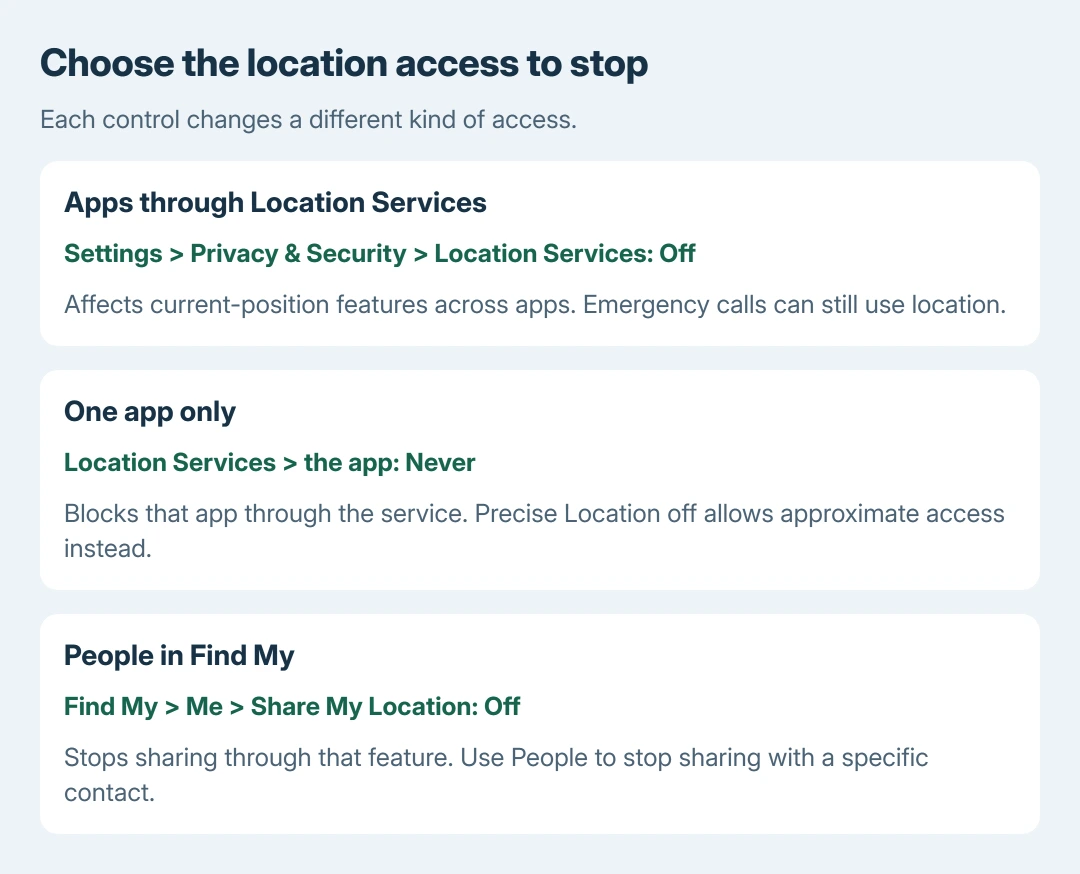
Open Settings, select Privacy & Security, then open Location Services. Turn its main switch off and confirm the warning if prompted. On older iOS versions, the privacy menu is named Privacy.
Apple says apps cannot obtain location through Location Services while it is disabled, whether they are open or running in the background. Its privacy and location guidance explains the scope of that switch.
Status: iPhone location permissions and Find My sharing reviewed October 28, 2026, against Apple's current help pages. No phone setting was changed.
Return to the same screen and check that the switch is off. Expect current-position features in Maps, Weather and other apps to lose functionality. Turn it on again when those features are needed.
This does not promise that a phone becomes impossible to locate. Apple documents an emergency-call exception: location information may be used to help emergency responders even with Location Services disabled.
Block one app or reduce its precision
For one app, keep the main service enabled and select that app from the Location Services list. Set Allow Location Access to Never to deny it access through the service.
If the app needs an approximate area, leave an appropriate access permission selected and turn Precise Location off instead. That reduces precision; it does not deny location access entirely.
Apple documents this distinction in its iPhone location controls. The choices shown depend on what the app requests. An app appears in the permissions list after requesting access.
Reopen the affected app to check its location-dependent feature. A weather app may need a city entered manually. For a widget showing the wrong city, check its selected location too.
Changing a permission governs future access through Location Services. It is not a command to erase information the app already collected. Check the app's account and privacy controls for stored location history.
Stop sharing with people in Find My
Open Find My > Me and turn Share My Location off to stop its ongoing location shares. Apple states that switching it on again lets previous sharing contacts see the location again.
For one person, open Find My > People, select their name, and choose Stop Sharing My Location. In the current interface, open the More menu if that action is inside it. Confirm when asked.
These routes are in Apple's location-sharing instructions. Deleting Find My does not stop an existing location share. Use the sharing control rather than removing the app.
Check the People entry afterward to confirm its sharing state. Stopping sharing with a person and disabling the Find My iPhone theft-recovery feature are different actions. The latter is unnecessary for this task.
To share again later, check the location-sharing settings if the expected contact still cannot see the phone. Check the sharing device as well as the permission.
When the control cannot be changed
A grayed control can be restricted by Screen Time or device management. On a family or work phone, ask the person who manages that restriction to review it. Do not erase the phone to change one permission.
For continued trouble, contact Apple Support with the iOS version, the exact control and whether it is disabled or switches itself back. State whether the goal is app access or sharing with people; the remedy depends on that choice.
The Short Version
Use Location Services for app access, Never for one app, and Precise Location for accuracy. Use Find My sharing controls for people. Check the resulting setting, and keep emergency location use separate from ordinary app permissions.

Isaac Smith is the founder and editor of PC Glance, a website that covers computers, laptops, and technology. He is a tech enthusiast and a computer geek who loves to share his insights and help his readers make smart choices when buying tech gadgets or laptops. He is always curious and updated about the latest tech trends.