
Your Weather widget is showing a city you are nowhere near, and you have already been into the app and into Settings looking for the setting.
It is in neither of those places, which is exactly why this one wastes so much of people's time.
Each widget carries its own location, set on the widget itself, and I will show you how to get at it.
It shows a city you are not in
Each Weather widget on the Home Screen holds its own location, and changing one does not change the others or the app.
Touch and hold the widget, then tap Edit "Weather" (or Edit Stack, if it is sitting in a stack). Tap the location shown, then tap My Location.
The Weather widgets page words it as "Tap My Location, then search for a city or tap a location from your list that you want to display", and tapping outside the widget puts you back on the Home Screen.
Note the menu item. That Weather-specific page says Edit "Weather", with the app name in quotation marks.
Apple's general widget page says Edit Widget for the same Home Screen action, and the widget support article says Edit Widget too, though only for Today View.
All are current. If you are hunting for a menu item called Edit Widget on a Weather widget, that is why you cannot find it.
Check whether it is a widget at all. If there are dots beside it, you are looking at a Smart Stack, which Apple describes as "a widget with dots next to it".
A stack rotates, and it can slide in a Weather widget for a place it thinks matters to you.
Apple's widget article gives the route: touch and hold the stack, tap Edit Stack, and "You can also turn Smart Rotate on or off." Widget Suggestions is on the same sheet.
That article never mentions StandBy, and neither does Apple's StandBy page, but StandBy does carry its own pair of these switches, set separately, which our guide to StandBy widgets that keep changing covers.
It is stuck on somewhere you visited once
Two things can put a city on that widget without you ever choosing it, and a pinned city never follows you afterwards. Apple's Weather pages never say so outright, which is why it goes unsuspected.
Your location list syncs. From the other locations page: "Your list of locations stays up to date across your devices when you're signed in to the same Apple Account." A city added on an old iPad turns up on your iPhone.
Apple does not say what a deletion does, only that the list stays up to date, so assume removing a city removes it on every device and check before you do.
Places you have been feed suggestions. Apple states it plainly on the weather notifications page: "Weather widgets can display conditions at locations significant to you when you also have a widget stack with Smart Rotate and Widget Suggestions turned on."
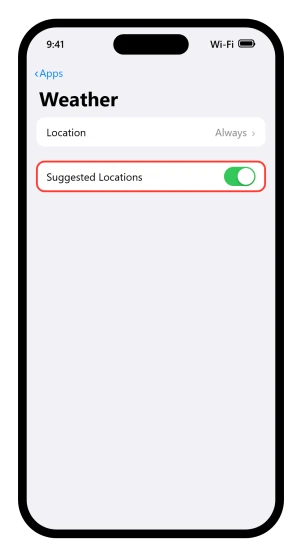
There is a Weather-only switch for this, on that same page: Settings > Apps > Weather, then turn off Suggested Locations, which sits under the Locations heading. Use that one.
The wider service behind it is Settings > Privacy & Security > Location Services > System Services > Significant Locations & Routes, but that also feeds Maps, Photos and Siri, so switching it off to fix a widget is a heavier move than the problem needs.
It says Location Access Needed, or shows nothing
No Apple Weather page covers an empty widget. This is the one section built on a reading rather than a source.
The likely cause is a permission left on Ask Next Time Or When I Share.
Apple's location page says: "If you set the access for an app to Ask Next Time, you're asked to turn on Location Services again the next time an app tries to use it."
Read that against a widget. A widget has no foreground session, so there is nothing for the system to put that prompt on top of. It sits there waiting for an answer to a question nobody was asked.
Opening the Weather app is what triggers the prompt, and answering it there is what fills the widget in.
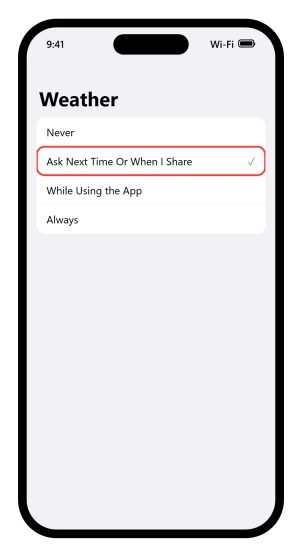
To set it properly: Settings > Privacy & Security > Location Services > Weather.
Apple's location services article names the four options: Never, Ask Next Time Or When I Share, While Using the App, and Always.
There is a second route to the same screen, at Settings > Apps > Weather > Location.
Both are live on iOS 26, which is why advice you find sends you two different ways, and our guide to where app settings went explains the split.
One wrinkle, and it is Apple against Apple rather than page against screen. That article calls the third option While Using the App.
Apple's own Maps troubleshooting page tells you to set an app to While Using the App or Widgets, the longer string that appears for apps shipping widgets.
Weather ships widgets, so that is the one to expect on the screen.
To remove access deliberately, compare the iPhone location controls before disabling Weather or the main service.
The widget and the Weather app disagree
They are two separate settings. Apple documents each half on its own page and never puts the two side by side.
The app opens on wherever you are. Its page states it flatly: "The details for your current location are shown." The widget shows whatever its own location field says.
So the two can disagree indefinitely and both are behaving correctly.
Three things to check, in order:
- The app may not be on your location either. Swipe to a saved city and it stays there. Tap the Location List button in the bottom-right corner, then tap My Location. The row of dots along the bottom tells you which city you are parked on.
- You may have more than one Weather widget. That is offered deliberately: "You can add more than one Weather widget to your Home Screen so you can quickly see weather conditions and forecasts in different locations."
- The widget may be pinned. Back to the first section.
Right city, wrong suburb
The widget is following you correctly and doing it coarsely.
Precise Location is the setting. From the Weather page: "Weather uses Location Services to get the forecast for your current location. You can turn on Precise Location to increase the accuracy of the forecast." With it off you are sharing what Apple's location sharing page calls "only your approximate location".
Turn it on at Settings > Privacy & Security > Location Services > Weather.
There are two other reasons that are not settings at all.
A weak GPS fix.
Apple names walls, vehicle roofs, tall buildings and mountains as things that block it, says a fix can take several minutes with accuracy improving over time, and adds an unexpected check: make sure the date, time and time zone are right, ideally set automatically.
In some places you cannot pin your own suburb even if you want to, because "Neighborhood search results aren't available in all locations".
And the forecast is not one uniform product.
Apple's data-source article lists national weather services behind severe weather warnings, country by country, and Apple Weather behind the ten-day forecast.
It says nothing about how fine-grained the forecast is, so if your village reads like the next town over, that is not something Apple documents either way.
It is wrong on the Lock Screen
Read this one before you spend an evening on it, because there is no documented fix.
The Weather widget page scopes its whole location-changing procedure to the Home Screen.
Its opening line says you can change the location a widget displays "on your iPhone Home Screen", its first step says to touch and hold the widget "on your Home Screen", and its last step puts you back there.
The Lock Screen gets one sentence with no location step: "You can also put Weather widgets on your iPhone Lock Screen."
The Lock Screen page documents adding and changing widgets and says nothing anywhere about choosing a weather location.
So Apple documents no way to pin a Lock Screen Weather widget to a chosen city. That is not the same as proving it impossible, but if you have been hunting for that control, it is not written down.
While you are there, check you are looking at a widget and not the wallpaper.
Apple lists Weather among the wallpaper options you can add, and documents no location control for it, the same silence as the widget.
If your Lock Screen is changing on you more generally, our guide to a Lock Screen wallpaper that keeps changing covers the triggers.
Two fixes that will not do what you expect
Home and Work. The wording is precise: "To see your Home and Work locations in search results, go to Settings > Apps > Weather, then turn on Home and Work." It changes what appears when you search.
It does not change what the widget shows.
Report an Issue. This exists, at the Location List button, then the More button, then Report an Issue.
But it is for conditions that do not match what you can see out of the window, not for a wrong location.
The framing: "You can report the weather in your location if it doesn't match what's shown in the Weather app."
There is also a last resort, and it is heavier than it looks.
Reset Location & Privacy, at Settings > General > Transfer or Reset iPhone > Reset, returns all your location settings to factory default, so apps stop using Location Services until you grant them permission again.
That is every app on the phone, not just Weather, and the privacy settings go with it.
Our guide to location sharing not working has the same route and what it costs.
If the widget is showing the right place but stale numbers, that is a different fault, and our guide to widgets not updating on iOS 26 covers what actually refreshes them.
If you have been through all of these and it is still wrong, remove the widget, restart the phone, and add it back from the widget gallery.
If it returns wrong, Apple publishes no further troubleshooting for this, and that is the point to ask Apple Support.
Status: written against iOS 26.6. Apple documents the Home Screen widget's location picker and no equivalent for the Lock Screen. The empty-widget section is a reading of Apple's permission note.
Why does my iPhone weather widget show the wrong city?
Because the widget has its own location setting, separate from the Weather app. Touch and hold it, tap Edit "Weather", tap the location shown, then tap My Location. If there are dots beside the widget it is a Smart Stack instead, and you want Edit Stack.
How do I change the location on my iPhone weather widget?
Touch and hold the widget on the Home Screen, tap Edit "Weather", then tap the location field and pick My Location or search for a city. Note that the general widget pages call that menu item Edit Widget, while the Weather page calls it Edit "Weather".
Why does my weather widget say Location Access Needed?
Most likely because Weather's location permission is on Ask Next Time Or When I Share. Apple does not document what that does to a widget, but a widget has no foreground session in which to show the prompt, so it appears to sit and wait. Open the Weather app to raise it.
Can I change the location on a Lock Screen weather widget?
Apple documents no way to. The widget page scopes the location picker to the Home Screen, and the Lock Screen page never mentions choosing a weather location. Also check you are not looking at the Weather wallpaper, which shows your current conditions and is not configurable either.
The Short Version
- Each Weather widget carries its own location, independent of the app and of every other widget.
- The menu item is Edit "Weather" on a Weather widget, not Edit Widget. Apple's pages disagree, so tap whichever one your phone shows.
- Dots beside the widget mean a Smart Stack. Use Edit Stack and switch off Smart Rotate and Widget Suggestions.
- Suggested Locations, at Settings > Apps > Weather, is the narrow off switch for cities the phone picks for you.
- Your location list syncs across devices, so a city can arrive from an iPad you forgot about.
- Ask Next Time Or When I Share appears to leave a widget waiting. Apple does not document this, but only the app can raise that prompt.
- Precise Location off gives you the right city and the wrong suburb.
- The Lock Screen widget has no documented location picker.
- Home and Work changes search results only, not the widget.
- Reset Location & Privacy is a last resort. It returns location and privacy settings to factory default for every app on the phone, not just Weather.
Where to Next
Each widget holds its own location, which is why nothing you change in the app or in Settings makes any difference. Edit the widget itself.
Do it on each widget separately, because they do not talk to each other.
If your widget is set to your current location and still shows the wrong city, that is a Location Services question rather than a widget one. Say so in the comments and I will point you at the right screen.

Isaac Smith is the founder and editor of PC Glance, a website that covers computers, laptops, and technology. He is a tech enthusiast and a computer geek who loves to share his insights and help his readers make smart choices when buying tech gadgets or laptops. He is always curious and updated about the latest tech trends.