
Your widgets have gone stale and are still showing yesterday. Before you go anywhere near Settings, there is one habit worth looking at.
If you swipe apps closed in the app switcher, that is very likely your answer, and Apple documents what quitting an app really does to it.
Let me show you, because this one genuinely surprises people.
Start with Background App Refresh
Apps get suspended shortly after you switch away, and Apple's account of what happens next explains why a widget can sit on yesterday's data: "Apps that are in a suspended state aren't actively in use, open, or taking up system resources. With Background App Refresh, suspended apps can check for updates and new content."
Check it at Settings > General > Background App Refresh. Tap that row a second time, because the screen has two levels and the master setting is on the deeper one.
It offers Wi-Fi, Wi-Fi & Cellular Data, or the feature turned off entirely.
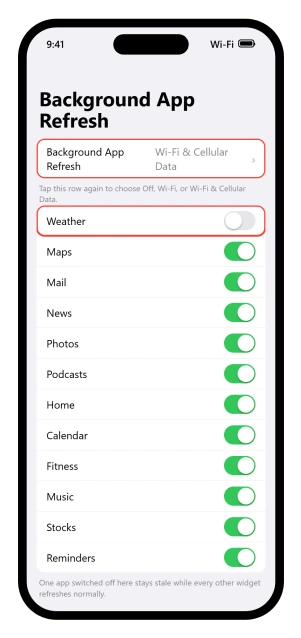
Now go back and scroll the list underneath, where every app has a row of its own.
That list is where to look when one widget is stale and the rest are fine, because a master setting that is on tells you nothing about the one app you are complaining about.
Past it, Apple publishes nothing about how individual developers refresh their widgets, so a third-party widget that will not update with its own switch on is a question for whoever wrote the app.
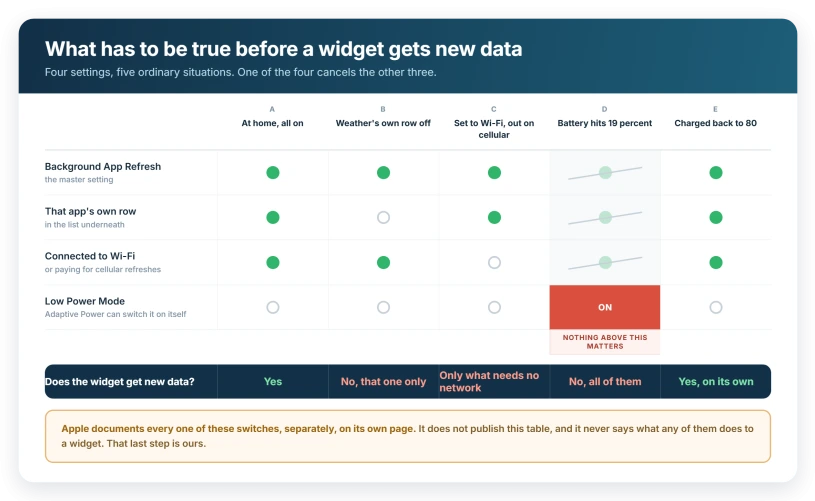
Low Power Mode turns that switch off for you
Your widgets go stale most afternoons and are correct again by breakfast. Nobody in the house has touched a setting.
The same switch starves Live Activities, which freeze on an old number rather than disappearing.
Our guide to Live Activities not showing covers why almost none of that is yours to fix.
Apple lists what Low Power Mode changes, and Background app refresh: turned off sits on that list next to email fetch, automatic downloads and iCloud Photos being paused.
On a supported iPhone with Adaptive Power enabled, Apple says Low Power Mode "will turn on" once the battery goes under 20 percent. Charge back to 80 percent or higher and it switches off again.
Neither event announces itself, beyond the battery icon in the status bar turning yellow the whole time it is active.
Turn it off at Settings > Battery > Power Mode on iPhone 15 and later, or Settings > Battery on iPhone 14 and earlier.
Our guide to what drains an iPhone battery on iOS 26 tells you to trim Background App Refresh to save power. This page is the bill for that.
The network settings that pause background work
Apple's wording for one of these describes the symptom almost exactly.
Go to Settings > Cellular > Cellular Data Options > Data Mode and check whether Low Data Mode is on, because Apple says it "pauses automatic updates and background tasks when iPhone isn't connected to Wi-Fi". If so, switch to Standard.
Tap an individual app in the Cellular list too. Apple: "If a setting is off, iPhone uses only Wi-Fi for that service."
Which is why setting Background App Refresh to Wi-Fi rather than Wi-Fi & Cellular Data is easy to miss.
It does not freeze everything, because a Clock, Battery or Photos widget needs no network at all. It strands the ones that have to fetch something.
Weather and Maps widgets have a location permission of their own
Apple names widgets directly here, which it does almost nowhere else. Its Maps troubleshooting says to check that Location Services is on "and Maps is set to While Using the App or Widgets".
That option name is the whole point. A location widget can sit behind an app whose location access ends the moment you close it.
Open Settings > Privacy & Security > Location Services, tap the app, and choose the setting that includes widgets.
If a widget is missing rather than stale
Check the forgotten screen first.
Swipe right from the left edge of the Home Screen and you are in Today View, which Apple treats as a widget location in its own right, alongside the Home Screen, the Lock Screen and StandBy.
To put one back, touch and hold the Home Screen background until the icons jiggle, tap Edit at the top, then Add Widget, find the one you want, swipe through the size and style options, and tap Add Widget.
While everything is still jiggling, move it where you want it, then tap Done.
The shortcut that skips all of that: touch and hold an app icon already on the Home Screen, and the pop-up menu offers widget sizes along the bottom.
Widgets also vanish without being deleted.
A Home Screen page can be temporarily hidden, taking its widgets with it, and Settings > Apps > App Store > Offload Unused Apps clears out apps you have not opened lately, leaving the icon behind with a cloud symbol.
If the widget is fine but showing the wrong thing
Not every complaint about a widget is about freshness. Plenty are updating perfectly and displaying something you did not ask for.
Most widgets carry settings of their own. Touch and hold the widget, tap Edit Widget, then choose the options.
Apple's example is a Mail widget: tap the mailbox shown in the widget, choose a different one, and the widget switches to the messages in that mailbox.
If that changes nothing, the widget may be under orders from a Focus. Go to Settings > Focus, tap the Focus you use, then Focus filters and Add Filter.
Apple describes these as deciding what information apps show while the Focus is on, and gives picking a mail account or a calendar as its examples.
A widget obeying a filter is not broken, and Edit Widget will not budge it.
If it keeps changing to a widget you did not pick
Look for dots down the side.
Apple's identifier for a Smart Stack is "a widget with dots next to it", and a stack rotating is the feature working rather than failing: it "uses information such as the time, your location, and activity to automatically display the most relevant widget at the appropriate time in your day".
Two switches decide it, and both sit on the stack itself. Touch and hold the stack, tap Edit Stack, and Apple's widget article says you "can also turn Smart Rotate on or off".
Widget Suggestions, which adds widgets you never picked, is on the same sheet.
StandBy keeps its own separate copies of both, and our StandBy widgets guide covers those.
On the same sheet you can steer it by hand: reorder widgets by dragging, drag one out onto the Home Screen, or remove one by tapping the Remove button in its upper-left corner. Tap Done.
If a Weather widget in that stack is showing a city you never chose, our guide to a Weather widget with the wrong location covers where that setting lives.
If nothing appears when you swipe right from the Lock Screen
Today View has a permission of its own, on a screen with nothing else to do with widgets.
Open Settings, tap Face ID & Passcode (or Touch ID & Passcode), and check that Today View and Search is turned on under Allow Access When Locked.
With it off, swiping right shows nothing, which reads as deletion.
The widgets under the clock are a different thing, and that toggle does not touch them. They belong to the particular Lock Screen you are looking at, and you can have several.
Press the side button twice, touch and hold the Lock Screen, tap Customize, then tap your existing widgets or Add Widgets.
Which explains the strangest version of this complaint.
Apple lets you link a Focus to a Lock Screen and says that Lock Screen appears whenever the Focus is on, so a widget row that changes by itself at work or at bedtime is a Focus swapping the screen underneath it.
Widgets you can tap without opening the app
"Tap an item in the Reminders widget to check it off." Apple's other examples are the Play button in the Podcasts widget and the Home widget turning on your living room lights, all without opening an app.
Try that before deciding a widget is dead.
Then notice what it does to the opening of this page: a widget can answer a tap while the app behind it has not run in days, because the part that responds to a tap and the part that fetches new information are not the same thing.
A tap proves the widget is alive. It says nothing about how old its data is.
Cheapest checks first
Apple ranks none of these. The order is ours, based on how often each turns out to be the answer.
- Stop closing that app in the app switcher. A quit app may not check for new content until you open it again.
- Check Low Power Mode. A yellow battery icon means background refresh is off right now.
- Check Background App Refresh, the master setting first, then that app's own row.
- Check Data Mode if the widget is only stale away from Wi-Fi.
- Check Location Services for anything showing weather, traffic or a map.
- Tap Edit Widget if the data is fresh but wrong, then Focus filters if nothing changes.
- Check Today View and Search if swiping right from the Lock Screen shows nothing.
- Add it back from the widget gallery if it has gone from the Home Screen.
When all of that is already right
Master setting on, the app's own row on, Low Power Mode off, Data Mode normal, still showing yesterday.
Three things are left that cost nothing: open the app and leave it on screen a moment, check it is signed in to the account the widget is meant to show, and restart the phone.
After that you are past the end of the map. Apple documents each of these switches on its own page and publishes no troubleshooting for a widget that refuses to refresh with all of them set correctly.
From there it is a question for whoever wrote the app.
On a Google Pixel the widget trouble looks different: since Android 17 they vanished at every restart, and Google fixed that in September 2026. The Pixel widgets page covers it.
What does not help
None of these changes what the app is handing the widget.
- Force quitting the app to make it refresh. Apple documents the opposite, that quitting may stop it checking for new content.
- Reinstalling before you have looked at its row. A reinstall gives the app a fresh entry there, so you lose the answer you were after.
- Deleting and re-adding the widget. It usually returns to the same app under the same settings.
- Blaming the widget when tapping it still works. That is a live widget being fed stale data, a different problem.
Status: current for iOS 26.6. Apple documents Background App Refresh, Low Power Mode turning it off, and that quitting an app may stop it checking for new content. Not what that does to a widget.
Why are my iPhone widgets not updating on iOS 26?
Usually because the app behind the widget is not being allowed to refresh. Apple says an app quit from the app switcher may not check for new content until you reopen it, and that Low Power Mode turns Background app refresh off. Check Settings, General, Background App Refresh, both the master setting and that app's own row.
Does closing apps stop widgets from updating?
Apple's wording is that if you quit an app from the app switcher, it might not be able to run or check for new content before you open it again. Apple never says what that does to a widget. Since a widget shows what its app gathered in the background, closing that app repeatedly is the likeliest cause.
Why do widgets stop updating when my battery is low?
Because Low Power Mode switches background refresh off, and Apple lists that among the things it changes. On supported iPhones with Adaptive Power, Apple says Low Power Mode turns on by itself once the battery goes below 20 percent, so nobody has to choose it. Charging back to 80 percent turns it off again.
Why are my Lock Screen widgets missing on iOS 26?
Lock Screen widgets belong to the individual Lock Screen you are looking at, and you can have more than one. Press the side button twice, touch and hold the screen, tap Customize, then tap your widgets or Add Widgets. A Focus linked to a different Lock Screen will swap the whole set for you.
The Short Version
- Stop swiping the app closed. A quit app may not check for new content until you reopen it.
- Background App Refresh is at Settings > General > Background App Refresh, and you tap that row twice to reach the master setting.
- The app list underneath matters as much as the master setting when only one widget is stale.
- Low Power Mode turns background refresh off, and Adaptive Power can switch it on for you under 20 percent. A yellow battery icon means it is active.
- Low Data Mode pauses background tasks whenever you are off Wi-Fi.
- Weather and Maps widgets need Location Services set to the option naming Widgets.
- Fresh data but wrong content? Tap Edit Widget, then Focus filters.
- Lock Screen widgets live on one particular Lock Screen, and a Focus can swap it.
Where to Next
If you swipe your apps closed out of habit, that is the habit to drop. A quit app may not go looking for anything new until you open it again.
Leave them alone and give the widgets a day.
If one particular widget stays stale while the rest recover, name the app in the comments, because at that point it is the app rather than iOS.

Isaac Smith is the founder and editor of PC Glance, a website that covers computers, laptops, and technology. He is a tech enthusiast and a computer geek who loves to share his insights and help his readers make smart choices when buying tech gadgets or laptops. He is always curious and updated about the latest tech trends.