

Alphabetizing in Excel uses Data > Sort A to Z, and selecting the full records prevents mismatched data. Sort the complete records so each name stays beside its own address, amount or account number. Start with a copy of important data.
A single independent list can be sorted by itself. A name column inside a wider table usually cannot: rearranging only the names can attach them to the wrong records.
Select the records that must move together
Select the complete rectangular list, including its header row and every related column. Leave separate notes or totals outside that selection. Check for blank gaps that could split the list into different regions.
Open Data > Sort. In Excel for Windows, enable My data has headers when the first selected row contains field names. Choose the name column under Sort by, Cell Values under Sort On, and A to Z under Order.
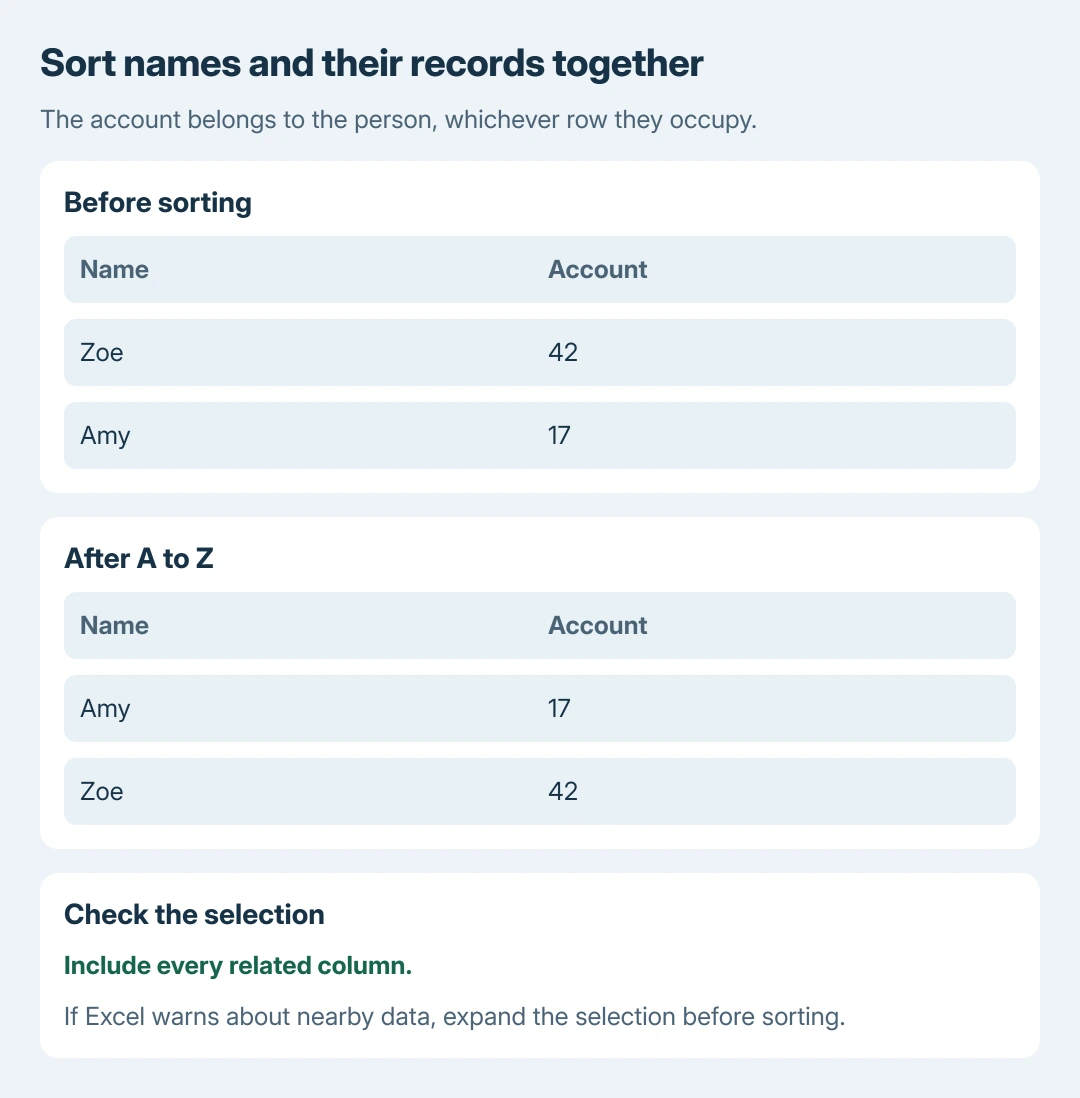
Status: Excel text sorting, header handling and selection warnings checked in Microsoft's documentation October 28, 2026. The record example is illustrative; no workbook was sorted.
Confirm the sort and inspect a few known records. The name should change row position with its associated values. If an address or amount no longer matches its name, use Undo immediately and review the selected range.
Microsoft documents the danger of sorting only part of a record in its Excel sorting instructions. When Excel offers a selection warning, choose Expand the selection to include related data.
For a compact list with no gaps, selecting one cell in the name column and choosing Data > Sort A to Z is the quick route. Inspect the selected region first when neighboring cells belong to the same records.
Sort a table or a list in the browser
An existing Excel table has a filter control in each heading. Open the name column's control and choose Sort A to Z. The table's records move together; a plain colored heading does not establish a table boundary.
In Microsoft's browser instructions, table-header controls provide the sorting commands. For an ordinary range, the browser's Data tab provides ascending and descending sort commands. Check the data range before applying one.
Do not delete blank rows merely because a sort looks unusual. First decide whether they separate independent lists. The blank-row checks explain how to avoid discarding records that only look empty.
Use two sort levels for repeated last names
For separate Last Name and First Name columns, open the desktop Data > Sort dialog. Set the first level to Last Name, sorted A to Z. Select Add Level, then set First Name to A to Z.
Keep the last-name level first. Excel applies the first level to the whole selection, then orders first names within matching last names. A single full-name field instead sorts from the text at its beginning.
The two-record account comparison is ours: use identifiers that make a wrong pairing obvious when reviewing the result. Do not assume that plausible alphabetical order proves every neighboring column moved correctly.
Correct a header or space that sorts unexpectedly
If the heading moves into the names, undo and correct My data has headers. If one name sorts strangely, inspect its formula-bar text for spaces at the start. Formatting alone does not remove those characters.
Microsoft says TRIM cleans extra ordinary spaces from text. A spare helper column can use =TRIM(A2), filled down, so the original text remains available for comparison.
TRIM also reduces repeated ordinary spaces between words. It does not remove nonbreaking spaces. Review the changed names before replacing original cells, especially when spacing has meaning in the data.
If the field contains dates, convert text dates to actual dates before expecting chronological order. A to Z sorts text; it cannot repair an unrecognized date.
For a continuing problem, give the workbook owner or Microsoft Support a small nonprivate sample, the selected range and the sort levels. Include one record whose result is wrong rather than sending an unexplained workbook.
The Short Version
Select complete records, identify the header and sort the name field A to Z. Keep related columns together. Use multiple levels for separate name fields, then inspect known records and any text that sorts unexpectedly.

Isaac Smith is the founder and editor of PC Glance, a website that covers computers, laptops, and technology. He is a tech enthusiast and a computer geek who loves to share his insights and help his readers make smart choices when buying tech gadgets or laptops. He is always curious and updated about the latest tech trends.