
A Logitech mouse not working can have power but use the wrong channel or receiver. Check its battery and underside switch first. On an Easy-Switch model, select this computer's paired channel before trying another driver.
The next check depends on the connection: a USB cable, a small wireless receiver, or direct Bluetooth. Identify the exact mouse model before following pairing steps, because Logitech's receiver families are not interchangeable.
Restore power and check the selected channel
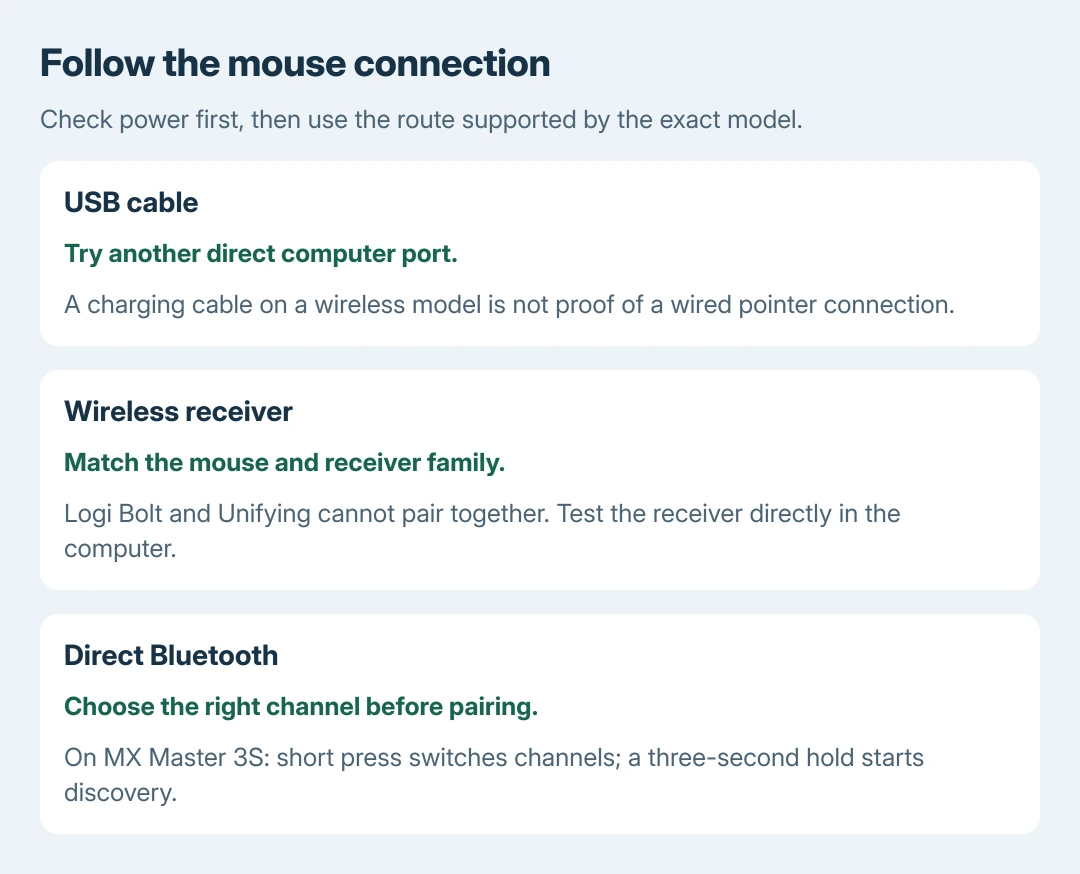
Turn the mouse on. Replace a removable battery or charge a rechargeable model using its documented method. A charging cable does not prove that a wireless mouse can send pointer movement through that cable.
For a mouse with numbered Easy-Switch channels, press its channel button briefly to return to the computer's usual channel. A different channel can leave the mouse looking functional while its pointer stays still on this computer.
Status: Logitech connection guidance, MX Master 3S controls and receiver compatibility checked October 28, 2026. Windows hardware advice reviewed separately. No mouse paired or driver changed.
On the MX Master 3S, a short Easy-Switch press changes channels. Holding the button for three seconds starts pairing, with rapid LED blinking. Those timings are documented by Logitech for that model.
Use a short press when returning to an existing computer. Use the long press when deliberately pairing again. A basic single-channel mouse may have neither numbered channels nor that button.
Put the receiver directly into the computer
If the mouse uses a receiver, move it from a hub, dock or switch into a port on the computer. Try another direct port if needed. Bring the mouse closer, especially when the receiver sits behind a metal desktop case.
Logitech says its connection checks include direct receiver connection, shorter distance and reducing nearby wireless interference. Retest pointer movement after changing the connection.
Check the receiver family before attempting to pair a replacement. Logitech's compatibility answer states that Logi Bolt and Unifying cannot pair with each other.
The standard MX Master 3S uses Logi Bolt, not Unifying. Other mice can use another receiver family. Match the model's support page and receiver markings rather than assuming any Logitech dongle will work.
For an MX Master 3S being added to a compatible Bolt receiver, Logitech gives Options+ > Add devices > Setup Logi Bolt device. Follow the model's current instructions for other receivers; avoid a legacy utility chosen only by brand name.
Pair through Bluetooth only when using Bluetooth
A receiver connection needs no entry in Windows Bluetooth settings. For direct Bluetooth, make the supported mouse discoverable. In Windows 11, open Settings > Bluetooth & devices > Add device > Bluetooth.
Select the mouse and complete the connection. The wireless-mouse setup guide explains the general connection choices. Return to Logitech's model guide for the button that starts discovery.
When a previously paired Bluetooth connection fails, remove only that mouse entry and pair it again. Have the laptop's touchpad or another pointer available before removing the connection.
Compare the mouse with another computer
For a wired mouse, reconnect its USB cable directly to a different computer port. Microsoft documents direct-port and second-computer checks in its mouse hardware instructions.
Connect the mouse to a second computer through a supported method. If it works there, check the original computer's connection and software. Failure on both leaves the mouse, battery or receiver needing further attention.
That comparison is ours to apply to the symptom. It does not prove which component failed. Report the exact model, connection and LED behavior to Logitech Support if the mouse stays unresponsive.
For repeated dropouts accompanied by Windows USB connection sounds, use the USB mouse disconnection checks. A working pointer that later disconnects needs a different next check from one on the wrong channel.
The Short Version
Check power and the Easy-Switch channel, then follow the actual connection. Use a direct USB port, match the receiver family, and start discovery only for Bluetooth pairing. Test elsewhere before requesting mouse or receiver service.

Isaac Smith is the founder and editor of PC Glance, a website that covers computers, laptops, and technology. He is a tech enthusiast and a computer geek who loves to share his insights and help his readers make smart choices when buying tech gadgets or laptops. He is always curious and updated about the latest tech trends.