
Voice Memos records audio on an iPhone without installing another recorder. Open the app, tap its red Record control, then tap Stop when finished. Select the saved recording and play it before relying on the file.
For an interview or lecture, make a brief recording from the intended position first. Check that the voice is clear and that the microphone is not covered. Get the other participants' permission before recording a conversation.
Make and name a basic recording
Find Voice Memos through Home Screen search or the Utilities folder. Open it and tap Record. Move the phone closer to the speaker when the voice is too quiet; moving it farther away lowers the recorded level.
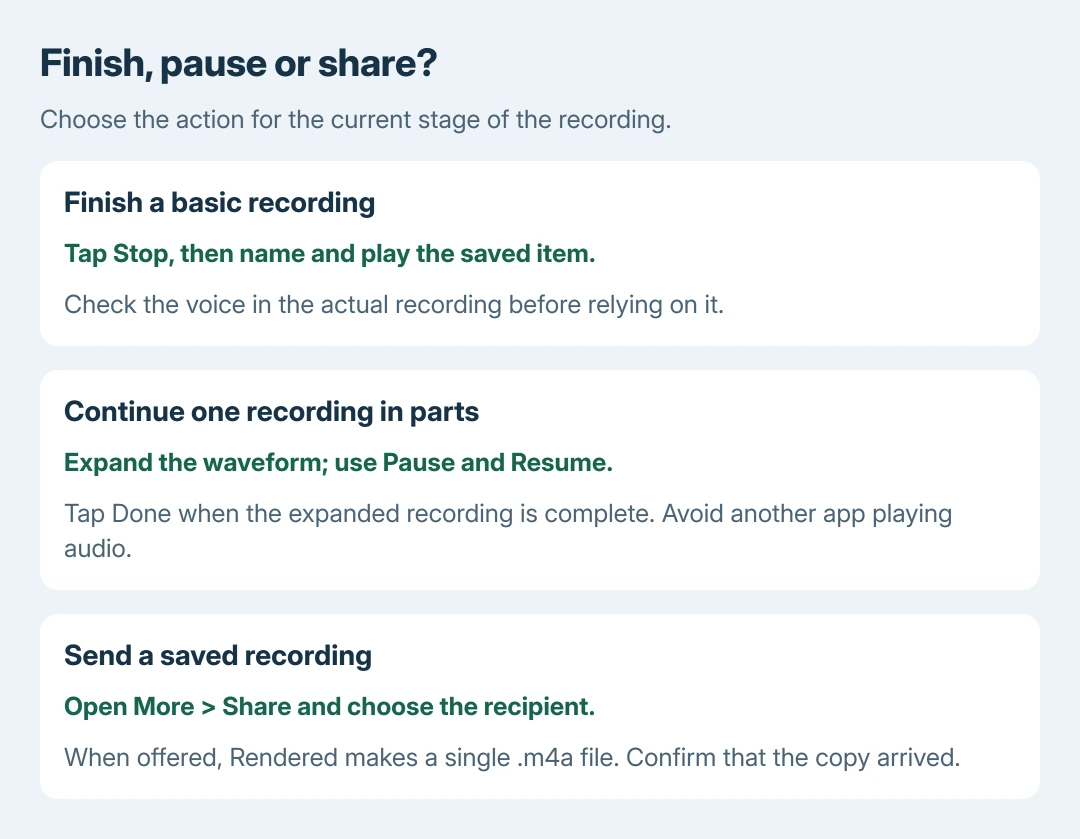
Tap Stop to finish the basic recording. Apple says it is saved with a default name or a location-based name when the relevant location access is enabled. Tap the recording and its name to enter a useful title.
Status: Voice Memos recording, playback and sharing checked in Apple's iOS 27 guide October 28, 2026. Controls and recording modes vary by model and iOS version. No audio was recorded here.
Apple documents the process in its Voice Memos recording guide. The orange privacy dot indicates active microphone use. It does not prove that the sound is clear.
Select the new item and tap Play. Listen for the actual speaker, not just a moving waveform. If the sample is muffled or silent, follow the iPhone microphone checks before recording something irreplaceable.
Pause and continue inside one recording
To record in parts, begin recording and swipe up from the top of the waveform to expand the controls. Tap Pause, then Resume when ready to continue. Finish with Done to save the expanded recording.
This keeps the parts in one recording. Starting another recording after finishing the first creates a separate item. Use the saved item's name and playback to confirm which file contains the complete session.
Keep audio-playing apps closed during the session. Apple states that Voice Memos can continue while another app is used, but stops recording if that app begins playing audio. Returning to the recorder lets you verify its current state.
Choose a recording mode only when it helps
In the current guide, Settings > Apps > Voice Memos > Recording Mode offers supported choices such as Mono, Stereo and Spatial Audio. Availability depends on the iPhone model; older versions can show different controls.
Mono plays the same audio in both ears. Stereo preserves separate left and right channels. Do not expect a stereo or spatial setting to repair a covered microphone or a speaker too far from the phone.
For speech in a noisy room, the current guide provides Control Center > Voice Memos > Voice Isolation while using the app. Check a sample after choosing it. Wide Spectrum includes background sound; some models do not offer it.
Share a usable copy of the saved audio
Select the saved recording, open its More control and choose Share. Apple's sharing guide lists options such as AirDrop, Mail and Messages.
When sharing options offer Rendered or Editable, use Rendered for a single .m4a file with effects and layers mixed together. Editable is for recipients with compatible software who need to change those elements.
Choose the recipient and complete the send action. A saved recording in Voice Memos and a delivered attachment are different results. Confirm receipt when the file is needed elsewhere.
If a recording later disappears from the app, check its folders and account before changing sync settings. A copy previously sent to another device may also be available there.
When the saved audio still sounds wrong
Apple's playback controls include speed and enhancement options. Those playback choices do not change the original recording itself, although sharing can offer a rendered version.
The listening check is ours: compare the saved item's original playback before judging a sped-up or enhanced rendition. That separates a playback choice from poor captured audio.
For repeat failures, contact Apple Support with the iPhone model, iOS version, input microphone and affected recording mode. State whether the recording fails to save or saves with bad sound. Those outcomes need different checks.
The Short Version
Record, stop, rename and listen. Use Pause and Resume inside the expanded controls for one continuous file. Avoid another app playing audio mid-session, and share a rendered file when the recipient needs an ordinary audio copy.

Isaac Smith is the founder and editor of PC Glance, a website that covers computers, laptops, and technology. He is a tech enthusiast and a computer geek who loves to share his insights and help his readers make smart choices when buying tech gadgets or laptops. He is always curious and updated about the latest tech trends.