
When a Chromebook won't connect to Wi-Fi, a disabled wireless connection, a rejected password or a waiting sign-in page can explain it. Check that Wi-Fi is on first, then follow the branch matching what happens when connecting.
Open Wi-Fi and look for the network
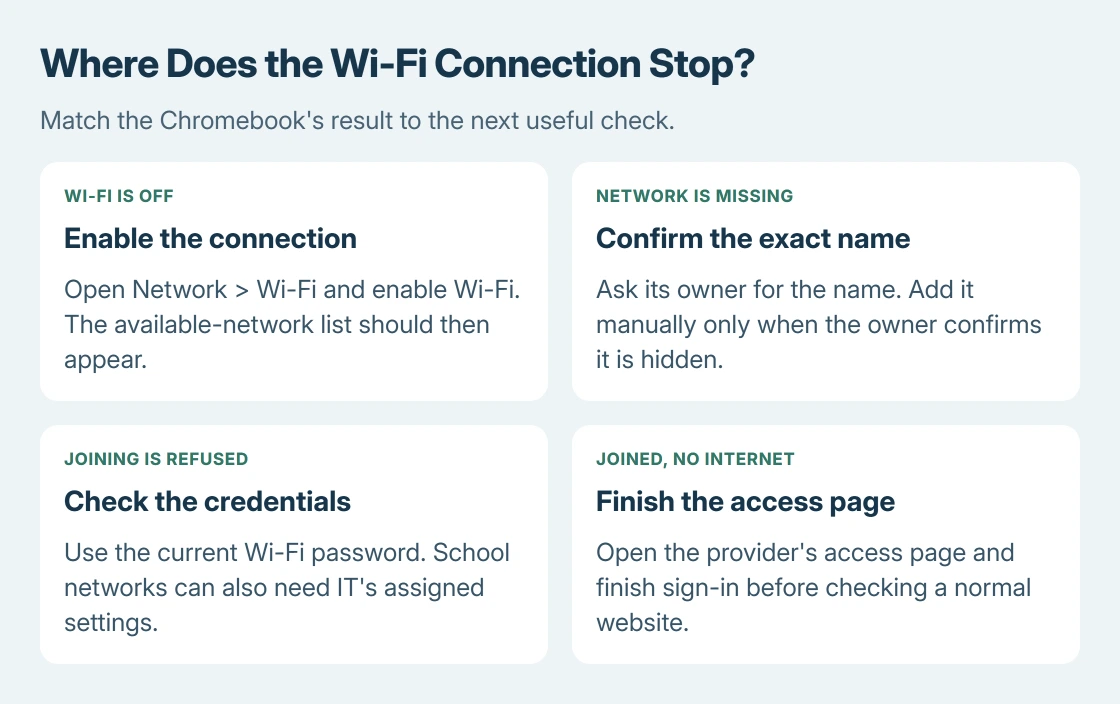
Select the bottom-right clock, choose Settings > Network > Wi-Fi and enable Wi-Fi. Available networks should appear. Select the intended name; a secured network also needs its Wi-Fi password before Connect.
Google says in its Chromebook Wi-Fi instructions that a current network name with signal strength means Wi-Fi is connected. That still leaves the network's internet access to check.
Status: Google's Wi-Fi, captive-portal and sign-in instructions checked October 28, 2026. These are vendor-documented steps; no Chromebook or hotspot was tested.
The network name does not appear
Ask the network owner for its exact name and whether it is hidden. Other visible networks do not establish that the intended router is broadcasting its name. A similar-looking name can belong to a different network.
For a confirmed hidden network, open Settings > Network > Add connection > Add Wi-Fi. Enter the name and security details supplied by its owner, then select Connect. Do not guess these details just because a name is missing.
If the entire list stays empty with Wi-Fi enabled, save open work and restart the Chromebook. Google includes a restart in its connection checks. A list that remains empty afterward needs the administrator or manufacturer to assess it.
The network appears but the connection is refused
Confirm the current Wi-Fi password with the network owner and enter it for that exact network. This is the password for joining Wi-Fi; a Google Account password belongs at the Chromebook's account sign-in screen.
Google states in its ChromeOS troubleshooting guidance that an incorrect network name or password can prevent joining without a clear notification. Retain the precise error if the verified details still fail.
School or company Wi-Fi can require certificates and administrator-supplied settings. Give IT the rejected connection details and use its configuration. Stop if those details are unavailable.
Wi-Fi connects but the access page never opens
On a hotel, library or other public network, follow the sign-in notification and complete the provider's access page. Joining the wireless network does not complete a captive portal's sign-in or agreement.
For a missing portal, Google's connection troubleshooting recommends opening a website address starting with http://, rather than https://. A private window with Ctrl+Shift+N is another documented option if the administrator allows it.
If the portal still does not appear, temporarily turn off Chrome extensions. Open Chrome's More > Extensions > Manage extensions and switch them off, then retry. Restore the extensions after the check; tell IT if their controls are locked.
For a sign-in message requesting a Guest session to activate the network, select Browse as Guest and follow its connection prompts, as documented by Google.
Follow the error that remains
A connection reporting DHCP Lookup Failed needs the Chromebook address-assignment checks. That guide covers network comparisons, saved connection tests and reconnecting with known credentials.
If webpages work but initial account setup still says Network not available, use the Chromebook setup checks. A working web connection changes the next step.
For a portal failure after its access process, ask the operator whether internet service is available.
Give the manufacturer the model, exact message and failed joining stage for a persistent device-side fault. Managed devices go to IT first.
The Short Version
Enable Wi-Fi, use the correct network details and complete any public access page. Add a hidden network with its owner's configuration. Send persistent failures to the operator, IT or manufacturer.

Isaac Smith is the founder and editor of PC Glance, a website that covers computers, laptops, and technology. He is a tech enthusiast and a computer geek who loves to share his insights and help his readers make smart choices when buying tech gadgets or laptops. He is always curious and updated about the latest tech trends.