

Pinterest stuck on the loading screen can come from its connection, an old session, stored page data or a browser extension. Start by opening pinterest.com in another browser or comparing the website with the phone app.
That comparison determines which settings deserve attention. A working website gives a temporary way to reach the account while the app is checked; a failure in every version needs connection and account checks too.
Compare the app, the website and the connection
Open a different website to check that the device has internet access. Then try Pinterest through another supported browser, or open the website when only the phone app is stuck.
Pinterest's general troubleshooting instructions identify connection problems, session issues, extensions, VPNs and cached data as possible causes. They do not identify one universal loading-screen bug.
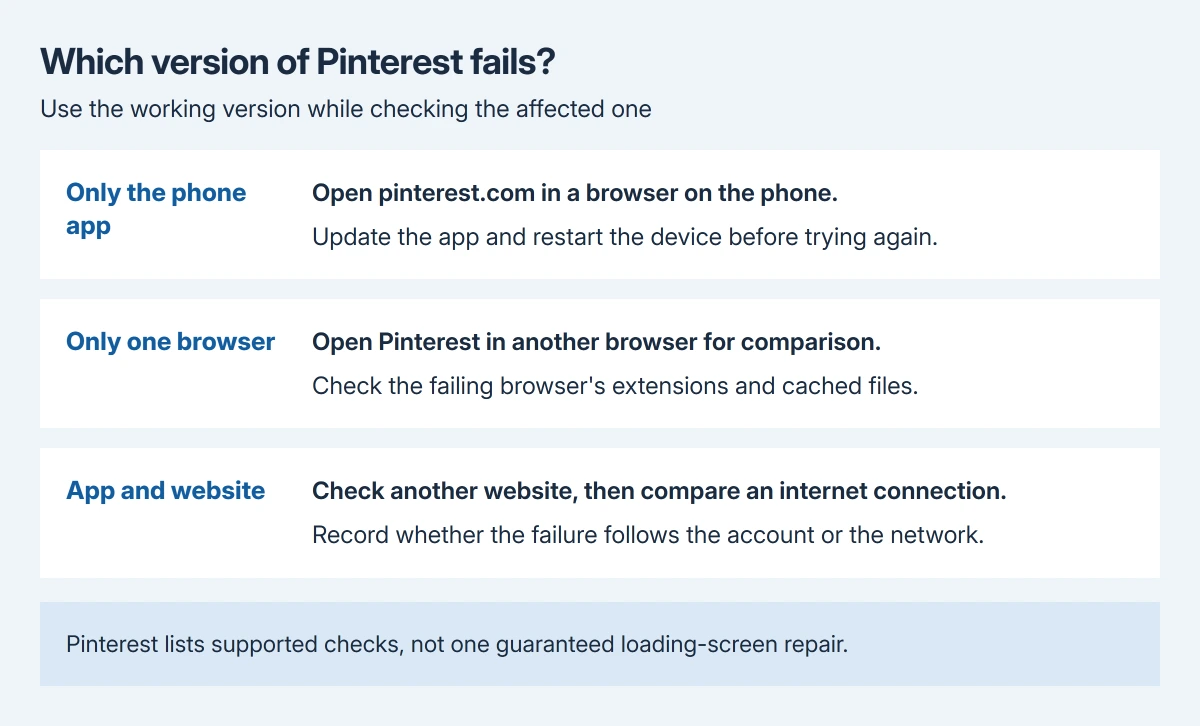
Status: Pinterest loading advice reviewed October 29, 2026 alongside Google's desktop Chrome controls. These are supported checks, without a claimed device test or confirmed universal repair.
The comparison order is ours. Change one relevant item, reload Pinterest and check for a usable feed or Pin before continuing. A single successful reload does not establish which setting caused a previous failure.
If the whole Chrome window stops responding, use the Chrome freeze checks to recover that session. A loading indicator on one functioning tab needs a narrower approach.
Reopen Pinterest and refresh the session
Close the affected app or browser tab, then reopen it. Restart the device if Pinterest still hangs. That restart is documented by the vendor as part of its general troubleshooting.
If Pinterest's account menu still works, log out and sign back in using the original method. Confirm access to the account's email or chosen Google, Facebook or Apple sign-in before logging out.
A completely stuck loading screen may not offer a working account menu. Continue with the app or browser checks instead of repeatedly pressing an unresponsive logout control.
If a sign-in error replaces the loading screen, follow the message. A password failure or a suspended-account notice needs Pinterest's account support rather than repeated cache clearing.
Check extensions in a desktop browser
Pinterest recommends temporarily disabling extensions or ad blockers that might interfere. In Chrome, open the menu and select Extensions > Manage extensions, then turn the relevant extensions off.
Google says extensions can be turned off and on in its extension-management guide. Reload Pinterest with them disabled. If it loads, enable them individually and repeat the same action.
Leave the extension associated with the failure disabled for Pinterest, or check its own site-access controls. Keep changes limited to the affected extension once that comparison identifies it.
If nothing changes, restore those switches and continue. Merely hiding an extension's toolbar icon does not disable it.
Remove cached page files in Chrome
On a computer, choose Chrome menu > Delete browsing data. Select a suitable time range and Cached images and files, then use Delete data. Leave other categories unchecked unless their removal is intended.
Google's browsing-data explanation distinguishes cached page files from cookies, history and other stored information. Removing cache is a focused response to Pinterest's cached-data suggestion.
Reload Pinterest after the deletion. The first load may need to download its page files again. If it still hangs, repeated cache deletion adds little; move to the next applicable check.
Update the phone app and compare without a VPN
For iPhone or iPad, find Pinterest in the App Store and tap Update if offered. On Android, open its listing in Google Play Store and use Update. Pinterest documents these store routes in its app guidance.
When Update is unavailable because the operating system is too old, check for a supported system update or use Pinterest's mobile website. Do not install an unofficial replacement merely to get past the loading screen.
An Android app that actually closes to the Home screen has a different symptom. The Android app-crash procedure explains cache and storage choices before a reinstall.
Temporarily disconnect a personal VPN or proxy if one is active, then load Pinterest again. Restore the connection afterward. For a school or employer network, ask its administrator about required network software.
If Pinterest works through another internet connection, report that difference to the network provider or administrator. If it fails across browsers, the app and connections, contact Pinterest through its help page.
Include the operating system, app or browser version, exact screen and whether another connection worked. Support can use that comparison to narrow the failing app or connection.
The Short Version
Compare Pinterest in the app and on the web first. Reopen it, refresh an accessible session, and check extensions or cached files when one browser fails. Update the app and compare the connection before sending the results to Pinterest.

Isaac Smith is the founder and editor of PC Glance, a website that covers computers, laptops, and technology. He is a tech enthusiast and a computer geek who loves to share his insights and help his readers make smart choices when buying tech gadgets or laptops. He is always curious and updated about the latest tech trends.