
A computer stuck on Restarting has not necessarily reached the next boot. Windows may still be finishing update work or waiting for software or a device to close. Check for an update-progress message before forcing the power off.
For an ordinary restart that stays unresponsive, a physical power-button shutdown can recover access. When the hang returns, compare connected devices and background software rather than repeatedly cutting power.
Decide whether it is a stalled restart or active update work
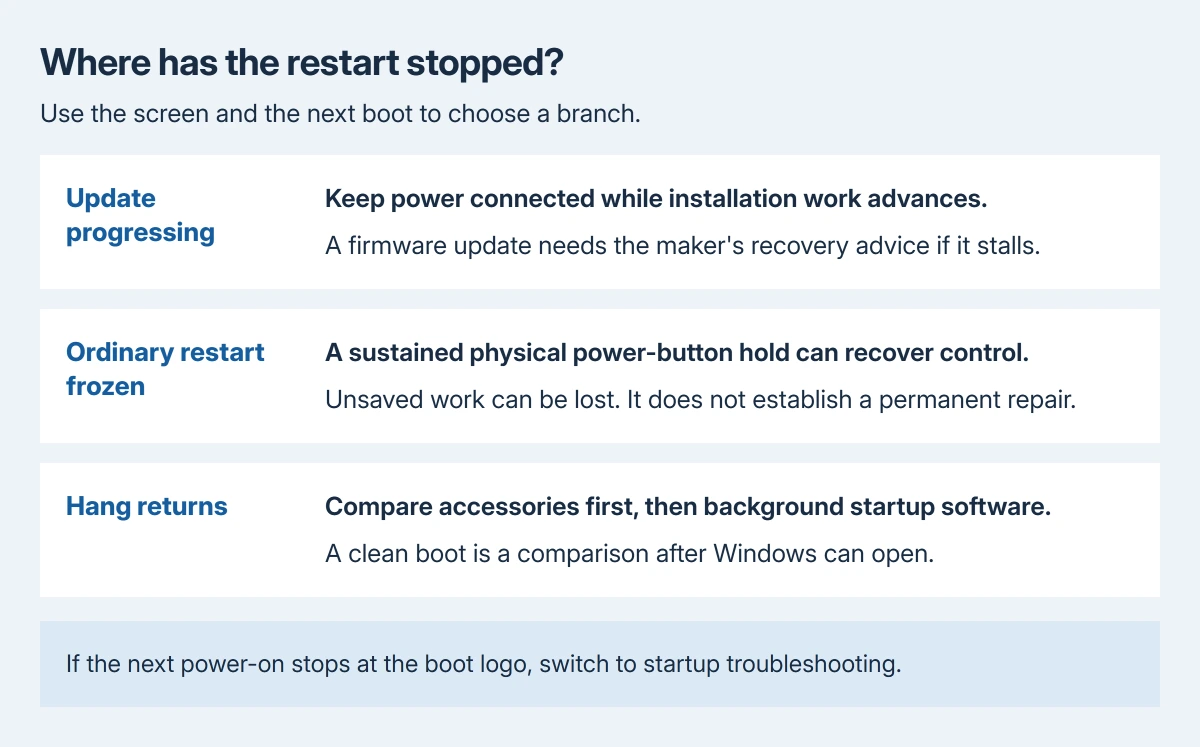
Leave the charger connected if Windows shows installation progress, a changing percentage or a message to keep the computer on. A spinning circle alone does not establish how much work remains.
There is no universal timer that proves a restart has failed. Note the exact message and whether it changes. An explicit BIOS or firmware update needs the computer maker's instructions if it stops progressing.
Status: Microsoft's clean-boot and recovery procedures reviewed October 29, 2026, with a Dell owner's successful forced-shutdown report and later failure reports. No reboot was performed.
If the screen says it is installing Windows updates, follow the stalled-update checks. The distinction matters because interrupting an installation can create a startup problem afterward.
Recover access with the physical power button
For a genuinely unresponsive ordinary restart, hold the computer's physical power button until it switches off. Unsaved work can be lost. Release the button, then press it normally to start the PC again.
On Dell's restart-hang discussion, the asker reported that a sustained power-button hold worked. The Start icon inside Windows is not that button.
Other owners reported the same approach failing. This can recover control without repairing the cause. Use the maker's model-specific shutdown advice if the computer will not switch off.
If the next start freezes at a logo instead, move to the boot-screen checks. That is a different stage, with hardware diagnostics and Windows recovery available according to what still opens.
Remove accessories before comparing another restart
After Windows opens, save the work and shut down normally. Disconnect nonessential USB storage, printers, memory cards and docks. Keep the required power, display and input devices connected, then start Windows.
Dell's staff guidance in that discussion includes removing external devices. Our comparison adds a normal Start > Power > Restart after the PC has recovered, with pending installation work allowed to complete.
If it restarts normally without the accessories, reconnect them individually between shutdowns. A hang returning with one device gives its manufacturer a specific connection and driver to check.
If the same hang occurs without them, compare startup software next. Do not interpret removing a USB device as evidence that its driver was uninstalled.
Test the background services that load with Windows
Microsoft documents a clean boot to check background software conflicts. Use it only when Windows can open and an administrator account is available.
Keep a record of the original enabled entries. Some software functions will be unavailable during the comparison. A managed work computer needs its IT team's help with changes to startup services.
- Search Start for msconfig, then open System Configuration.
- On Services, check Hide all Microsoft services. Only then use Disable all and Apply.
- On Startup, select Open Task Manager. Disable the startup entries currently marked Enabled, recording each change.
- Close Task Manager, confirm System Configuration, and perform the restart when requested.
Keep the Boot tab and advanced boot settings untouched. Microsoft says this procedure starts Windows with essential components while reducing background startup software.
If the configured restart completes, try a further normal restart in that environment. A repeatable difference supports checking the disabled software. Restore recorded entries in groups to identify which group brings the hang back.
Return the recorded services and startup apps to their previous states when the comparison ends. Leave unrelated entries that were disabled originally as they were. Contact the identified software maker about an update or removal.
A repeated hang needs the failure details
If the restart still hangs with accessories removed and the clean boot configured, give the PC maker or Microsoft Support the model, Windows version, exact screen and recent driver or update changes.
Microsoft's recovery options distinguish restore, update removal and reinstalling Windows. Choose according to the actual trigger and available backups before an erasing recovery.
The Short Version
Allow active updates to finish. Recover a truly unresponsive ordinary restart with the physical power button, then compare accessories and startup software. A successful forced shutdown restores access but does not explain a recurring hang.

Isaac Smith is the founder and editor of PC Glance, a website that covers computers, laptops, and technology. He is a tech enthusiast and a computer geek who loves to share his insights and help his readers make smart choices when buying tech gadgets or laptops. He is always curious and updated about the latest tech trends.