
Part of a Word document can have a different orientation or column layout without changing the rest. Insert a section break where that change should begin, using Layout > Breaks in desktop Word.
Choose Next Page to begin the section on a new page, or Continuous to keep it on the current one. A page break alone will not give that part of the document its own layout settings.
Choose the break for the layout change
Keep a separate Word file for the layout edit when the original must be preserved. Decide where the differently formatted material begins and where it should end before inserting anything.
Microsoft documents four choices in its section insertion guide. The choice determines where the new section begins, so start with the result wanted on the page.
Status: Word section insertion checked October 29, 2026 for Windows and Mac. Microsoft's browser version cannot add section breaks. No document layout was modified.
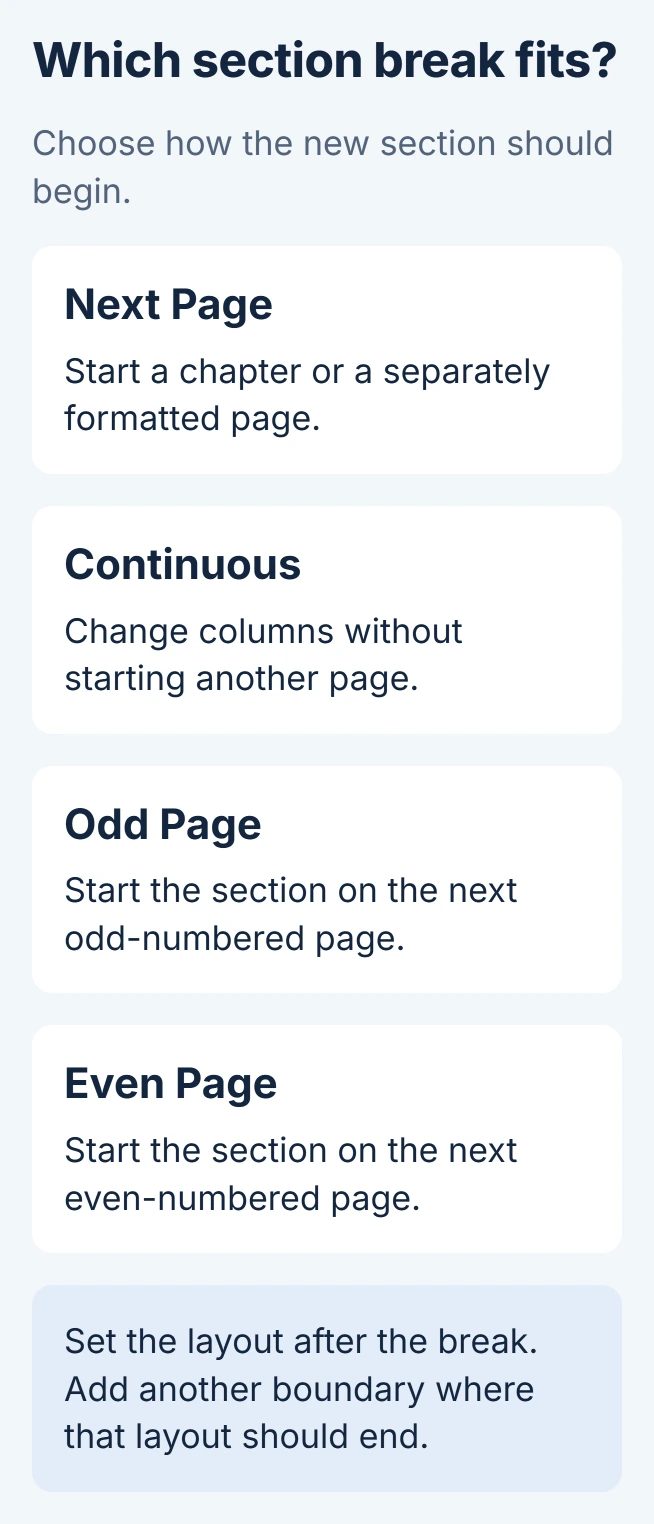
- Next Page: Start the section on a new page, such as a separate chapter.
- Continuous: Start it on the current page, useful for changing the number of columns partway through a page.
- Odd Page or Even Page: Start it on the next page matching the chosen odd or even number.
An odd-page start can leave an intervening page blank. For ordinary separation without that numbering requirement, Next Page is the clearer choice.
Insert the boundary in desktop Word
- Place the cursor before the new section's text.
- Open the ribbon's Layout tab and choose Breaks.
- Under the section choices, select the type decided on.
- Choose Home > Show/Hide to reveal its label.
Microsoft's formatting-mark instructions give the same Show/Hide control for Windows and Mac. Keep it on while checking the boundary; a patch of empty page space is less informative.
Check the text on each side of the label. The material intended for the new section should follow the break. If the boundary is in the wrong place, undo the insertion before setting up its formatting.
Apply the change inside the new section
Put the cursor in the text after the break before changing the section's layout. Microsoft says a change applied to the preceding section should be undone, then retried with the cursor after the boundary.
For a passage that changes columns temporarily, add a second section break at its end. Restore the intended layout in the later section. Without that ending boundary, the changed formatting can continue into following material.
Microsoft describes this start-and-end approach in its section formatting guidance. Check both boundaries when only part of the document should change.
Headers, footers and page numbering have their own section settings. Adding a break creates the boundary; it does not finish every formatting choice for the new section.
Browser Word needs the desktop app for this step
Microsoft states that Word for the web can add page breaks but cannot add section breaks. Open the file in desktop Word, insert the section there, then save the document.
If desktop Word is unavailable, ask someone with the desktop app to make the layout change. Substituting repeated blank paragraphs will not create a separately formatted section.
Check the surrounding pages before saving
Inspect the first page of the new section and the first page after it. Look for an unexpected blank page, shifted columns or text that inherited the wrong layout.
Removing a boundary later has consequences: the section-break deletion procedure explains which section's formatting survives the merge. Use Undo when an unwanted insertion is still the latest action.
If a simple sample works but the original document does not, keep both and contact Microsoft Support with the break type and affected pages. A sample without private content helps show the layout problem.
The Short Version
Choose a section type in Layout > Breaks, inspect its label with Show/Hide, then apply formatting inside the new section. Add an ending boundary when a passage needs temporary formatting. This insertion requires desktop Word.

Isaac Smith is the founder and editor of PC Glance, a website that covers computers, laptops, and technology. He is a tech enthusiast and a computer geek who loves to share his insights and help his readers make smart choices when buying tech gadgets or laptops. He is always curious and updated about the latest tech trends.