
To duplicate a sheet in Excel for Windows, right-click its tab, choose Move or Copy, then select Create a copy. Excel adds another sheet and leaves the original in place.
Make the copy from the sheet tab
In Windows Excel, open the workbook and right-click the required sheet's tab. Select Move or Copy, check Create a copy, choose the position under Before sheet, then select OK.
Microsoft documents these choices in its worksheet-copy instructions. The original tab should remain alongside the new copy; moving a tab alone only changes its position.
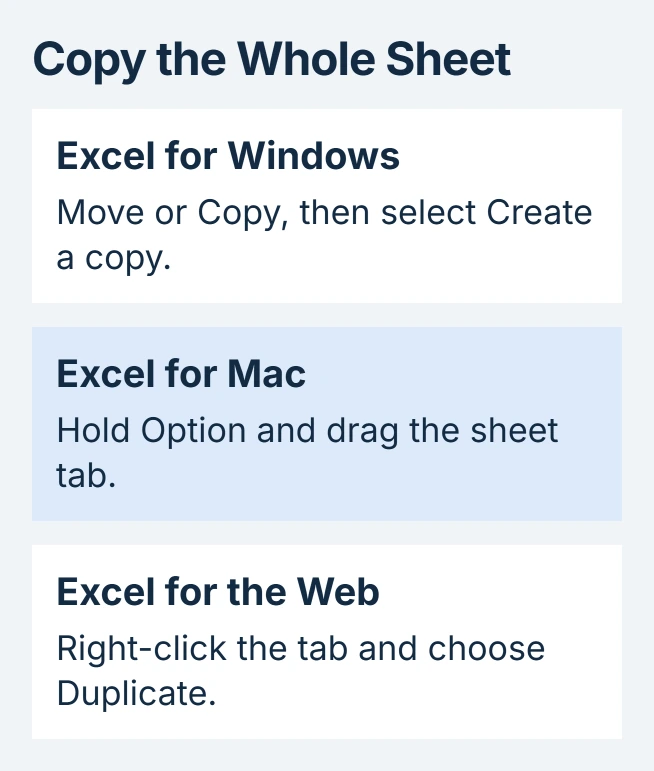
Status: Excel's Windows, Mac and browser copy controls checked October 30, 2026. A worksheet copy and a pasted cell range preserve different things.
For another open workbook, select that destination under To book in the same dialog. Keep Create a copy checked. On Mac, the equivalent dialog is reached through Edit > Sheet > Move or Copy Sheet.
Use the Mac shortcut or browser command
On Mac, hold Option while dragging the sheet tab to its new position. Release the mouse button first, then release Option. Without the modifier, dragging moves the existing tab.
In Excel for the web, right-click the tab and choose Duplicate. Microsoft says charts, pictures or shapes can sometimes prevent this operation. For a complex sheet that fails, try desktop Excel; a cell paste may not reproduce it.
The web version's manual copy-and-paste fallback loses conditional formatting. Use that only when copying the data is sufficient, and verify the resulting layout and rules separately.
Rename the new tab before entering new data
Double-click the copied tab, enter a distinct name and press Enter. Microsoft's worksheet-naming rules limit names to 31 characters and reserve History for Excel itself.
Avoid slashes, backslashes, question marks, asterisks, colons and square brackets in the name. For example, use Nov 2026 instead of a date containing slashes. The new name should describe the copy's purpose.
Our first check is to click the original tab again before editing the duplicate. Its data should still be present. This simple comparison catches an accidental move or work begun on the wrong tab.
Check formulas and totals after duplication
Microsoft states that inserting a copied sheet inside a range used by a 3-D reference adds that sheet's values to the calculation. A total spanning several tabs can therefore change immediately, even before new figures are typed.
For example, a summary using =SUM(Start:End!B2) includes sheets positioned between Start and End. Place a copied monthly tab inside that span only when its B2 value belongs in the summary total.
When copying between workbooks, inspect formulas that still refer to the source file. The Excel link-removal guide explains why links can remain in places beyond ordinary cells.
Check a representative formula, chart and total against the intended result. Renaming a sheet makes it easier to recognize; it cannot verify the destinations of its references.
When the copy command is unavailable or fails
If tab-management commands are grayed out, inspect Review > Protect Workbook with the file's owner. Microsoft's workbook-protection guide identifies structural protection as a restriction on adding, moving and renaming sheets.
That differs from protection applied to worksheet cells. Obtain the authorized password or an editable workbook rather than changing unrelated sheet settings.
If ordinary cell pasting fails too, check Office updates. Microsoft lists the September 2026 paste failure as fixed; that notice does not guarantee a fix for every sheet-copy error.
If an ordinary unprotected workbook also fails, record the Excel version, exact error and whether a new test workbook can duplicate a simple sheet. Send those details to Microsoft Support or the organization's Office administrator.
A failed copy that produces a blank sheet is not a successful duplicate. Keep the source sheet until the result has been checked, and avoid replacing it with an incomplete copy.
The Short Version
Create the duplicate with the version's sheet-tab control, rename the new tab, then inspect its contents. Check formulas and workbook protection when copying does not behave as expected.

Isaac Smith is the founder and editor of PC Glance, a website that covers computers, laptops, and technology. He is a tech enthusiast and a computer geek who loves to share his insights and help his readers make smart choices when buying tech gadgets or laptops. He is always curious and updated about the latest tech trends.