

A SteelSeries mouse that is not connecting may need its receiver paired again, even when the USB dongle is plugged in. Start with the model and connection mode: Rival 3 Wireless uses different steps for its dongle and Bluetooth.
An Aerox 3 Wireless that stopped connecting after a firmware update has another documented cause. Its mouse and dongle can need separate updates before they work together again.
Match the switch to the connection being used
Check the model name on the underside. On a mouse with both wireless modes, select 2.4 GHz for its USB receiver or Bluetooth for the computer's Bluetooth connection. Use fresh batteries or charge the mouse as its manual directs.
The general wireless-mouse setup explains those two connections. SteelSeries adds model-specific repair procedures, so a replacement dongle does not always start working simply because it fits a USB port.
Status: SteelSeries Rival 3 Wireless, Rival 650 and original Aerox 3 Wireless support procedures checked October 31, 2026. These controls are model-specific; no mouse was tested.
Try the receiver directly in another USB port, without a hub. If Windows recognizes it but GG cannot pair the mouse, follow the pairing procedure. A receiver missing from Windows needs USB recognition checks first.
Re-pair the Rival 3 Wireless receiver in GG
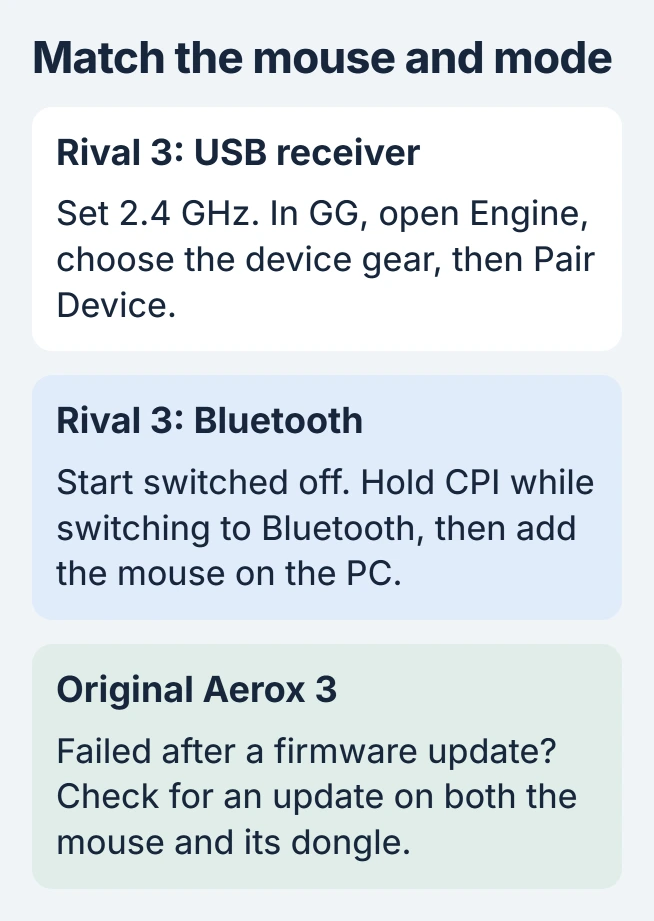
Connect the mouse's Nano Dongle and set its underside switch to 2.4 GHz. Open SteelSeries GG, then choose Engine. Hover over the Rival 3 Wireless device tile and select its gear icon.
Choose Pair Device. The Rival 3 receiver procedure is documented by the vendor; an orange scroll-wheel light indicates the connection succeeded.
Move the pointer and click a normal desktop control to confirm operation. If the device tile is absent, check whether Windows detects the dongle before repeating the pairing command.
Use the CPI button for Rival 3 Bluetooth
SteelSeries specifies Bluetooth 5.0 or later on the computer. Begin with the original Rival 3 Wireless switched off; hold its CPI button while moving the switch to Bluetooth. A blue wheel flash means it is searching.
On Windows 11, open Settings > Bluetooth & devices > Add device > Bluetooth. Choose Rival 3 Wireless. Windows 10 uses Settings > Devices > Bluetooth & other devices > Add Bluetooth or other device.
Microsoft documents removing a stale pairing when an existing device refuses to reconnect. Remove only this mouse's entry, then repeat its discovery procedure.
Microsoft says low battery power can prevent pairing. If the mouse never enters discovery mode, check its batteries before changing the PC's drivers. SteelSeries' Bluetooth instructions identify an orange wheel light as the connected state.
After an Aerox 3 firmware update, check both parts
SteelSeries documents a specific Aerox 3 Wireless update failure. Updating one part can leave the other waiting for its firmware installation.
If the dongle is connected, disconnect it and connect the mouse by cable. If the mouse is connected instead, disconnect it and attach the dongle. Look under the Aerox device tile for the firmware-update banner.
Complete the offered update, then try wireless operation again. This instruction belongs to the original Aerox 3 Wireless support page. For Gen 2 or another Aerox model, consult its own firmware instructions.
Rival 650 uses its own connect button
Keep the Rival 650 near its connected USB adapter, set its power switch to On, then press the mouse's connect button. SteelSeries' Rival 650 instructions describe blue flashing during pairing.
A USB device recognition error is a separate failure. If the receiver produces that error on another PC too, give SteelSeries those results before ordering a replacement.
For continued failure, contact SteelSeries with the exact model, connection mode, GG version and LED behavior. Include whether the mouse works through another supported connection and whether the receiver appears in Windows.
The Short Version
Choose the mouse's actual wireless mode, then use that model's pairing control. Rival 3 receiver repair goes through GG; its Bluetooth procedure uses CPI. An original Aerox 3 may need firmware installed on both parts.

Isaac Smith is the founder and editor of PC Glance, a website that covers computers, laptops, and technology. He is a tech enthusiast and a computer geek who loves to share his insights and help his readers make smart choices when buying tech gadgets or laptops. He is always curious and updated about the latest tech trends.