
To cut and paste text on an iPad, select the words, tap Cut, then tap the destination and choose Paste. Cut removes the selected words from their original position; use Copy when that text should stay in place.
Cut is available in editable notes, documents and text fields. For text on a regular webpage, use Copy instead.
Select the words before choosing Cut
In an editable note or document, double-tap a word. Drag the selection handles until the highlight covers the required text, then tap the highlighted selection to show its editing commands.
Apple documents word and paragraph selection in its iPad text-editing guide. Triple-tapping selects a paragraph when that is easier than adjusting both handles.
Status: Apple's current iPad text, Pages and keyboard instructions checked October 31, 2026. This procedure moves editable text; app permissions and cross-device copying are separate checks.
Choose Cut. The highlighted words should disappear from the source. If the menu only offers Copy, check whether the document is open for editing before assuming the clipboard is broken.
Place the cursor where the text should go
Open the destination app or move to the required part of the document. Tap in an editable text field, place the insertion point, then tap that spot to reveal Paste and select it.
Apple says a press-and-hold can magnify the insertion point so it can be dragged precisely. Check the cursor's position before pasting, particularly when inserting a sentence between existing words.
Apple states in its Pages instructions that Cut removes the source text. Paste places that text at the selected destination.
Our completion check is to read the sentence on both sides of the pasted text. Confirm its spaces, punctuation and position before deleting any other material or closing the source document.
Use three fingers or an attached keyboard
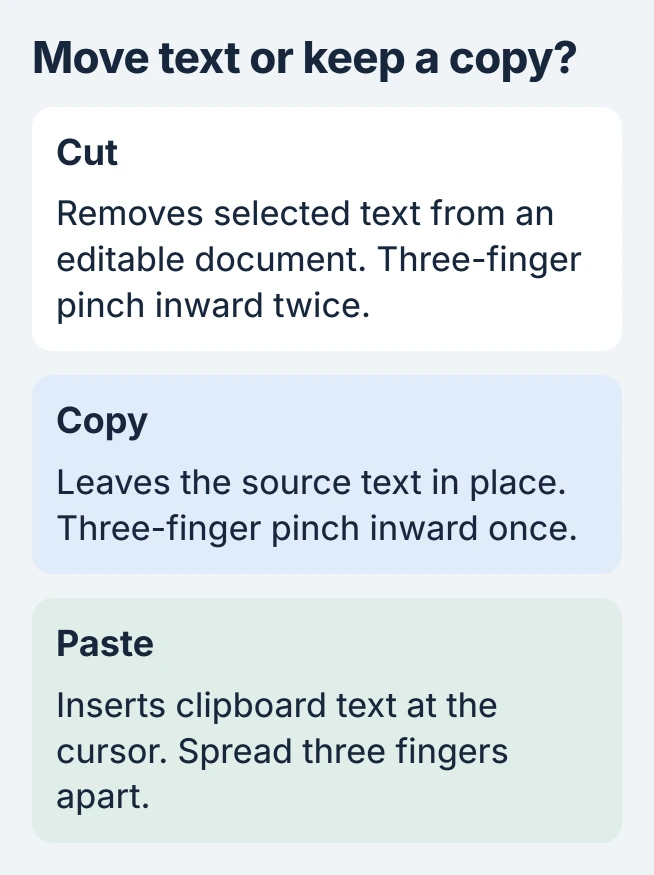
After selecting editable text, pinch inward with three fingers twice to cut. One inward pinch copies instead. At the destination insertion point, spread three fingers apart to paste.
With an external keyboard, press Command + X for Cut or Command + C for Copy. Place the cursor in the destination and press Command + V. Apple's keyboard shortcut list documents those combinations.
An accidental edit can be reversed with Command + Z in the active editing app. Check which document currently has focus before using Undo, because the command acts on that app's recent work.
Handle a missing command or a paste permission prompt
Try copying a short sentence within a new note. If it pastes there but not into the target app, inspect the target's edit mode, selected object or document permissions. Repeating the gesture cannot make a read-only field editable.
A recurring permission box belongs to the iPad Allow Paste checks. Choosing a destination and pasting deliberately is different from an app reading clipboard contents in the background.
Copying on another Apple device adds extra requirements. If local pasting works but an iPhone or Mac supplies nothing, follow the Universal Clipboard checks rather than changing text-selection gestures.
If a basic note cannot cut and paste either, record the iPadOS version and affected apps for Apple Support. For a failure limited to one app, send its developer the exact selection and destination that fail.
The Short Version
Highlight editable text, choose Cut and paste at a deliberate insertion point. Copy keeps the original. Touch gestures and Command-key shortcuts perform the same editing tasks, while app restrictions can limit which commands appear.

Isaac Smith is the founder and editor of PC Glance, a website that covers computers, laptops, and technology. He is a tech enthusiast and a computer geek who loves to share his insights and help his readers make smart choices when buying tech gadgets or laptops. He is always curious and updated about the latest tech trends.