
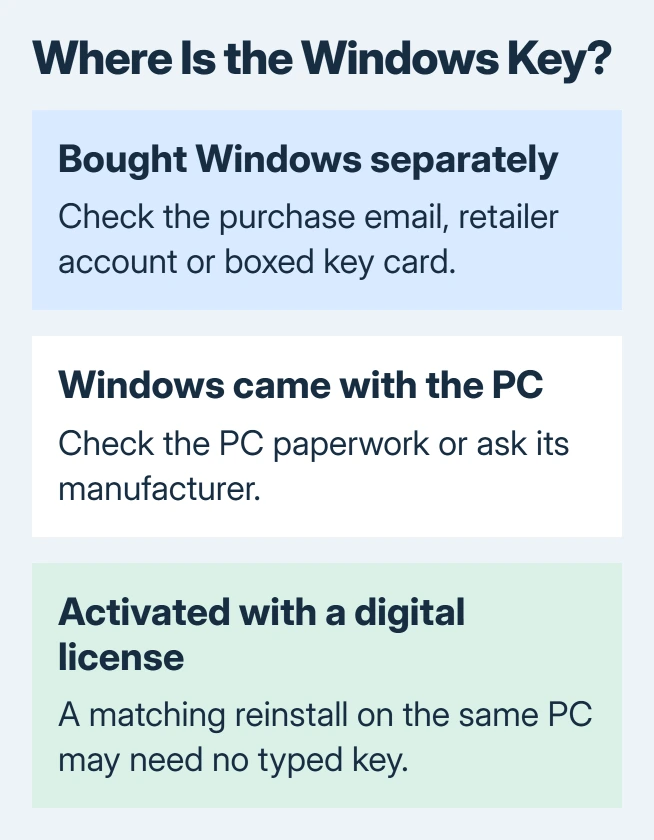
A Windows 10 product key usually comes with the purchase email, retailer account, software box or PC paperwork. A free Windows upgrade or a Pro upgrade bought inside Microsoft Store can instead use a digital license.
Check which activation method the PC uses before searching for a missing code. A digital license can let the same computer reactivate without entering a key.
Check whether Windows needs a key at all
In Windows 10, open Settings > Update & Security > Activation. Note the edition, such as Home or Pro, and the activation wording. Windows 11 places this page under System > Activation instead.
Microsoft documents these messages in its Windows activation guide. A digital-license message describes the existing entitlement; it does not reveal a hidden 25-character code.
Status: Windows 10 activation and key-location guidance reviewed October 31, 2026. Purchase records and digital licenses need different recovery routes. No private key was accessed.
For a same-device reinstall, Microsoft says an existing digital license can activate the matching Windows edition without a typed key. Check activation before erasing anything and retain a backup of the files that matter.
A replacement motherboard needs the separate Windows hardware-change activation procedure. Finding an old key does not itself establish permission to move the license to another computer.
Search the purchase record that supplied Windows
Use the route that matches the purchase. Microsoft's key-location reference distinguishes these sources:
| How Windows was supplied | Where to look |
|---|---|
| Boxed retail copy | The label or card inside the software package |
| Retailer download | Purchase email or that retailer's digital account |
| Microsoft website purchase | Confirmation email and Microsoft account order history |
| Windows included with a PC | Preinstalled key, original packaging or authenticity label; ask the PC maker if needed |
| Work or education agreement | The program's licensing portal or administrator |
Search the mailbox used for that purchase, including any older address. A recent Microsoft account may be unrelated to the account through which Windows was originally supplied.
One owner recovered their Microsoft Imagine keys by signing into an old account after a command returned no key. Their later reply confirmed account recovery, rather than recovery from the installed Windows copy.
Do not confuse Product ID with the product key
The Product ID under Settings > System > About is not the activation key to type into Windows Setup. Microsoft states this distinction in its OEM activation explanation.
That document also explains why slmgr /dli and slmgr /dlv can show part of a default installation key instead of the original key stored in the PC's firmware. A partial code from those commands is not a recovered purchase key.
This matters when two activated computers display matching key endings. Do not replace a license or buy another one solely because those diagnostic details look unexpected.
When the original purchase cannot be found
Contact the seller, PC manufacturer or licensing administrator with proof of purchase. Microsoft account order history only helps with purchases associated with that account; it is not a directory of every retailer's keys.
For an existing activation error, use the Windows watermark and error-code checks after recording the message. A refused key and a lost purchase record need different help.
Keep any recovered code private. Save it with the purchase receipt and identify the computer and edition it belongs to, so the next reinstall does not become another search.
The Short Version
Read the activation status, then trace Windows to its purchase source. Check the original account, email or packaging for a supplied key. A digital license may need no typed key, and Product ID is not a substitute.

Isaac Smith is the founder and editor of PC Glance, a website that covers computers, laptops, and technology. He is a tech enthusiast and a computer geek who loves to share his insights and help his readers make smart choices when buying tech gadgets or laptops. He is always curious and updated about the latest tech trends.