
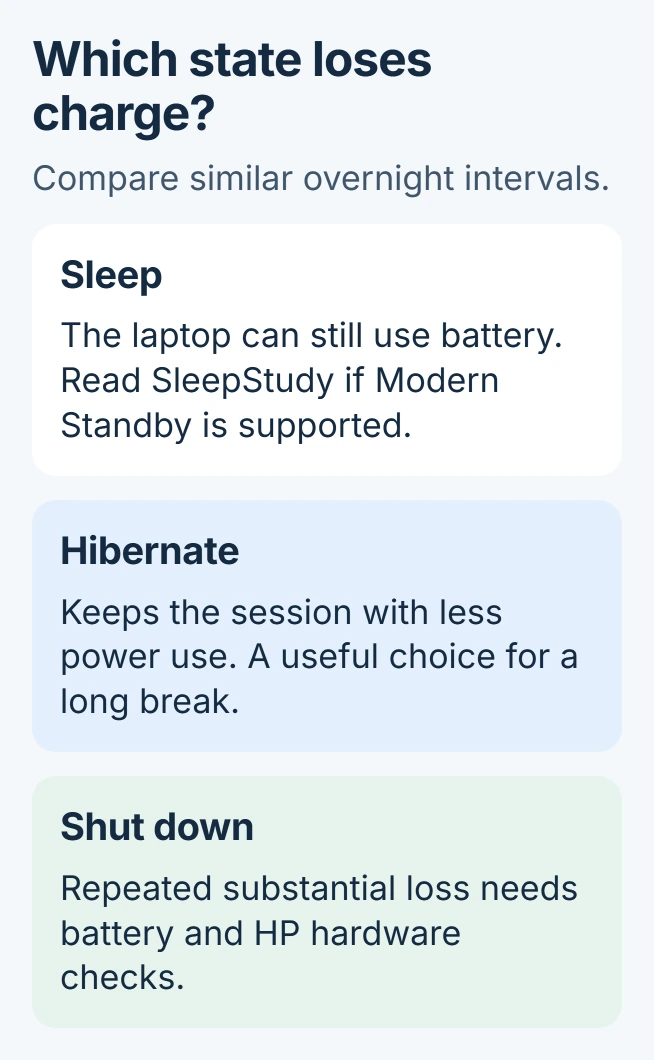
An HP laptop draining its battery overnight may be sleeping rather than fully off. Try Hibernate for a long break: Windows preserves the session while using less power than Sleep. Continued loss after shutdown needs a different check.
Closing the lid alone does not establish the power state. Check its assigned action, then compare nights with the same starting charge and accessories so the results mean something.
Use Hibernate for the next long break
On Windows 11, search for Control Panel and open System and Security. In Power Options, open the power-button settings, then select Change settings near the top to enable the unavailable shutdown options.
Under Shutdown settings, enable Hibernate if offered and save. Then choose Start > Power > Hibernate when leaving the laptop. Microsoft says hibernation is intended for longer periods without an opportunity to charge.
Status: Windows power-state and SleepStudy guidance checked October 31, 2026. HP models differ, and no overnight discharge measurement was performed for this article.
On Windows 10, reach Power Options through Settings > System > Power & sleep > Additional power settings. The same shutdown-settings checkbox makes Hibernate available when the computer supports it.
Microsoft documents both versions in its sleep and hibernation instructions. If Hibernate is absent, save work and use Shut down for the comparison.
On that screen, inspect the When I close the lid row. Read the On battery setting specifically. A lid assigned to Do nothing can leave the computer operating after the display closes.
Find out whether this HP uses Modern Standby
Search for Command Prompt. Select Run as administrator, then enter this command to list the power states supported by this particular computer:
powercfg /aLook for Standby (S0 Low Power Idle) among the available states. That identifies Modern Standby. Do not assume every Pavilion, Envy, Spectre or business HP uses the same sleep implementation.
Microsoft states that SleepStudy measures activity and consumption on Modern Standby systems. It does not diagnose a laptop that lacks that power model, nor does it prove a motherboard defect from an overnight percentage drop.
For a computer that simply refuses to sleep, follow the Windows sleep-blocker checks. That is distinct from a machine that enters standby and consumes too much power there.
Read the overnight session in SleepStudy
On a Modern Standby HP, use the administrator Command Prompt to create a report covering the last three days:
powercfg /sleepstudy /output "%USERPROFILE%\sleepstudy.html"The file lands in the current Windows user's folder. Open it in a browser and find the session that spans the affected night. Check its time, duration and whether it ran on battery rather than AC power.
Microsoft's SleepStudy documentation explains the separate Screen Off and Sleep periods. A black display can precede entry into the lower-power state.
Open a long session with substantial consumption and inspect its active components. Record the component or driver name for HP support. A highlighted item needs assessment before any driver or system service is removed.
If Hibernate preserves substantially more charge over a similar interval, keep using it for long breaks while addressing standby activity. If it loses charge similarly, continue with the battery and shutdown comparison.
Separate battery wear from loss while powered off
Disconnect unnecessary USB accessories before comparing another night. Save work, choose Shut down and let shutdown finish. Record the percentage before shutdown and after the next startup, together with the elapsed time.
Match the starting charge and duration of each overnight comparison. Startup power use and changes to the charge estimate can affect one reading, so check whether the pattern repeats across several nights.
Use the Windows battery-capacity report to compare the battery's current capacity with its original design capacity. Reduced capacity shortens runtime but does not identify why an off laptop is losing charge.
Microsoft's battery-care guidance explains capacity loss with aging. Avoid repeatedly discharging the battery to empty as a supposed cure for every overnight problem.
For repeatable substantial loss after shutdown, contact HP with the model, Windows version, battery report and comparison notes. Ask for the model's battery diagnostics and applicable firmware checks before buying a replacement battery.
The Short Version
Compare Hibernate with the usual overnight state and check the lid action. SleepStudy applies to Modern Standby systems. Continuing loss after shutdown warrants battery and HP service checks.

Isaac Smith is the founder and editor of PC Glance, a website that covers computers, laptops, and technology. He is a tech enthusiast and a computer geek who loves to share his insights and help his readers make smart choices when buying tech gadgets or laptops. He is always curious and updated about the latest tech trends.