
When Android is not responding across the phone, force-restart it using the manufacturer's buttons. If Home and Settings still work while one app stops, troubleshoot that app instead.
Repeated freezes can involve downloaded apps, low storage or a system problem. After recovering access, check updates and available space before using safe mode to compare the phone with downloaded apps disabled.
Get control back with the correct restart
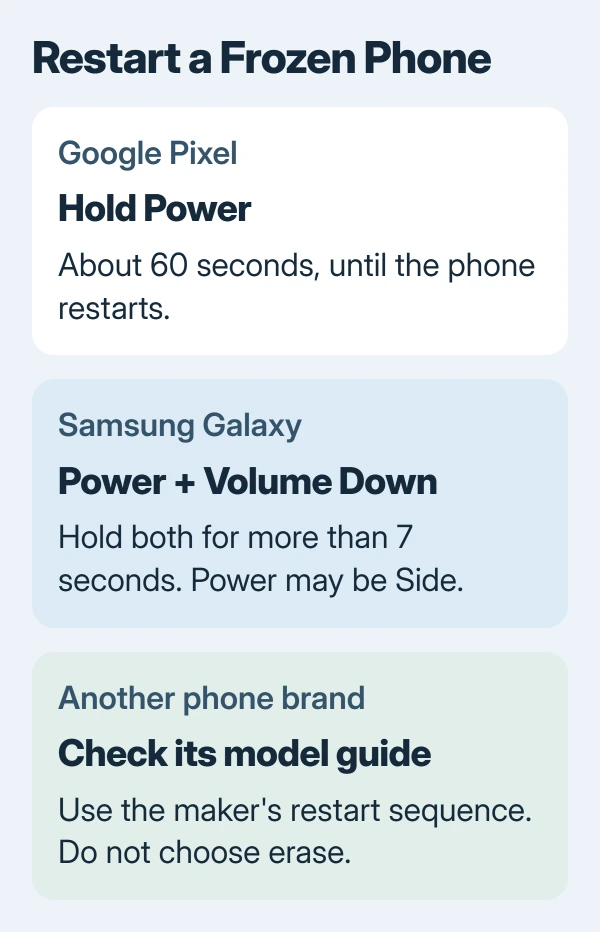
For a frozen Pixel with its screen lit, Google's current instructions say to hold Power for about 60 seconds. Continue until it restarts. The longer hold is different from briefly pressing Power to lock the screen.
On a Samsung Galaxy, hold Power or Side + Volume Down together for more than seven seconds. Samsung says to hold both buttons simultaneously in its frozen-phone instructions.
Status: Google and Samsung restart guidance checked November 1, 2026. Saved Pixel help now says about 60 seconds, replacing older 30-second wording. No phone was restarted here.
Google states the current Pixel timing in its freezing guide. For another brand, follow its model-specific restart instructions. These restart controls are not factory-reset commands.
After startup, unlock the phone and try opening Settings and returning Home. If only one app still fails, use the Android app failure checks instead of clearing unrelated system components.
Check updates and the phone's available storage
On Pixel, open Settings > System > Software update and follow any offered update. Other manufacturers may place Software update elsewhere in Settings. Finish the update and its required restart before judging the result.
For installed apps, open Google Play > profile picture > Manage apps & devices. Install available updates. This checks for published fixes without assuming that an outdated app caused the freeze.
Then inspect Settings > Storage, or the manufacturer's equivalent. Google says devices can develop problems when free storage falls under 10% in its Android freeze troubleshooting.
Move or remove files deliberately if capacity is low. The Android storage explanation separates occupied storage from working memory and explains why clearing an app's data is a different action.
Compare behavior in safe mode
Safe mode temporarily disables downloaded apps. It helps answer whether the freeze depends on one of them. Capture the Home screen's layout beforehand if possible, since some widgets may need restoring afterward.
For Pixel 6 and later, hold Power + Volume Up to open the power controls. Touch and hold Power off or Restart, then tap OK. Wait for Safe mode to appear on the screen.
These are Google's Pixel safe-mode steps. Samsung and other phones need their manufacturer's entry method. Pixel also enables Airplane mode during this process; turn it off when a network-dependent comparison requires connectivity.
Repeat the activity that caused freezing, where it remains available. If safe mode stays responsive but normal use does not, restart normally. Remove recently downloaded apps one at a time, checking the phone after each removal.
If the affected app cannot run in safe mode, its own failure has not been retested. Our recommendation is to compare Home, Settings and other available functions without treating the missing app as a successful repair.
Persistent freezing needs a backup and model-specific help
Contact the manufacturer when freezing continues in safe mode, or when buttons cannot recover the phone. Report the model, Android release, exact warning and whether the same behavior occurs with downloaded apps disabled.
A factory reset removes the phone's local data. Check the Android backup coverage before agreeing to that step; a cloud account does not guarantee that every app's local files are saved.
Google includes reset as an advanced option, but reinstalling an app that caused the problem can bring it back. Use support's guidance when repeated freezing prevents a reliable backup or setup.
The Short Version
Recover the phone with its manufacturer's restart controls. Check updates and storage, then compare safe-mode behavior. Persistent system-wide freezing needs the manufacturer and a verified backup before any erasure.

Isaac Smith is the founder and editor of PC Glance, a website that covers computers, laptops, and technology. He is a tech enthusiast and a computer geek who loves to share his insights and help his readers make smart choices when buying tech gadgets or laptops. He is always curious and updated about the latest tech trends.