

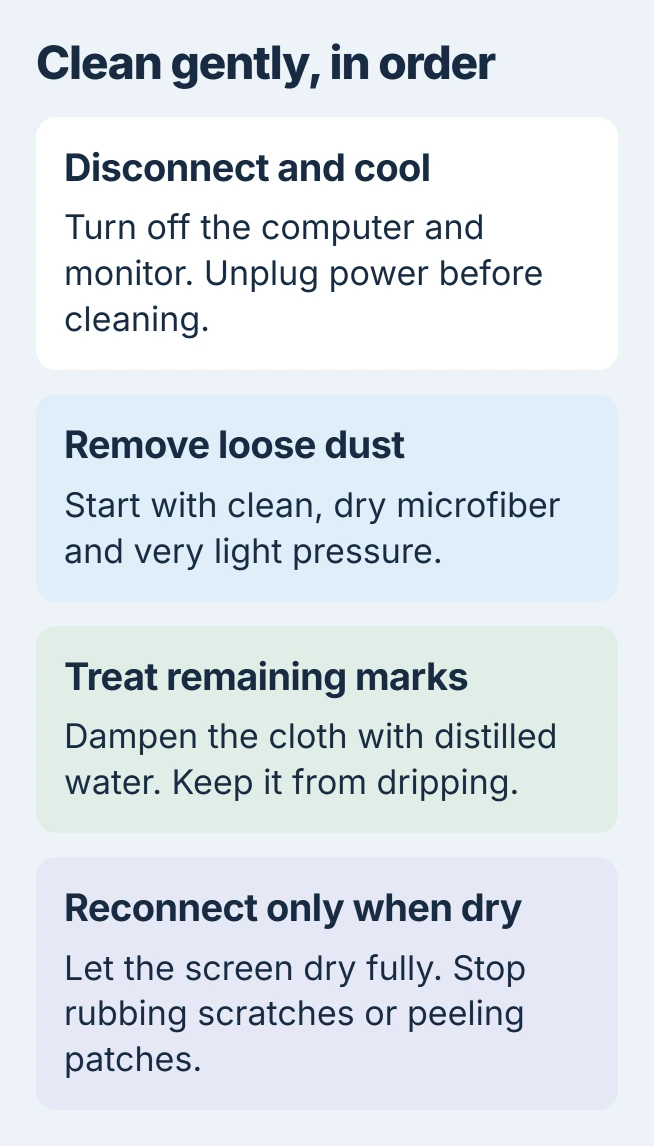
Cleaning a computer monitor starts with dry microfiber and very light pressure. Switch off the display and unplug it first. For remaining fingerprints, lightly dampen the cloth with distilled water.
The monitor's own care instructions decide which stronger products are permitted. A cleaner approved for a laptop case or phone is not automatically suitable for a desktop display's coating.
Check the display instructions before choosing a cleaner
Find the exact model on the monitor's rear label or purchase record. Read its cleaning instructions, particularly for a special surface or coating. Use a clean microfiber cloth intended for displays, without grit caught in it.
Samsung recommends microfiber and distilled or still water in its monitor-cleaning instructions. Its exclusions include alcohol, ammonia, solvents, window cleaners, paper towels and abrasive pads.
Status: External-monitor care checked November 2, 2026 against Dell, Samsung and Apple guidance. Cleaning materials vary by display. No panel or cleaning product was tested.
Apple's display care guidance treats standard glass and nano-texture separately. Follow that surface-specific route for an Apple display instead of applying another manufacturer's chemical advice.
For a laptop rather than a separate monitor, use the relevant MacBook screen instructions or the Dell laptop cleaning discussion. Their material permissions are not a universal monitor recommendation.
Disconnect power and remove loose dust
Save work, shut down the computer and monitor, then disconnect their power cables. Let the display cool before cleaning, as Samsung specifies. Support the monitor by its stand or frame without pushing against the panel.
Gently wipe loose dust with the dry cloth. Keep the pressure light and use a clean area of the cloth as it picks up dirt. Do not press harder on a mark that does not move.
Dell says to begin with a dry microfiber wipe in its computer-screen cleaning guide. Inspect the dark surface afterward; a screen already free of marks needs no wet pass.
Use a small amount of water for remaining fingerprints
Dampen a corner of the cloth with distilled water and squeeze out excess moisture. The cloth should not drip. Wipe the affected area gently, keeping moisture from collecting at the bezel or reaching ports.
Samsung says minerals in other water can leave residue. Its directions put water on the cloth, while Dell's guide also warns against spraying the screen because liquid can enter the assembly.
Use a dry part of the microfiber cloth to take up remaining moisture. If a streak persists after drying, inspect the cloth for dirt before another gentle pass. More liquid or harder rubbing is not the next step.
Let the monitor dry and stop at fixed damage
Wait for the display to dry completely before reconnecting power. A fixed timer cannot account for liquid that entered the frame. If liquid got inside, leave power disconnected and contact the manufacturer.
A scratch, crack, peeling patch or permanent cloudy area needs assessment rather than repeated cleaning. Photograph the mark and tell support which product touched the screen, if any. Do not scrape it or open the display to reach it.
For a stain that remains on an otherwise intact surface, ask the monitor maker which treatment is permitted for that model. Household glass cleaner and general disinfecting wipes are poor substitutes for those instructions.
The Short Version
Unplug the monitor, let it cool and remove dust gently with clean microfiber. Use a lightly water-dampened cloth only for remaining marks, then let the display dry. Follow the exact model's guidance for anything stronger.

Isaac Smith is the founder and editor of PC Glance, a website that covers computers, laptops, and technology. He is a tech enthusiast and a computer geek who loves to share his insights and help his readers make smart choices when buying tech gadgets or laptops. He is always curious and updated about the latest tech trends.