
A header in Word places recurring text in the page's top margin. Choose Insert > Header, select a style, and replace its placeholder with the document title, organization name or other text that should repeat.
The header is separate from a heading inside the document body. In Word for the web, the starting command is Insert > Header & Footer; desktop Word provides the header gallery.
Insert the header in desktop Word
Open the document and select Insert > Header. Choose a simple layout such as Blank, then click its placeholder and enter the wording. Keep it short enough to fit the available margin width.
Microsoft documents these desktop choices in its header and footer guide. Selecting Edit Header also lets you work directly in the header area.
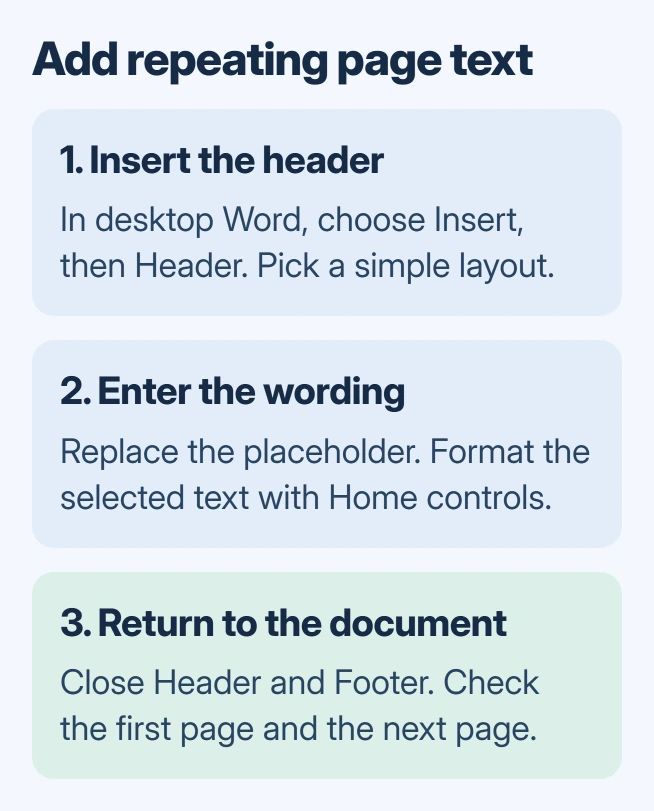
Status: Microsoft Word header instructions checked November 2, 2026, for desktop and web editions. The diagram explains the workflow; no document was edited.
When finished, select Close Header and Footer, or press Esc. Check the next page to confirm the text repeats where intended. A document with existing section breaks can use different headers in different sections.
If only one large title at the start of the document is needed, type it in the body instead. For chapter titles that feed a contents list, use the Word heading and contents workflow.
Use the browser edition's Header & Footer command
In the browser edition, choose Insert > Header & Footer. Enter the text in the header area, then use the available Options controls if the first page or facing pages should differ.
Microsoft's basic Word tasks show this browser route. Finish with Close Header and Footer when offered, or press Esc, then inspect the page view.
Use File > Print to review the generated preview if the editing view makes placement unclear. Inspect the header there, then close the preview without sending a print job.
Change the wording or its appearance
In desktop Word, double-click the existing header to edit it. Select only the text to replace, then type the new wording. This preserves other header elements that should remain, such as a logo or page number.
Microsoft says the selected header text can be formatted with the Home tab's font controls in its editing instructions. Adjust the size, weight or alignment while the header is active.
To include a page number beside the text, use Word's numbering command at the intended position. The page-number guide covers automatic numbers and a title page that should not count the same way.
Avoid typing a fixed page number into repeated header text. That would display the same number wherever that header repeats.
Leave the cover page blank and inspect the result
While editing the header in desktop Word, enable Different First Page on the header tools tab. Microsoft states that this option can remove a title-page header. Inspect that page separately from the regular header on the following page.
If text is still present in the first-page header, remove that text while editing that first-page area. Confirm that the regular header still appears on page two before saving.
A header that changes unexpectedly halfway through the document needs its section boundaries checked. For combined documents, the section-header checks explain why inherited links between sections matter.
To remove a header altogether, use Insert > Header > Remove Header in desktop Word, then inspect any other sections. Review the print preview before sharing, especially after adding a logo or changing the text size.
If header changes still behave inconsistently, send Microsoft Support a sanitized document showing the affected pages and its Word version. Duplicate an important document before rearranging its sections.
The Short Version
Insert a header from the desktop gallery or the browser's Header & Footer command. Edit its text, close the header to resume ordinary writing, and inspect the cover page plus section transitions before sharing.

Isaac Smith is the founder and editor of PC Glance, a website that covers computers, laptops, and technology. He is a tech enthusiast and a computer geek who loves to share his insights and help his readers make smart choices when buying tech gadgets or laptops. He is always curious and updated about the latest tech trends.