
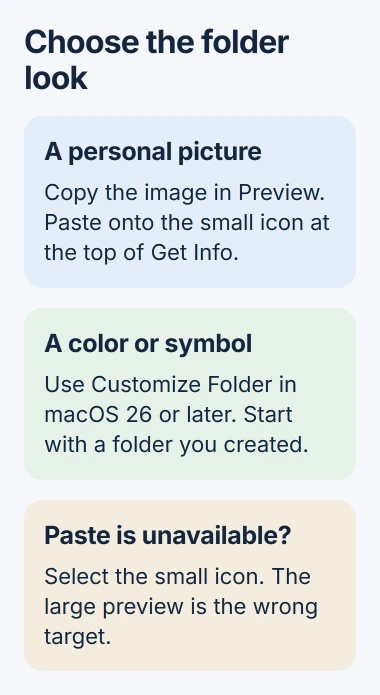
A custom picture can replace a Mac folder icon through Get Info. Copy the picture from Preview, select the small icon beside the folder's name in Get Info, then paste. Selecting the large preview instead leaves Paste unavailable.
For a colored folder with a symbol, macOS Tahoe 26 and later also offer Customize Folder. Use that simpler control when a personal photo is unnecessary.
Copy the picture from Preview
Open the image in Preview, then choose Edit > Copy. Apple documents this starting point in its folder customization guide.
Copying the image file's generic icon in Finder can put the wrong artwork on the Clipboard. Open the actual image before copying it, especially when the replacement appears as a generic PNG or JPEG document.
Status: Apple's macOS 26 and current Mac instructions checked November 2, 2026. The Preview method also has an older owner confirmation. No Mac folder was edited here.
An owner confirmed that copying the image from Preview worked. Their next reply reported a white background with a transparent Photoshop image, so that success did not establish transparency support for every format.
For a clearer icon, crop a copy of the picture in Preview before copying it. Choose a recognizable subject that remains clear when Finder displays it at a small size.
Paste onto the folder's small icon
- Select the destination folder in Finder.
- Choose File > Get Info.
- Click the small folder icon beside its name near the top.
- Choose Edit > Paste from the menu bar.
The folder should now show the copied picture. Inspect it in Finder as well as in the Info window to confirm that the intended folder changed.
Apple says an unavailable Paste command can mean the large image in the Preview section was clicked. Select the small icon at the top and try Paste again. If the copied artwork is wrong, return to the image in Preview and copy again.
The folder's name stays separate from its appearance. For unwanted names offered while saving documents, check Finder's suggested-filename setting; changing an icon does not adjust that preference.
Choose a color or symbol instead
In macOS Tahoe 26 or later, select the folder in Finder and open the Action menu in its toolbar. Choose Customize Folder, then select a color, a symbol or Emoji.
Apple states that the Home folder can be customized, but system folders such as Applications, Library, System and Users cannot use this customization. Try the controls on a folder you created when checking whether the menu is available.
Earlier macOS versions use the Preview method for custom pictures. Customize Folder is an additional option, not a requirement for changing the icon.
Remove an unwanted custom picture
Select the folder, reopen File > Get Info, and click its small icon at the top. Choose Edit > Cut. Apple gives this command for restoring the original file or folder icon.
If a folder still rejects the picture, tell Apple Support the macOS version and source image format. Explain whether Paste is unavailable or whether using it leaves the old artwork.
The Short Version
Copy the picture inside Preview and paste it onto the small icon in the folder's Get Info window. Customize Folder offers colors and symbols on newer macOS versions. Cut the selected custom icon to restore the original.

Isaac Smith is the founder and editor of PC Glance, a website that covers computers, laptops, and technology. He is a tech enthusiast and a computer geek who loves to share his insights and help his readers make smart choices when buying tech gadgets or laptops. He is always curious and updated about the latest tech trends.