
A Samsung tablet adds widgets from the Home screen's editing menu. Hold a blank spot, choose Widgets, then select the app and widget style you want. This places information or controls on Home without opening the app each time.
The app must provide that widget. Making space or changing the screen layout cannot create one for an app that does not offer it.
Place the widget on Home
Start on the Home page where you want the widget. If you are inside an app, return Home first; the tablet navigation guide explains the Home button and gesture choices.
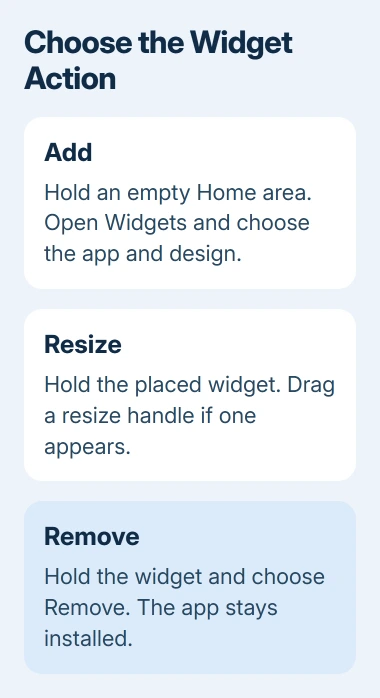
Samsung says to hold a blank part of Home and choose Widgets. Expand the desired app's entry, choose a size or design, then tap Add if offered. Other layouts require holding the preview and dragging it onto the page.
Status: Samsung's Galaxy tablet and widget instructions checked November 3, 2026. Add, resize and settings options depend on the widget and One UI version.
Release the widget where there is enough room. It should remain on Home after you leave editing. If the page cannot accept that size, choose a smaller preview or a page with more free space before trying again.
Resize or change a widget's settings
Touch and hold the widget already on Home. When resize handles appear around it, drag a handle to change its size, then tap an empty area to finish. Moving the whole widget uses a hold and drag on the widget itself.
Samsung states that some widgets cannot be resized. If handles never appear, return to the widget picker and look for another size offered by that app.
For supported widgets, the hold menu also offers Settings. Available controls may include a background color or transparency. A weather widget may need a location, while another widget may take its content from the app's own settings.
Open the underlying app if the widget shows no useful content. Complete its sign-in or setup, then return Home to check the result. The widget cannot display an account's information before that app has access to it.
Put several widgets in one space
On tablets that offer widget stacks, hold the placed widget and choose Create stack. Select another widget and tap Add. Swipe horizontally across the finished stack to move between its contents.
The stack controls are documented by Samsung. Availability depends on the widget and software version. Without Create stack, use separate placements for the widgets instead.
Hold a stack and use Edit stack to review its contents. Check there before adding another copy of a widget that seems to have disappeared behind the currently visible one.
When an app is absent from Widgets
Check that the app is installed. Google's Play Store instructions show how to find a compatible app and install it. After installation, open it and check the widget picker again.
If the app still offers no entry, ask its developer whether it supports a tablet Home widget. An app icon is a shortcut; it does not guarantee a widget exists. Work-managed apps may also have widget restrictions set by the organization.
After using Safe mode to diagnose an app problem, a widget may need adding again. Leaving Android Safe mode restores access to downloaded apps before you rebuild their Home placements.
To clear an unwanted placement, hold it and choose Remove or Remove from Home. That removes the widget from the page without uninstalling the associated app.
If an available widget stays blank while its updated app works, contact that app's developer with the tablet model and One UI version. Use Samsung Support when the Home editing menu itself fails across multiple widgets.
The Short Version
Open Widgets by holding empty Home space, then add the app's supplied design. Resize only when handles are available, and use widget Settings for supported appearance options. Check the app and any stack before replacing a missing widget.

Isaac Smith is the founder and editor of PC Glance, a website that covers computers, laptops, and technology. He is a tech enthusiast and a computer geek who loves to share his insights and help his readers make smart choices when buying tech gadgets or laptops. He is always curious and updated about the latest tech trends.