
To delete bookmarks on a Mac, open the browser holding the saved links. In Safari, Control-click the bookmark in the sidebar and choose Delete. In Chrome, use the bookmark's menu inside Bookmark Manager.
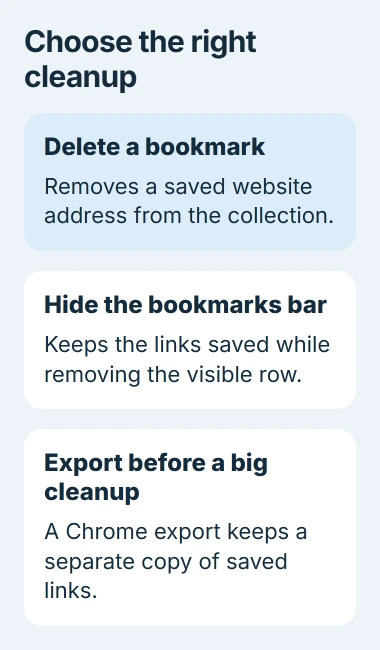
Check the folder before deleting a group. Removing a saved link is different from hiding the bookmarks bar, and a synchronized deletion can reach your other devices.
Remove a Safari bookmark from the sidebar
Open Safari and show its sidebar using the toolbar's Sidebar button. Select Bookmarks. If another sidebar view is open, use its Back button to return to the bookmark choices.
Apple documents Show Folders on Top in the sidebar's More menu in its current deletion instructions. Enable that view when it is offered.
Status: Safari and Chrome bookmark deletion reviewed November 3, 2026. Safari's current sidebar has extra view controls. No bookmark collection was accessed or changed.
Find the intended entry, hold Control while clicking it, then choose Delete. It should disappear from that folder. Older Safari layouts can present the bookmark list without the newer view controls.
For a folder, expand and inspect its contents first. Deleting the folder removes the collection inside it, so move any link that should remain before deleting its container.
Remove a saved link in Chrome on Mac
Open Chrome's three-dot menu and select Bookmarks and lists > Bookmark Manager. Find the bookmark in its folder, then choose Delete from that entry's three-dot menu.
Google says to use the entry's menu in its bookmark management guide. The manager's page-level menu serves other tasks, such as exporting.
Before a large cleanup, save a Chrome bookmark export. Google warns that deleted bookmarks cannot be recovered through the normal bookmark procedure; keep a separate copy of links that may be needed.
For one unwanted entry, inspect its name and destination before deleting. Similar names can point to different pages, especially after importing another browser's collection.
For a less crowded browser window, toggle the Chrome bookmarks bar. Hiding that row leaves the saved collection available.
Account for changes on other devices
Apple states in its Safari synchronization overview that changes made on one device appear on the other devices using that iCloud data. Treat a Safari cleanup as an account-wide change when sync is active.
Chrome can also make bookmarks available across devices through a Google Account. Check which Chrome profile is open before editing a work or personal collection.
A bookmark still shown elsewhere may belong to another folder, profile or browser. Confirm those details before deleting more entries merely because their labels match.
Recover an accidental removal where a copy exists
For Safari bookmarks stored in iCloud, Apple provides bookmark recovery through iCloud.com's Data Recovery > Restore Bookmarks. Review the available recovery items before confirming a restore.
Recovery depends on what iCloud retained, so it cannot guarantee the return of every removed entry. Leave the bookmark collection alone until a restoration finishes.
For Chrome, an export saved before deletion supplies an independent copy to import. If the needed bookmark is absent from both the browser and that copy, use any known website address or history entry to save it again.
For bookmarks that repeatedly return or disappear across devices, give Apple or Google Support the browser version, account-sync state and affected folder. Describe whether the change occurs immediately or after another device connects.
The Short Version
Delete Safari entries from their sidebar context menu and Chrome entries from Bookmark Manager. Check folder contents first, consider synchronization, and hide the bar instead when only the visible row needs to go.

Isaac Smith is the founder and editor of PC Glance, a website that covers computers, laptops, and technology. He is a tech enthusiast and a computer geek who loves to share his insights and help his readers make smart choices when buying tech gadgets or laptops. He is always curious and updated about the latest tech trends.