
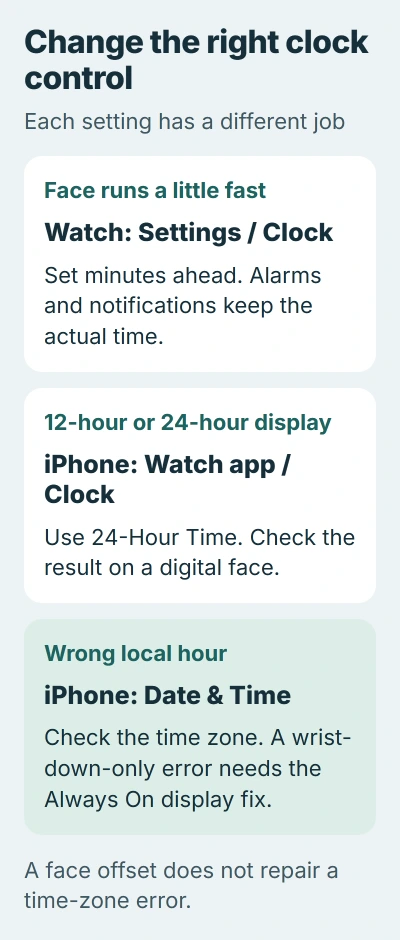
Apple Watch lets you set the watch face a few minutes fast without moving your alarms or notifications. Open the watch's Settings > Clock, tap +0 min, then rotate the Digital Crown to choose the amount ahead.
A wrong time zone or a one-hour error needs a different correction. The face offset is a display preference; correcting the underlying time requires checking its actual cause.
Set only the watch face ahead
On the Apple Watch, open Settings, then Clock. Tap the minutes-ahead control, initially shown as +0 min. Rotate the Digital Crown until the desired offset appears and confirm with Done.
Apple documents the offset control in its watch time instructions. The watch user guide permits an offset of up to 59 minutes; this control moves the face ahead, not backward.
Status: Apple Watch clock controls and Apple's October 30, 2026 daylight-saving notice checked November 3, 2026. Display offset, time format and a wrong hour are treated separately.
For example, a five-minute offset makes a face show 9:05 when the actual time is 9:00. Apple says alarms, notifications and World Clock continue using the actual time.
To remove the offset, return to the same Clock control and set the amount back to zero. Check the face afterward. The clock display should match the actual time again.
Use the iPhone to choose 24-hour time
On the paired iPhone, launch Watch, choose Clock, and enable 24-Hour Time. Turn it off to return to the 12-hour display preference.
Use a digital watch face to check the result: an afternoon time such as 1:30 PM is displayed as 13:30. Analog hands still use their dial, so they do not provide the same format check.
Changing the Apple Watch face is a separate operation. Pick a digital face if reading the hour as a 24-hour number is the goal.
Fix the current one-hour Always On display problem
Apple's daylight-saving notice, published October 30, 2026, describes a specific fault: the face shows the wrong hour with the wrist down, then shows the correct hour when tapped or raised.
For that exact pattern, switch to another watch face and then back. Restarting the watch is Apple's other documented remedy. Alarms are not affected by this display issue.
Apple states that the issue also clears at midnight following the time change. Keep watchOS updated, but do not use the minutes-ahead control to compensate for an hour that is wrong only on the dimmed display.
If the hour remains wrong after waking the screen, continue with the phone's time-zone checks. That behavior does not match the Always On problem Apple describes.
Correct the paired iPhone's date or time zone
On the iPhone, connect to the internet and open Settings > General > Date & Time. Enable the automatic time setting. Apple's date and time troubleshooting page gives this as its automatic correction route.
Next, open Settings > Privacy & Security > Location Services > System Services and enable Setting Time Zone. This lets the phone use its location when selecting the zone.
If a notice reports updated time-zone information, restart the iPhone and its paired watch. Check their displayed local time after the restart, with the watch face offset set to zero.
A dimmed automatic-time control can come from Screen Time, a corporate restriction or carrier and regional limits. Ask the person managing those restrictions before assuming the watch itself is defective.
When the watch is disconnected, use the watch-to-iPhone connection checks before judging whether it has received the phone's settings.
For a persistent mismatch, give Apple Support both software versions and the chosen time zone. Describe any change when raising the wrist. That separates the documented display fault from a broader time-setting problem.
The Short Version
The watch's Clock setting adjusts its face a few minutes ahead. The iPhone Watch app selects 24-hour format. A wrong hour needs the daylight-saving display check or the paired phone's time-zone settings.

Isaac Smith is the founder and editor of PC Glance, a website that covers computers, laptops, and technology. He is a tech enthusiast and a computer geek who loves to share his insights and help his readers make smart choices when buying tech gadgets or laptops. He is always curious and updated about the latest tech trends.