
Chrome shortcut keys can open a tab, select the address bar or find a word without reaching for the mouse. Start with Ctrl+T, Ctrl+L and Ctrl+F on Windows or Linux. On a Mac, those three actions use Command instead of Ctrl.
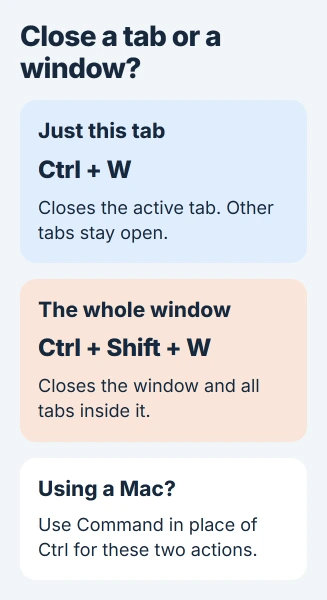
Adding Shift to the close-tab command closes the whole window. Check which window is active before using it, especially when several browser windows are open.
Choose the tab or window action first
Click inside Chrome so the browser receives the keys. Hold the modifier keys, press the letter once, then release. A shortcut directed at another application can perform a different action.
These desktop combinations are documented by Google. Windows and Linux use the keys in this table.
Status: Google Chrome's desktop shortcut and tab documentation checked November 3, 2026. Windows/Linux and Mac combinations are distinguished; no browser session was changed.
| Task | Windows or Linux keys |
|---|---|
| Create a tab | Ctrl+T |
| Create a separate window | Ctrl+N |
| Close this tab | Ctrl+W |
| Close this window | Ctrl+Shift+W |
| Recover a recently closed tab | Ctrl+Shift+T |
| Move to the next tab | Ctrl+Tab |
| Move to the preceding tab | Ctrl+Shift+Tab |
| Select a numbered tab | Ctrl+1 through Ctrl+8 |
| Select the final tab | Ctrl+9 |
An entire session lost after a crash needs the Chrome session recovery checks. A shortcut for recently closed tabs cannot guarantee recovery of missing session data.
Search the page or use the address bar
Ctrl+L selects the address bar. Type a website address or search words, then press Enter. Ctrl+F opens the page's Find box instead, where the search concerns text in the current page.
Google states that Find highlights matching text while typing. Confirm the highlighted text before deciding that a similar phrase is the one needed.
For example, use the address bar to search for a printer manual. Once the manual's webpage is open, use Find to locate a model number within that page. These are different search scopes.
Ctrl+R reloads the current page; Esc stops a page that is loading. Avoid reloading a partly completed web form without checking whether its entries have been saved.
For a saved-link row that vanished, the bookmarks-bar controls explain its visibility setting and folder contents.
Use the documented Mac combinations
On Mac, Command+T, Command+N, Command+W and Command+Shift+W perform the corresponding tab and window actions. Google says Command+Shift+T reopens the last closed tab.
Tab cycling differs: Google documents Command+Option+Right arrow for the next tab and Command+Option+Left arrow for the previous one.
Command+L selects the address bar and Command+F searches the page. Avoid substituting Command mechanically in every Windows shortcut; the tab-cycling combinations show why that does not always work.
When the keys do something unexpected
Try the command in a normal Chrome window, outside a remote session or an embedded document editor. Check the operating system and keyboard layout against Google's reference before changing browser settings.
If only one website captures the keys, use Chrome's menu for that action and report the behavior to the website. For a failure throughout Chrome, send Google feedback with the platform, shortcut and actual result.
The Short Version
Start with tab creation, address-bar selection and page search. Keep the close-tab and close-window commands separate, and use the Mac-specific tab-cycling keys when working on macOS.

Isaac Smith is the founder and editor of PC Glance, a website that covers computers, laptops, and technology. He is a tech enthusiast and a computer geek who loves to share his insights and help his readers make smart choices when buying tech gadgets or laptops. He is always curious and updated about the latest tech trends.