

Excel can capitalize all letters with UPPER. For text in A2, enter =UPPER(A2) in an empty neighboring cell. This creates an uppercase copy while preserving the original for comparison.
To keep only the converted text afterward, copy the results and paste them as Values. An ordinary paste can carry the formulas instead, leaving the result dependent on the original cells.
Make an uppercase copy beside the source
Work in a saved copy if the existing list must be preserved. Leave an unused column beside the text, or insert one before starting. The example here uses column A for the source and column B for its conversion.
Microsoft documents UPPER as accepting text or a cell reference. Enter this formula in B2, then press Enter:
=UPPER(A2)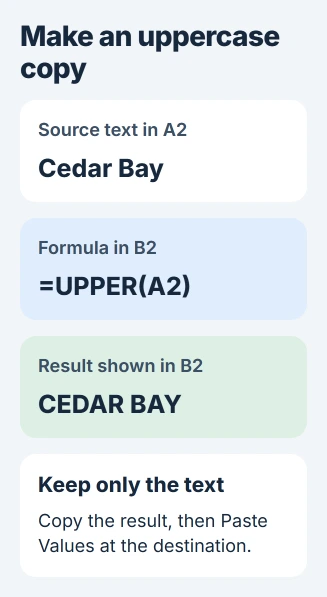
Status: Excel's UPPER function, case-conversion procedure and paste options checked November 3, 2026. The sample text is invented; no workbook was edited or executed here.
With Cedar Bay in A2, B2 should display CEDAR BAY. Check the source address in the formula if a different entry appears. Putting the formula in A2 would replace the text it needs to read.
Apply the conversion to the remaining rows
Select B2 and drag its fill handle down to the last populated source row. Check the bottom of the converted range, particularly if the list contains gaps.
Microsoft's case-conversion instructions also describe double-clicking the fill handle. In a recognized Excel table, entering the formula can create a calculated column automatically.
Inspect several results before keeping the full list. For example, check a name with punctuation, an identifier and the final row. Capitalization should change the intended letters while each record stays aligned with its source.
When one source cell contains several fields, split the Excel text into columns first if only one field should become uppercase. UPPER applies to the whole text supplied to it.
Replace formulas with their finished text
If the original column contained formulas that need to keep calculating, retain the separate UPPER column instead. Pasting values over those original formulas would deliberately replace their calculations with fixed text.
Select the converted cells in column B and copy them. Select A2, then open the Home > Paste menu and choose Values. In browser Excel, Microsoft's label is Paste Values.
Microsoft states that Values pastes formula results, without the formulas themselves. This puts the uppercase text into the original column without retaining the UPPER calculation.
Click a replaced cell and inspect the formula bar. It should show the uppercase text, rather than an expression starting with =UPPER. Only after checking that result should the temporary column be removed.
Choose UPPER for the intended text change
Microsoft says Excel does not have Word's Change Case button. LOWER converts text to lowercase; PROPER capitalizes initial letters in words. Choose UPPER when every letter should be capitalized.
For a spelling or label replacement, use Excel Find and Replace. Changing letter case does not correct the underlying word or replace one product code with another.
When the cell shows an error or the formula as text, check the leading equals sign, the cell reference and the Excel language. Give Microsoft Support a made-up source value and the exact formula if the result still differs.
The Short Version
Create the uppercase result in a spare column, fill it through the required rows and compare the output. Paste Values only when the result should become fixed text, then inspect the formula bar before deleting the helper column.

Isaac Smith is the founder and editor of PC Glance, a website that covers computers, laptops, and technology. He is a tech enthusiast and a computer geek who loves to share his insights and help his readers make smart choices when buying tech gadgets or laptops. He is always curious and updated about the latest tech trends.