
A Chromebook that says its administrator blocks Wi-Fi needs its network rules checked, even if your password is right. Try selecting the network manually first; a block on automatic connection is a different problem.
Your school or workplace's IT team may need to fix the rule. You can check a few things first, and Google provides a way to reconnect after an administrator corrects a bad network rule.
1. Check the message and who manages the Chromebook
Select the clock at the bottom right. Look for the managed-device symbol in the panel. Google says that symbol identifies a managed Chromebook in its management check.
Write down the exact message shown when you choose your Wi-Fi. Also note whether this happens at home, at school or work, or in both places. The location can matter because a rule can depend on nearby approved networks.
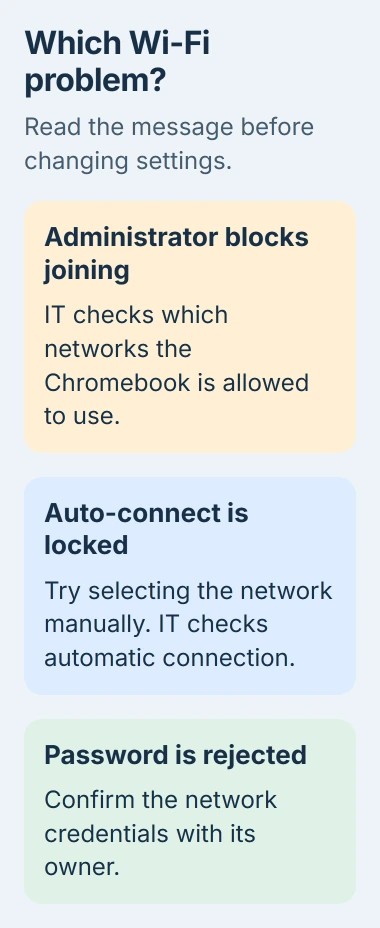
Status: checked November 3, 2026. Google provides separate controls for allowed networks and automatic connection. A school or work administrator changes these rules.
A managed Chromebook can still have ordinary Wi-Fi problems. A password error, an empty network list and an administrator-blocked message need different fixes. Save the exact message so IT knows which problem you're having.
Without a restriction message, use the ordinary Chromebook connection checks. Those cover a missing network name, a refused password and a public network's sign-in page.
Contact your school or company's support team about a blocked feature, as Google recommends for managed devices. Your home Wi-Fi password won't unlock the Chromebook's management settings.
2. Try a manual connection if only auto-connect is locked
Select the clock, open the network list, then select your Wi-Fi name. Enter its password if requested and choose Connect. Google's Wi-Fi instructions describe this manual route.
If that works, open a normal webpage. If the page loads, you can use this network. The problem is getting your Chromebook to reconnect automatically.
Open Settings, select Network, then Wi-Fi, and choose the connected network. Look for Automatically connect to this network. If the control is available, turn it on for a network you regularly use.
If it's locked, tell IT that manual connection works but automatic connection doesn't. Google documents an Auto-connect policy that limits automatic connections to networks the organization has configured.
This policy is documented by Google separately from the rule that blocks joining unapproved Wi-Fi networks.
I'd try the manual connection before resetting your router. If your laptop connects when you select the network, the network is already letting it join.
If manual connection is blocked too, keep the exact message and continue to the administrator checks. Repeatedly entering the same password won't change which networks the device is allowed to use.
3. Have IT check the rule that matches the failure
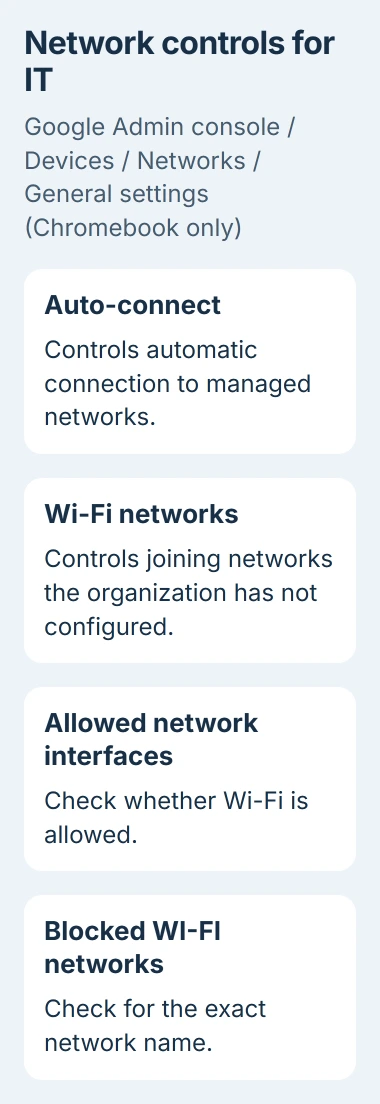
The administrator opens Devices > Networks in the Google Admin console, selects General settings (Chromebook only) and checks the device's organizational unit. That is the group whose settings apply to this Chromebook.
Under Wi-Fi networks, Restrict permits only configured networks. Restrict only if a managed Wi-Fi network is in range allows other networks when an approved one isn't nearby. Google states these differences in its network-restriction guide.
IT should look for your network's name (its SSID) in Blocked WI-FI networks, then check Allowed network interfaces. That tells them whether the rule blocks just this network or Wi-Fi altogether.
Send IT the Chromebook's asset number, the network name, the message and the location where it fails. Don't send your home Wi-Fi password in a public help thread. IT can request any needed details through its normal support channel.
IT needs to allow the connections you're supposed to use. A school that lets you connect for homework needs rules that allow that. For a restricted work laptop, IT may need to add an approved network instead.
After IT saves the change, try the same network again and compare the message. If you're now asked for a password, the restriction has changed. Next, check the login details for that network.
4. Reconnect from the sign-in screen after a policy mistake
A changed router name can leave a managed Chromebook offline if its rules still allow only the old name. IT must correct the policy, but the laptop also needs internet access to receive that correction.
Google documents this recovery route: sign out, join a valid network from the sign-in screen, then sign back in while connected. These network restrictions aren't enforced at the sign-in screen.
Save your work and check with IT that the corrected settings are ready before signing out. Connecting from that screen lets your Chromebook download the fix. The organization's network rules still apply afterward.
Try the same Wi-Fi after signing in. If it's blocked again, tell IT that you could connect at the sign-in screen but lost access after signing in. That helps them check which rules your Chromebook is still receiving.
A setup screen saying Network not available can have a separate cause. The Chromebook setup connection guide covers that situation when ordinary webpages already load.
5. Avoid a factory reset for a management restriction
A Powerwash won't reliably remove school or company management. Google says a managed Chromebook can automatically rejoin the organization's management after a wipe, bringing its rules back too.
Its forced re-enrollment instructions also say an organization should deprovision a device when it will no longer manage it. Deprovisioning means releasing it from that organization's management.
For a secondhand Chromebook still managed by its former school or company, ask the seller to arrange that release with the organization. Keep the purchase details and the organization name shown by the device.
For a current school or work laptop, ask IT how you can connect while they check the settings. If an approved Wi-Fi network also fails, send support the new error. It may need a different fix from the original restriction.
The Short Version
Check whether Wi-Fi is blocked or only automatic connection is disabled. IT can review the matching network rule. After a policy mistake, reconnecting from the sign-in screen lets the Chromebook receive a correction without wiping it.

Isaac Smith is the founder and editor of PC Glance, a website that covers computers, laptops, and technology. He is a tech enthusiast and a computer geek who loves to share his insights and help his readers make smart choices when buying tech gadgets or laptops. He is always curious and updated about the latest tech trends.