
A slow hotspot can be held back by the phone's cellular connection, its Wi-Fi link to your laptop, or a limit on your mobile plan. Compare the phone's own internet speed with the connected device before changing settings.
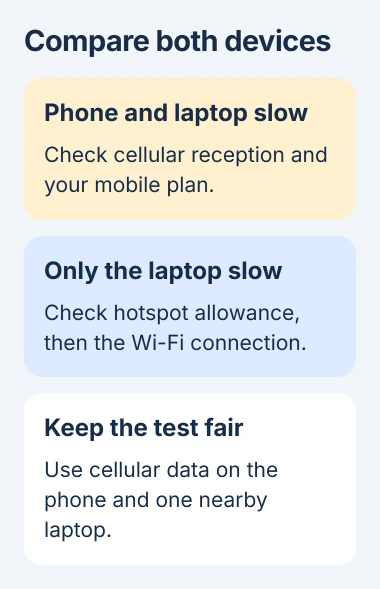
If both are slow, start with cellular service and your plan. If the phone is quick but your laptop crawls, check your hotspot allowance and the Wi-Fi link between them. These results tell you what to check next.
1. Compare the phone with one connected device
Disconnect other devices from the hotspot and pause large downloads or cloud uploads. Keep one laptop connected near the phone so several devices aren't competing during the check.
Turn off the phone's connection to any home or public Wi-Fi, leaving cellular data on. Test a familiar page or download on the phone, then on the connected laptop. The phone needs to be using the cellular service you're comparing.
Status: checked November 3, 2026. Apple, Google, Samsung, and Verizon document hotspot settings and limits. Speed depends on both the cellular service and the device connection.
To compare speeds, use the phone and laptop speed-test steps. Run the same test separately on each device, near the same time. Speed tests use data, so avoid repeated runs on a small allowance.
Note the upload speed too if video calls or sending files are the problem. A fast download result doesn't tell you how quickly your connection can send data.
If only one website is slow on both devices, check that service before changing hotspot settings. If every page and download is slow, follow the checks that match what you saw on the phone and laptop.
2. Check the hotspot allowance for your exact plan
Open your carrier's app or account page and find the hotspot or tethering allowance for the current billing cycle. It can be separate from the allowance for using data directly on the phone.
Google says some carriers limit tethering or charge extra. Unlimited data on your phone doesn't always include unlimited fast hotspot data.
Verizon's hotspot FAQ says speeds drop after you've used your plan's monthly high-speed hotspot allowance. Limits vary by plan, so check your own account instead of comparing it with someone else's.
This matters when the phone still loads pages quickly but every connected device is slow. Changing the Wi-Fi band won't remove a limit imposed by the carrier.
If you've used up the allowance, check when it resets. If the carrier offers extra hotspot data, read the terms before paying for it. If plenty remains, ask the carrier to confirm that tethering is active and unrestricted on that line.
3. Improve the phone's cellular connection
If your phone is slow on cellular data, move it somewhere with better reception and repeat one ordinary task. Try a nearby window or another room, keeping the connected laptop close.
A stronger signal may help, but the bars don't tell you how fast the connection is. A busy cellular network can be slow even with a strong signal, so check how the phone actually performs.
Restart the phone and the connected device if the slowdown began suddenly. Apple includes both restarts in its Personal Hotspot troubleshooting. Afterward, reconnect and compare under the same conditions.
Check for an available phone software update when the problem persists. On an iPhone, use Settings, General, Software Update. On a Galaxy, use Settings, Software update, then Download and install.
If the same location is fast at quiet times and slow during busy periods, give those times to the carrier. That helps the carrier check whether its local network is too busy, instead of sending you through unrelated laptop settings.
4. Try the faster supported hotspot band
On a Galaxy, open Settings, Connections, Mobile Hotspot and Tethering, then Mobile Hotspot. Open its information or configuration section and look for Band.
Samsung says 5 GHz provides better performance, while 2.4 GHz works with more devices. Try 5 GHz with the laptop nearby, then reconnect it to the hotspot and compare the same task.
If your laptop can no longer find or join the hotspot, switch back to 2.4 GHz. Choose the band both devices can use reliably; a higher number isn't always better for your setup.
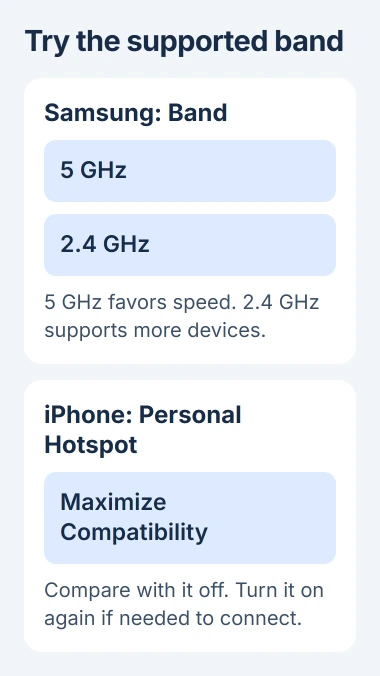
An iPhone uses a different control. Apple states that Maximize Compatibility can slow the connection when it's on. If your model has it, open Settings, Personal Hotspot, and compare speeds with the switch off.
Turn it back on if your other device needs it to connect. Apple's hotspot support page lists supported models, including iPhone 12 and later.
If the link keeps dropping entirely, use the iPhone hotspot disconnection guide. An unstable connection needs its own checks even when a brief speed test looks good.
5. Compare USB tethering where it's supported
Trying a cable can show whether the Wi-Fi connection between your phone and laptop is slowing things down. It still uses the phone's cellular service and the plan's tethering allowance.
Connect your Android phone to a supported Windows computer with a USB cable that carries data as well as power. On the phone, touch and hold Hotspot in Quick Settings, then enable USB tethering in its settings.
Google documents these Android steps but says they won't work with a Mac. For an iPhone connected to a Mac, Apple's hotspot page explains the iPhone USB network setup.
Disconnect your laptop from hotspot Wi-Fi so you know it's using the cable for this test. Try the same page or transfer again.
If the cable is much faster, check Wi-Fi compatibility, distance, or the laptop's wireless adapter. If both connections are slow, check cellular service, your plan, and tasks running on the devices.
6. Take the comparison to the right support team
If several devices are slow through both Wi-Fi and USB, contact the carrier with the plan, remaining allowance, location, and test time. Include whether the phone itself was fast or slow.
If only one laptop is slow beside the same phone, ask its maker about the Wi-Fi adapter and its driver, the software that runs it. Tell them which band you used and how the cable connection performed.
I'd save a full network reset for a specific connection fault or a step support recommends. It removes saved connection settings but won't fix a used-up hotspot allowance or a busy cellular network.
The Short Version
Compare cellular data on the phone with one nearby connected device. Check the hotspot allowance, then cellular reception and the supported Wi-Fi band. A USB comparison can help decide whether the wireless link needs attention.

Isaac Smith is the founder and editor of PC Glance, a website that covers computers, laptops, and technology. He is a tech enthusiast and a computer geek who loves to share his insights and help his readers make smart choices when buying tech gadgets or laptops. He is always curious and updated about the latest tech trends.