
A browser test is the simplest way to check WiFi speed on a laptop, iPhone or Android phone. Connect to the intended Wi-Fi network, open fast.com, and wait for the download test to finish. Use Show more info for upload speed and latency.
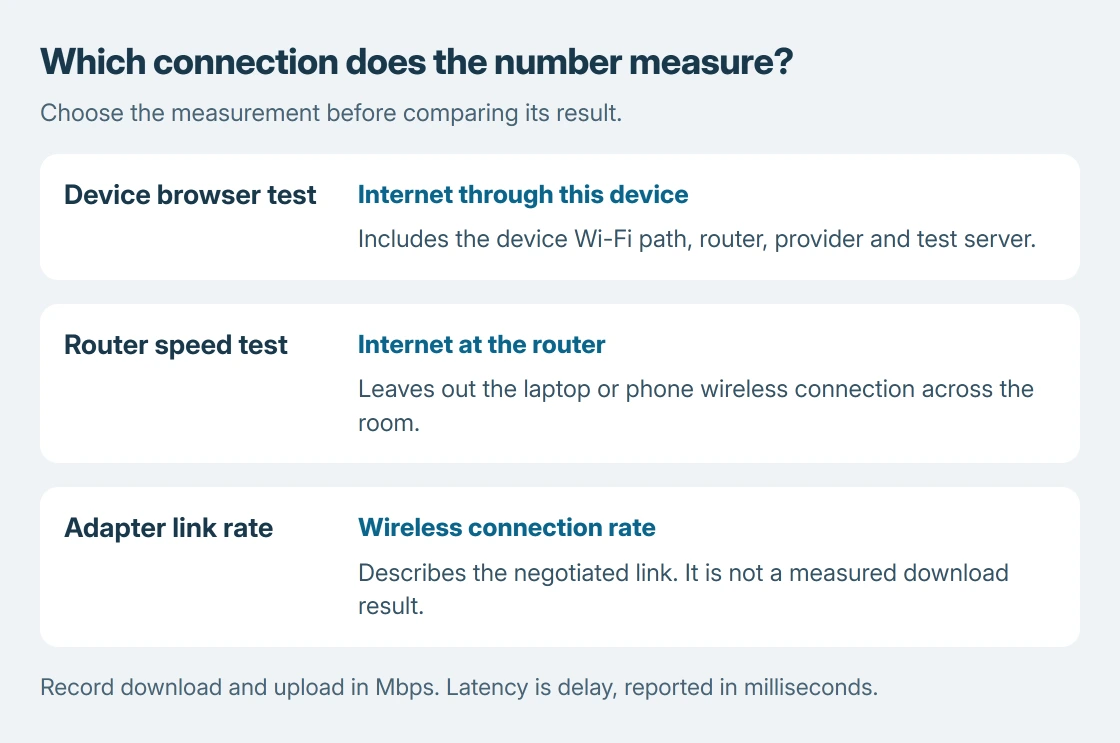
That measures internet performance through the device's current connection. It is different from the wireless link rate shown in an adapter's specifications or settings.
Run the test on the device and network that matter
Check the selected Wi-Fi network before opening the test. On a phone, make sure the measurement uses Wi-Fi rather than cellular service. A fast cellular result cannot establish the speed available at the laptop's desk.
Netflix says to open fast.com in a browser on a phone, tablet or computer in its internet-speed instructions. No separate speed-test app is needed for this method.
Status: FAST.com controls, Netflix's testing instructions and Google Home's router-test scope checked October 25, 2026. No speed measurement was run on this laptop.
Wait for the result to settle, then record the download figure and its unit. Select Show more info to reveal the upload and latency results. FAST.com's own explanation describes both unloaded and loaded latency.
Speed tests transfer data. Use particular care with a capped hotspot or metered service, and avoid repeating them unnecessarily.
Read download, upload and latency separately
Download
Download, in Mbps, describes receiving data. Use this result when comparing incoming transfers or streaming performance.
Upload
Upload, also in Mbps, describes sending data. This is the result to check for outgoing files.
Latency
Latency, in milliseconds, describes delay. It is not another bandwidth figure.
An upload result matters when a cloud backup or video call is the problem. A large download result alone does not establish that those outgoing tasks have enough capacity.
Loaded latency is measured while traffic is flowing, while unloaded latency measures the quieter connection. A large difference helps explain why a call responds poorly during a busy transfer even when downloads finish quickly.
Use the Wi-Fi and internet comparison when deciding which part a number describes. A browser test includes the path through the device, wireless connection, router, provider and test server.
Compare the usual location with a nearby position
The comparison method is ours: record one result at the usual desk, then repeat on the same device near the router. Keep the test service and other network activity as similar as practical.
Pause optional large transfers for this comparison, or record that they were running. A quiet-network test and a busy-household test answer different questions; neither should be silently substituted for the other.
Better performance near the router points toward the wireless path or local interference. Similar slow results in both places leave other possibilities, including the device, service plan and provider connection.
For a router with separate band names, compare the supported Wi-Fi bands from one location. Change one condition at a time so the result has a useful explanation.
A Google Home router test measures a different path
Google says its Nest and Google Wifi speed test measures from the router or primary Wifi point. It does not include the laptop's wireless trip across the room.
For supported networks, open Google Home > Home > Wifi > Network Preference > Run speed test. Compare that router result with the browser result, while remembering that the services can use different servers.
A strong router result with a weak device result shifts attention toward the device-to-router path. It is a reason for more targeted checks, not proof that the wireless adapter is defective.
If the complaint is interruptions between fast tests, read the native diagnostic reports. Throughput alone does not describe earlier disconnects.
If repeated results remain poor, give the internet provider the test times, device, connection type and results. For trouble confined to one device, its maker can check the adapter or software without replacing the household service first.
The Short Version
Test from the affected device on the intended Wi-Fi. Record download, upload and latency separately.
Compare locations under similar conditions, and distinguish a router test from a device test before deciding which connection needs attention.

Isaac Smith is the founder and editor of PC Glance, a website that covers computers, laptops, and technology. He is a tech enthusiast and a computer geek who loves to share his insights and help his readers make smart choices when buying tech gadgets or laptops. He is always curious and updated about the latest tech trends.