The reliable way to check your iPhone's Wi-Fi GHz is to open your router's app and inspect the phone's current connection. The iPhone's ordinary Wi-Fi information screen doesn't give you a simple live 2.4 GHz or 5 GHz reading.
A network name ending in 5G helps only if the owner assigned that name to the 5 GHz band. If both bands share a name, check your phone's connection in the router app. Google Home provides this check for Nest and Google Wifi networks.
In this guide
Start with the network your iPhone actually joined
Open Settings > Wi-Fi and find the network with the checkmark. That's the Wi-Fi network currently selected by the phone. Tap its information button to inspect the connection's details.
Write down the network name before opening the router app. A home can have a main network, a guest network and an extender with similar names. Check the device list for your phone's current network, rather than another one in the house.

Don't read the cellular 5G label as a Wi-Fi band. That label describes mobile service. 5 GHz is a frequency used by Wi-Fi; the similar names don't mean the same connection is being measured.
The curved Wi-Fi signal icon also doesn't identify the frequency. A strong connection can use either 2.4 GHz or 5 GHz. Signal strength and download speed won't tell you which frequency your phone is using.
Read the band in Google Home for Nest or Google Wifi
This method applies when Google Home manages your Nest Wifi, Nest Wifi Pro or Google Wifi network. Installing Google Home doesn't give it access to a router from a different manufacturer.
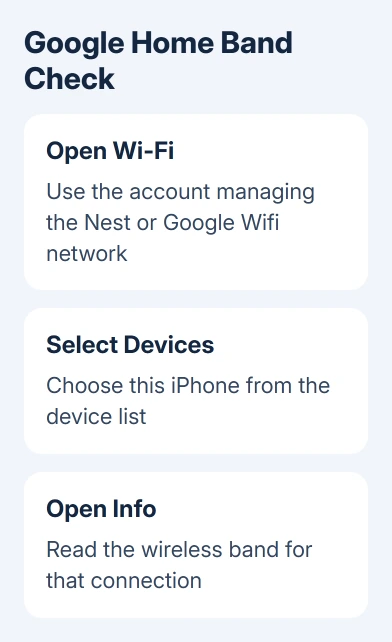
- Open Google Home using the account that manages the Wi-Fi network.
- Tap Wi-Fi, then choose the central Devices control.
- Find and select your iPhone in the device list.
- Open the Info tab and read the wireless band shown for your iPhone.
Google's band-check instructions use this device information screen. Check your phone's entry, rather than the router's specifications, which list all the bands it supports.
Nest Wifi and Google Wifi use 2.4 GHz and 5 GHz. Nest Wifi Pro also supports 6 GHz. These systems use a single network name across bands, so the iPhone's Wi-Fi list doesn't offer separate names for each frequency.
Two devices on the same network can therefore use different bands. Your iPhone might use 5 GHz while a nearby accessory uses 2.4 GHz. Using the same network name doesn't mean they're on the same frequency.
Use another router's connected-device information
For another router, open its app and find the connected devices list, sometimes called clients. Select your iPhone and look for Band, Frequency, or a detail showing which radio it's connected to. The wording depends on the router.
Use that model's manual to find the client-information screen. There isn't one universal iPhone menu or router-app path that works across every brand. Some apps give the frequency directly; others provide fewer connection details.
A list of supported bands tells you what the router can offer, rather than which one your phone is using. Look for the individual phone's current connection, not a page saying the router is dual band or tri band.
On someone else's network, ask its owner which band your iPhone is using. They can read it without sharing the administrator password. I'd get that reading before changing Wi-Fi settings.
For a workplace or school network, the administrator can check the access point serving your phone. Tell them the network name and the device information from the next section, so they check the correct connection.
Match the correct phone when several devices look alike
The router's device list can have several entries named iPhone. On the phone, open Settings > Wi-Fi, open the connected network's information button, and find its Wi-Fi Address. Compare that with the device address in the router app.
An iPhone can use a private address for each network. The router may see that rather than the hardware address in Settings > General > About. Match the address displayed for this Wi-Fi connection.
From iOS 18 onward, this private-address setting can show Off, Fixed, or Rotating. Fixed keeps a private address for that network; Rotating changes it periodically. You don't need to disable the feature just to inspect the frequency.
If an address recently changed, make sure you're reading an active connection rather than an old offline entry. The iPhone Wi-Fi privacy warning guide explains the privacy setting when the network also shows a warning.
Treat a network-name suffix as a hint
Names such as Home-2.4G and Home-5G often identify separate router bands. They help only when the owner has checked the router's configuration. A network name is editable text, so its suffix alone can't confirm the frequency.
Once the router owner confirms which name serves each band, join the intended one in Settings > Wi-Fi. Check your phone's connection in the router app again. That confirms its band after the change, rather than relying on the name.
For choosing rather than identifying a band, the 2.4 GHz and 5 GHz comparison covers range, speed and supported devices. A higher frequency isn't automatically the better connection in every room.
Apple recommends a shared name across a router's bands for normal use. Don't split a working network just to get a frequency label on your phone. The management app is the better place to read that information.
Identify 6 GHz on supported iPhones
Wi-Fi 6E and Wi-Fi 7 equipment can add a 6 GHz connection. Both the iPhone and router must support it, and availability depends on the region. A router supporting it doesn't make every iPhone a 6 GHz device.
On a supported iPhone connected to a Wi-Fi 6E or Wi-Fi 7 network, Settings > Wi-Fi > the connected network can show Wi-Fi 6E Mode. Choosing Off prevents use of that network's 6 GHz band.
Leave that setting alone when you're only checking the frequency. Seeing it tells you that the network and phone are compatible. To check the band your phone is using right now, read its current connection in the router app.
If your router doesn't show the band, give its maker the model and app version and ask how to view a wireless client's current frequency. A speed test or a cellular signal menu won't replace that missing router information.
The Short Version
Check the iPhone's selected network, then inspect its live entry in the router app. For Google Wifi or Nest, use Google Home, Wi-Fi, Devices and Info. Confirm the correct phone by its current Wi-Fi address when necessary.
Checked November 10, 2026.