
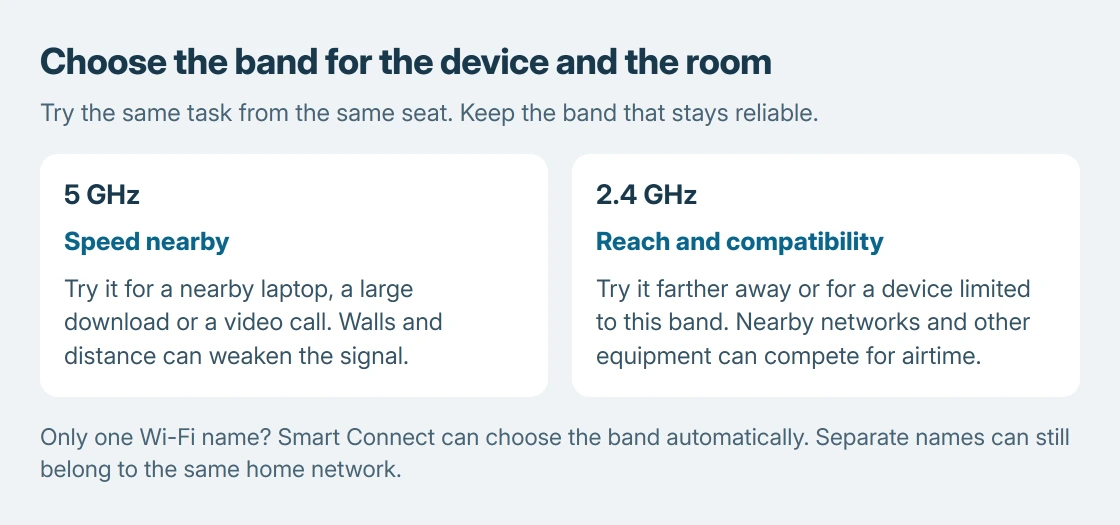
A dual band router offers 2.4 GHz and 5 GHz Wi-Fi. Try 5 GHz for a nearby laptop that needs speed, or 2.4 GHz when distance, walls or an older device prevent a reliable connection. The better band depends on the device and its location.
Both bands can serve the same home network and internet connection. Separate band names do not automatically mean devices cannot communicate, and a single network name does not mean the router has only one band.
Which band should the device use?
Start with the task and the signal at the place the device will actually stay. A fast connection beside the router says little about that band's reliability in an upstairs bedroom.
TP-Link describes 5 GHz as faster with a shorter useful range, while 2.4 GHz generally reaches farther through obstacles. Its signal and range guidance explains why walls affect the choice.
Status: TP-Link band selection and Smart Connect guidance checked October 25, 2026, with Microsoft's Windows connection steps. No router setting or wireless connection was changed.
| Situation | First band to try | What the result tells you |
|---|---|---|
| Laptop near the router, large downloads or video calls | 5 GHz | A stable connection suits this location |
| Device farther away or behind several walls | 2.4 GHz | Improved reliability points to a coverage limitation |
| Printer or sensor whose manual specifies 2.4 GHz only | 2.4 GHz | The device needs its supported band |
These are starting choices, not promised speeds. Congestion, the adapter and the internet service still matter. Neither frequency doubles the speed purchased from the provider.
Join the other band when the names are separate
Check the router's label or wireless settings for its actual network names. A suffix such as 5G is a naming convention, not proof of the band, and 5 GHz home Wi-Fi is separate from cellular 5G service.
On Windows 11, select the taskbar's network, sound or battery area. Open Manage Wi-Fi connections, choose the other network and select Connect. Supply its wireless password when requested.
Microsoft's Windows Wi-Fi connection instructions show this control. Windows 10 instead starts from the taskbar's Network icon.
Repeat the same download or call from the same seat. Our comparison keeps the location and task steady so the band change is the useful difference. Keep the band that stays reliable during the actual work.
For initial installation rather than a band change, the home Wi-Fi setup guide covers connecting the router and completing its internet setup.
Why does only one network name appear?
Band steering can put both frequencies under one name and password. TP-Link calls its implementation Smart Connect. The router assigns a compatible band rather than requiring a separate choice in Windows.
On supported TP-Link models, Advanced > Wireless > Wireless Settings contains that control. TP-Link says its Smart Connect instructions use an Archer AX50 example; another model's interface can differ.
Leave automatic selection in place when the devices work. For a 2.4 GHz device that fails setup with a shared name, TP-Link documents disabling Smart Connect to separate the bands.
Record the current names and credentials before applying changes.
Reconnect devices to the resulting network names and repeat setup with the intended band. Do not factory-reset the router merely to obtain a second name.
Treat a missing band differently from a weak signal
A device limited to 2.4 GHz cannot join 5 GHz. Microsoft says an adapter's supported frequencies and its Wireless Mode or Band setting can explain a network missing from the list.
Check the adapter and router manuals before changing drivers. If a second capable device sees 5 GHz beside the router but the laptop cannot, give the laptop maker the adapter model and the missing frequency.
If neither band reaches the room reliably, consider router placement first. The Wi-Fi extender guide explains the remaining coverage choices. Changing frequency cannot remove every physical obstacle.
The Short Version
Try 5 GHz nearby for speed and 2.4 GHz for reach or a device that requires it. A shared name can let the router choose automatically. Compare the actual task in one location before changing wider network settings.

Isaac Smith is the founder and editor of PC Glance, a website that covers computers, laptops, and technology. He is a tech enthusiast and a computer geek who loves to share his insights and help his readers make smart choices when buying tech gadgets or laptops. He is always curious and updated about the latest tech trends.