
Home Wi-Fi setup needs a wireless router and a device with Wi-Fi support. Internet access also requires active service from an internet provider.
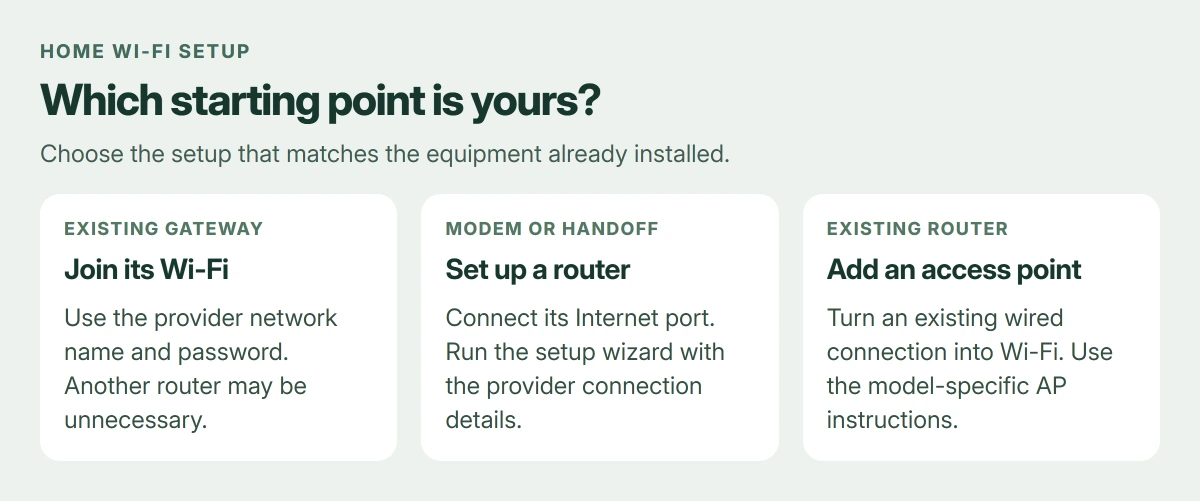
To install it, first check whether your provider's existing box already supplies wireless service. If it does, joining that network may be the entire job.
For a separate router, connect its Internet port to the modem or provider equipment, complete the maker's setup wizard, then join the new network on your PC. Buying a router does not activate internet service.
Check whether the provider already installed Wi-Fi
Look for a Wi-Fi network name and wireless password on the provider's equipment or setup paperwork. A combined gateway handles both the internet connection and the wireless network. It does not need a second router just to connect a laptop.
Microsoft documents the equipment needed in its wireless network setup guide. For a home with separate boxes, our modem and router comparison explains their jobs.
Status: Microsoft wireless setup and connection guidance, plus TP-Link router and access-point instructions, checked 23 October 2026. No home network was changed or tested.
If there is no active service yet, arrange installation with the internet provider. Fiber equipment and activation are provider-specific; use their instructions for the line entering the home.
Connect a separate router to the internet source
Use this section when the provider gives you a modem or an Ethernet internet handoff and you are adding your own router. Leave fiber connectors and provider configuration alone unless the provider directs otherwise.
- Find the router port labeled Internet or WAN in its manual.
- Connect that port by Ethernet cable to the modem's Ethernet output or the provider's designated handoff.
- Connect the router's supplied power adapter and turn it on.
- Follow the modem or provider's restart instructions if it does not recognize the new router.
- Join the router's initial Wi-Fi network using its label, or connect a PC to one of its LAN ports.
Port colors vary by model. TP-Link's current new-interface setup guide uses blue Internet ports, but the label and your router's manual decide which socket to use.
Run the maker's setup wizard
Open the manufacturer's setup app or the local management address printed in the manual. Use that address directly in the browser's address bar. A setup website found in an advertisement is unnecessary.
For supported TP-Link routers, the web setup begins at https://tplinkwifi.net/ while the device is connected to that router. Other brands and older interfaces use different addresses and menus.
TP-Link says the provider supplies the connection type and any required VLAN ID. PPPoE additionally needs a provider username and password. Do not substitute your Wi-Fi password for those credentials.
If the wizard cannot establish an internet connection, ask the provider for those details before changing random settings. A correctly named wireless network can exist even while its internet setup is incomplete.
Set the network name and two separate passwords
Create an administrator password when the router requests one. That protects its settings. Then choose the Wi-Fi network name and wireless password that laptops and phones will use to join.
Microsoft says to use WPA3 security when the router and PC both support it. For older devices, consult the router's compatibility options rather than leaving the network open.
Write down the network name and wireless password before applying the changes. Devices using the initial network can disconnect when its name changes; reconnect to the new name after the router finishes applying them.
Place the router centrally, raised from the floor and away from large metal objects. If one distant room remains weak, read the extender placement and speed limits before adding more equipment.
Join the new network on Windows
On Windows 11, select the network, sound or battery area of the taskbar. Open Manage Wi-Fi connections beside the Wi-Fi control, select your network, then Connect. Enter the wireless password and select Next.
Windows 10 uses the taskbar Network icon, then the network name and Connect. Microsoft's Wi-Fi connection instructions show both routes.
Open a website after connecting. Repeat with a second device using that Wi-Fi network. A network name in the list proves the router is broadcasting; a loaded page checks the internet connection as well.
For a desktop with no Wi-Fi hardware, a compatible wireless adapter is required. Check its Windows support before buying it. An absent Wi-Fi control on a previously working laptop needs adapter troubleshooting instead.
Adding Wi-Fi behind a router that already works
A second router is not always the right mode. TP-Link describes Access Point mode as turning an existing wired network connection into Wi-Fi without replacing the main router.
On supported models, select Advanced > Operation Mode or Advanced > System > Operation Mode, then Access Point Mode, and follow Quick Setup. Use that model's connection diagram because port use differs between methods.
If setup still leaves every device without internet, contact the provider with the modem's connection state and the router wizard's error. If only the new router fails, its maker can check the WAN configuration and hardware.
The Short Version
Check for an existing Wi-Fi gateway first. For a new router, connect its Internet port, complete its setup and connect Windows.
Use access-point mode when adding wireless coverage to an existing routed network.
Where to Next
Keep the router model, provider setup details and wireless credentials in a secure place. They make a future device replacement much easier to configure.

Isaac Smith is the founder and editor of PC Glance, a website that covers computers, laptops, and technology. He is a tech enthusiast and a computer geek who loves to share his insights and help his readers make smart choices when buying tech gadgets or laptops. He is always curious and updated about the latest tech trends.