To join Wi-Fi, open Settings > Wi-Fi, enable Wi-Fi, then choose your network. Enter its password if asked. A blue checkmark confirms it joined. Hotel and airport networks may still need a sign-in before websites load.
Every iPad can use Wi-Fi, including Wi-Fi + Cellular models. A cellular plan isn't needed to join your home router, and a phone's hotspot can provide a connection when ordinary Wi-Fi isn't available.
In this guide
Join the network from Settings
Open Settings, choose Wi-Fi, and turn its switch on. Wait for the network list to appear, then select the name supplied by the router's owner or network administrator.
At home, the network name and original Wi-Fi password may be printed on the router's label. If the owner changed either one, use the current details. The router administration password isn't necessarily the Wi-Fi password.
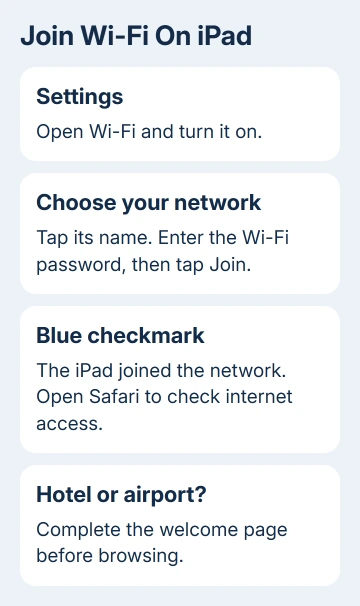
Select the network to bring up its password prompt. Match uppercase and lowercase letters carefully. Tap Join and wait for the result rather than immediately selecting another network.
Apple says the blue checkmark and Wi-Fi symbol confirm a connection. Open Safari and load a page to check internet access too.
If the password is rejected, ask the owner to confirm the Wi-Fi name and password. Re-entering an old password won't help. If it joins but Safari can't load anything, keep the network selected and look for a required sign-in.
I'd start in Settings even if you usually use Control Center. The network list makes it much clearer which network the iPad selected and whether it actually joined.
Enter a hidden network by its exact details
A hidden network doesn't broadcast its name in the ordinary list. If the owner confirms the network is hidden, tap Other in Settings > Wi-Fi to enter its details manually.
Enter the exact network name, select its Security type, and enter the password. Ask the administrator for the security choice instead of guessing between similar-looking options.
Then tap Join. Check for the network's name with a blue checkmark and test a page in Safari. A hidden network still needs the correct password and compatible security settings.
If a work or school network asks for a username, certificate, or another sign-in check, get its iPad instructions from the administrator. That isn't the same as joining a home network with one shared password.
For a normal home network that unexpectedly vanished, first check whether another device can see it. Don't create a hidden-network entry unless the owner confirms those are the settings the router actually uses.
Finish a hotel, airport, or cafe sign-in
Select the public network in Settings > Wi-Fi and wait for its welcome page. Enter the requested room details or account information, or accept the terms, to finish signing in.
If the welcome page doesn't appear, open the network's More Info button and choose Join Network when available. That brings up the network's login process rather than changing the iPad's Wi-Fi password.
A checkmark can appear before this sign-in is complete. It means your iPad has joined the Wi-Fi network, but the provider can still block internet access until the welcome page accepts your details.
Don't choose Without Internet when your goal is to browse online. That choice keeps your iPad connected to Wi-Fi but closes the welcome screen and turns off automatic login for that network.
After completing the page, open Safari again. If the sign-in page rejects your room number or subscription, ask the venue or network provider to check access for your device. An iPad reset won't fix an expired hotel login.
The sign-in page comes from the particular network, so its labels vary. Use the details supplied by that venue and check the price before agreeing to pay for access.
Share the password from a nearby Apple device
Someone already connected can share the Wi-Fi password from a nearby iPhone, iPad, or Mac. This avoids typing a long password, but both devices need Wi-Fi and Bluetooth on and their own Apple Accounts signed in.
Keep the devices close together, turn Personal Hotspot off on either device, and make sure Contacts contains the other person's Apple Account details, using their email or phone number. Update the devices if their software is old.
On your iPad, tap the network name in Wi-Fi settings. The person sharing should leave their connected device unlocked. When its sharing prompt appears, they tap Share Password, then Done.
Check the iPad's network checkmark and try Safari. If the sharing prompt never appears, restart each device before another attempt. The owner can also give you the password to enter manually; sharing isn't required to join.
For a connection that succeeds with the password but repeatedly drops afterward, use the iPad Wi-Fi fault checks. Password sharing only handles joining, not a connection that keeps dropping.
Use a phone hotspot when no router is available
On an iPhone providing the connection, open Settings > Personal Hotspot, or Settings > Cellular > Personal Hotspot, and turn on Allow Others to Join. Note its Wi-Fi password and keep that screen open while connecting.
On the iPad, open Settings > Wi-Fi and select the iPhone's name. Enter the hotspot password when asked. With matching Apple Accounts, Instant Hotspot can show the phone without requiring manual password entry.
The hotspot uses the phone's cellular data and requires carrier support. Check the plan and remaining allowance before downloading large files on the iPad. A Wi-Fi-only iPad can use that shared connection without its own SIM.
Leave the iPad beside the phone for the Safari test. If the phone itself has no usable cellular connection, its hotspot won't supply working internet just because the iPad joined it.
For a repeated hotspot failure, follow the Personal Hotspot troubleshooting steps. If every network fails, request an iPad connection check from Apple support; if only one fails, start with that network's owner.
The Short Version
Turn Wi-Fi on, choose the intended network and supply its password. Check for the blue checkmark, then test Safari. Finish public-network sign-ins separately, use Other for a hidden network, or join a supported phone hotspot.
Checked November 13, 2026.