T-Mobile Wi-Fi can stop working because of a device's connection or the gateway's internet service. Restart the gateway when all devices connect but nothing loads. For one failing laptop or phone, check its saved network and password first.
The steps here cover T-Mobile Home Internet using a cellular gateway. A phone's hotspot, ordinary phone data and T-Mobile Fiber use different equipment. Check which service you're using before resetting anything.
In this guide
1. Restart the gateway when the whole home loses access
Unplug the gateway for 30 seconds, then reconnect it. Wait two minutes before testing. Those are the wait times in T-Mobile's Home Internet troubleshooting instructions.
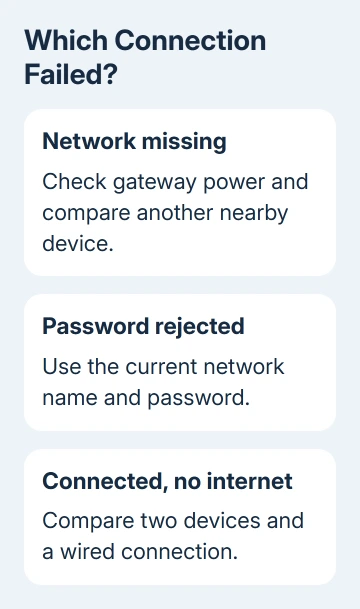
Once it's back, load a website on two Wi-Fi devices. This tells you whether they share the same problem. A laptop showing Connected has joined the wireless network, but the gateway might still lack internet access.
If the gateway won't power on, check its supplied power adapter, the power connection and a known working outlet. Use the gateway's own power button or switch where fitted. A dark, unpowered gateway can't broadcast its normal network.
If both devices now load pages, stop changing settings. If both remain offline, compare a wired connection in the next section. If only one stays offline, leave the gateway alone and go to the device-specific checks.
2. Compare Ethernet with Wi-Fi before blaming service
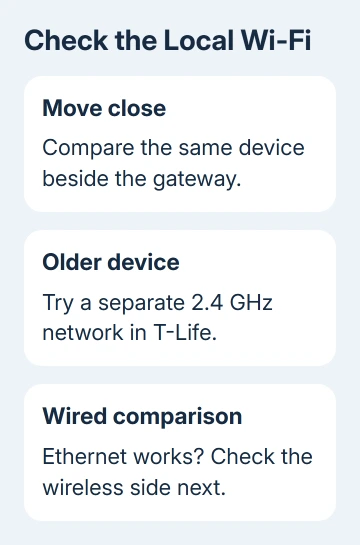
Connect a computer to the gateway by Ethernet if the computer has a compatible port or adapter. Test the same website while using that connection. A working wired connection points you to the gateway's wireless connection.
If wired and wireless access both fail, check the gateway's signal and connection in T-Life. Its diagnostics check Wi-Fi performance and cellular access. Follow your gateway model's instructions; controls can differ.
Strong Wi-Fi indoors doesn't mean strong cellular reception. The laptop can communicate with the gateway perfectly while the gateway struggles to reach the outside network. Both connections matter when checking internet access.
Note whether all devices stopped at the same time and whether the trouble started after moving or replacing the gateway. Support can use this to check service and gateway activation instead of troubleshooting each device separately.
3. Rejoin a visible network with the correct password
Check the exact network name on the gateway label or the name you configured. The default label password applies only if it hasn't been changed. A laptop can keep trying an old password after someone updates the gateway settings.
In Windows 11, open Settings > Network & internet > Wi-Fi > Manage known networks. Find the T-Mobile network and choose Forget. Reconnect from the taskbar's Wi-Fi list and enter the current password.
In Windows 10, open Settings > Network & Internet > Wi-Fi > Manage known networks. Select the network, choose Forget, then reconnect. Microsoft says its Wi-Fi connection checks cover these saved-network and adapter checks.
On an iPhone, open Settings > Wi-Fi, tap the network's information button, and choose Forget This Network. On an Android phone, open its Wi-Fi network details and choose Forget; the names vary by phone maker.
Keep the current password ready before forgetting the network. If it rejoins while others already work, replacing its saved connection fixed the problem. If the password is still rejected, compare it with the gateway's current settings.
4. Handle a network that doesn't appear
Bring the problem device close to the gateway and reopen its Wi-Fi list. Compare that list with another phone or computer beside it. If the second device sees the network, the first device needs an adapter or compatibility check.
In Windows Settings, enable Wi-Fi and disable Airplane mode. If the Wi-Fi control itself is absent, check the wireless adapter. Changing the gateway password won't restore a missing computer control.
An older device may need 2.4 GHz. Use T-Life to create distinct networks for each band, then test both. Follow your gateway's available settings; app labels can differ between generations.
If an Android phone fails on other Wi-Fi networks too, use the Android Wi-Fi checks for that phone. Failure on every network points to the phone; one older device missing a particular network suggests compatibility.
5. Fix distance-related drops separately from outages
Test beside the gateway before judging a distant bedroom. If access works nearby but drops farther away, check placement and interference. Large metal objects and closed cabinets can weaken the signal reaching your device.
Keep microwaves and other interference sources away from the gateway. Use the gateway's signal guidance to help choose a position. A useful location needs to support cellular reception as well as Wi-Fi access around the home.
If you use a separate mesh system, test near the gateway and near the mesh point separately. If only the mesh connection fails, the gateway itself can still be working. Move a mesh point into the open rather than hiding it behind furniture.
For a laptop that mainly loses Wi-Fi around sleep or battery use, the Windows disconnection guide covers its power settings. That pattern doesn't automatically mean the cellular service is going down.
6. Check replacement equipment and the service type
If a replacement gateway broadcasts Wi-Fi but has no internet, ask support to check its activation. Give both gateway models and mention any supplied SIM instructions. Follow its instructions rather than guessing where parts go.
If the network comes from your phone's hotspot, check whether the phone itself can use cellular data while Wi-Fi is disabled. A failed phone-data connection won't be repaired by restarting an unrelated Home Internet gateway.
For T-Mobile Fiber, use fiber support and report its equipment status. Cellular-gateway instructions don't describe that optical connection. Check the account's service name so support knows which equipment to inspect.
If Ethernet and Wi-Fi still fail, give Home Internet support the model, diagnostics result, when the problem started and what happened over Ethernet. Ask them to check service and activation, then whether the gateway needs replacing.
The Short Version
Restart the Home Internet gateway for a shared outage. For a single-device fault, rejoin with the current password. Compare Ethernet and Wi-Fi, then check older-device band compatibility. Hotspots and Fiber need separate service checks.
Checked November 13, 2026.